
EmailVerify.io Google Sheets Add-on
The Google Sheets add-on from EmailVerify.io allows you to validate email addresses right inside your spreadsheets. This helps keep your data accurate, reduces bounce rates, and ensures you’re reaching real, deliverable contacts. You can verify emails without leaving Google Sheets, making your workflow smoother and more efficient.
Once connected, you can:
- Import and verify email addresses directly from your spreadsheet columns.
- Run bulk email verification for large lists.
- Automatically populate verification results next to your existing data.
This integration preserves your original spreadsheet structure while adding a new column for verification results, allowing you to maintain clean and actionable data without altering your workflow.
Prerequisites
Before setting up the add-on, ensure you have:
- An active Google account.
- A free EmailVerify.io account.
- Permission to install Google Workspace add-ons.
The connection uses a secure API key generated from your EmailVerify.io dashboard. Your Google credentials are never stored or shared.
Step-by-Step Integration Setup
Follow these steps to connect EmailVerify.io to Google Sheets and start validating your email data.
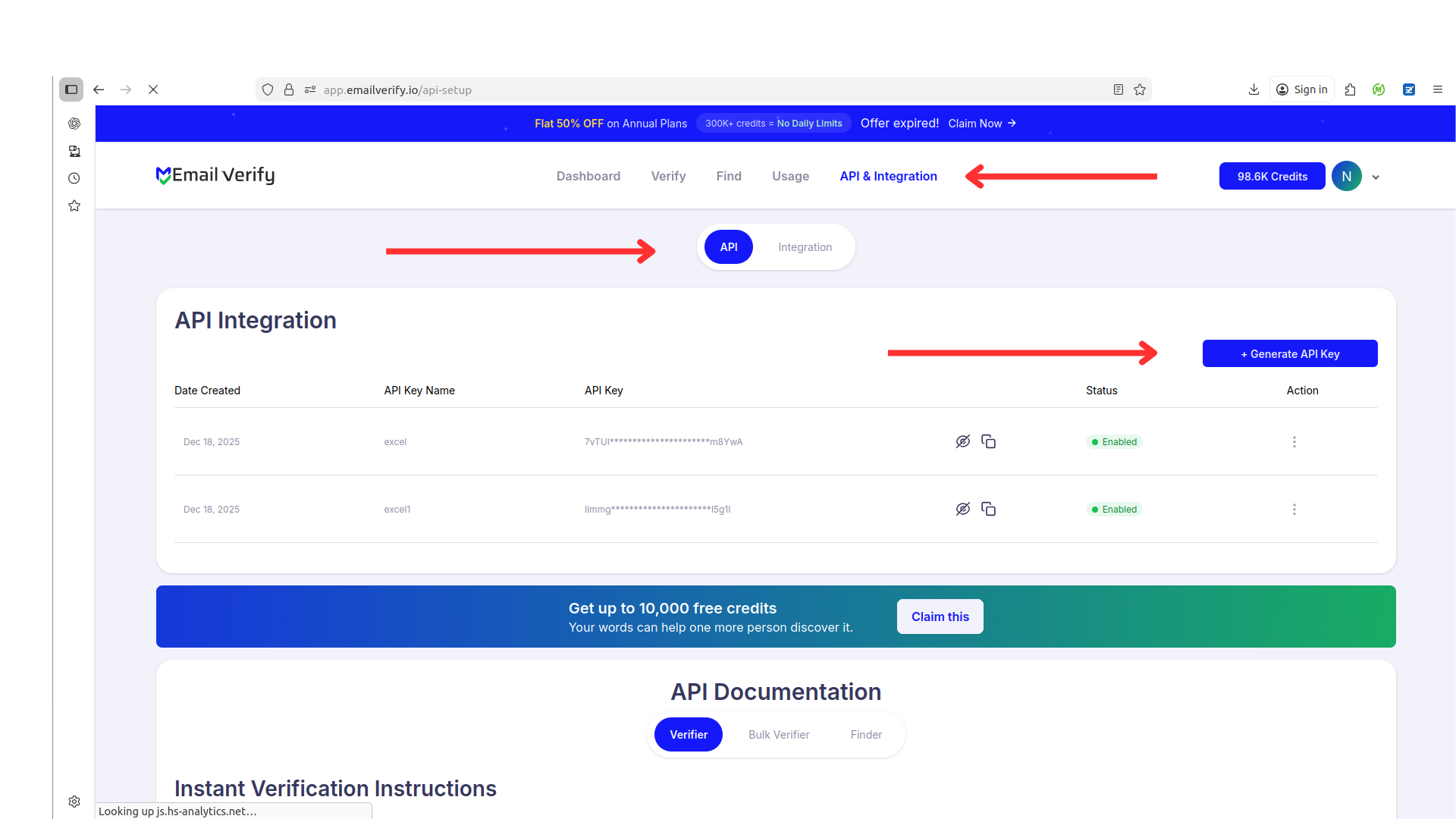
Step 1: Generate an API Key
Sign in to your EmailVerify.io account at app.emailverify.io. Navigate to the API section and generate a new API key to connect your Google Sheets add-on.
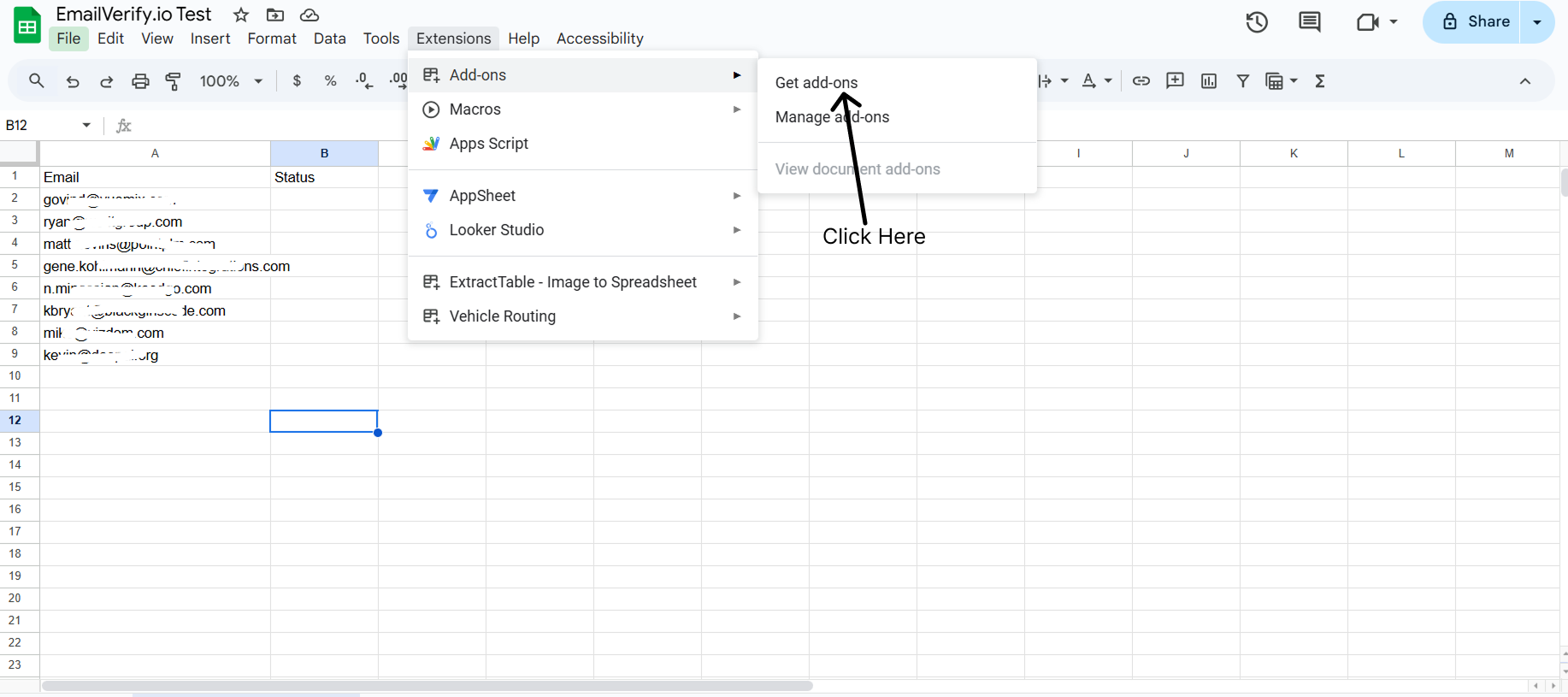
Step 2: Open the Add-ons Marketplace
In Google Sheets, go to the menu: Extensions > Add-ons > Get add-ons. This will open the Google Workspace Marketplace.
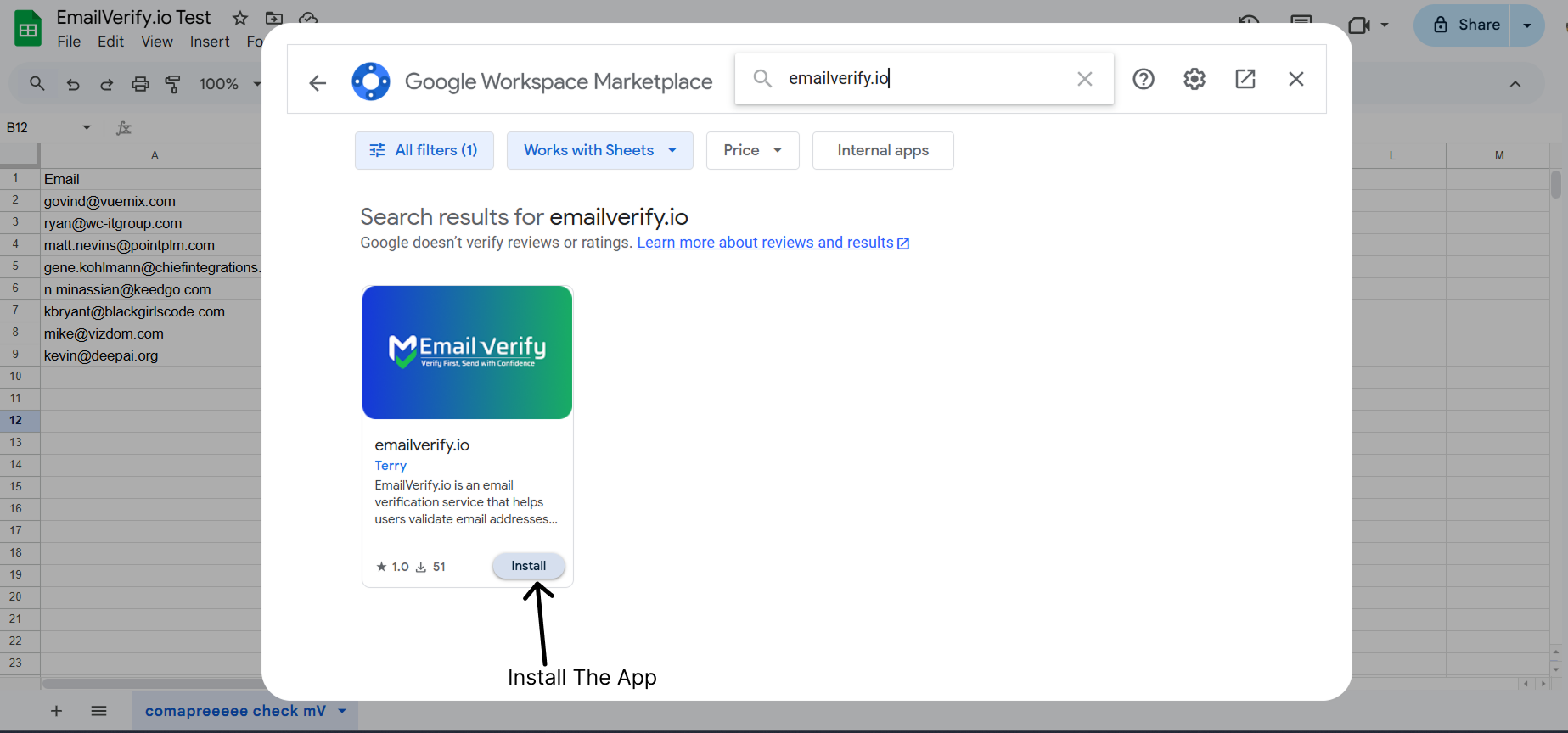
Step 3: Install the EmailVerify.io Add-on
Search for “EmailVerify.io” in the marketplace. Select the official add-on and click Install to add it to your Google Sheets.
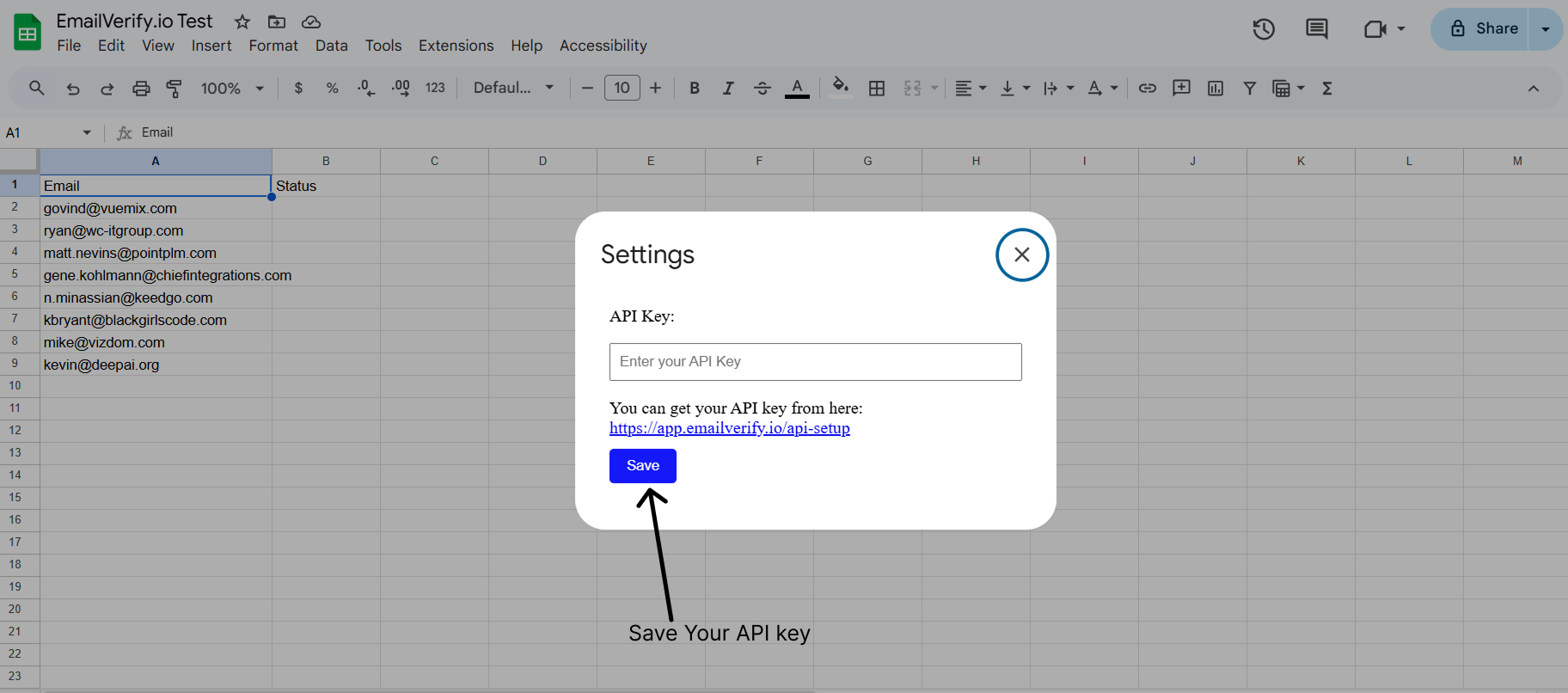
Step 4: Connect Your API Key
Once installed, go to Extensions > EmailVerify.io > Settings. Paste the API key generated in Step 1 to authorize your account.
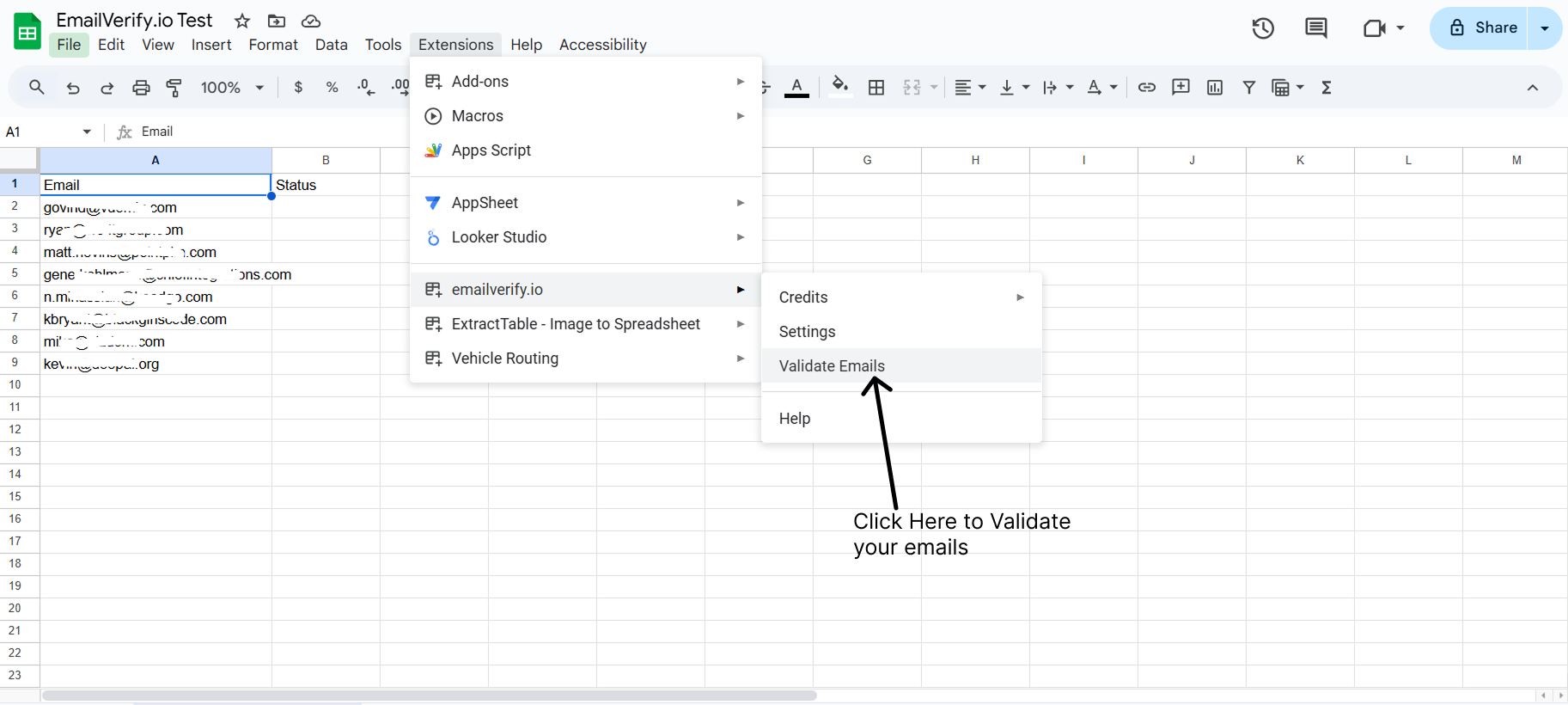
Step 5: Verify Emails
Select Extensions > EmailVerify.io > Validate Emails. Choose the column containing email addresses and click Validate Emails to run the process.
Step 6: View Verification Results
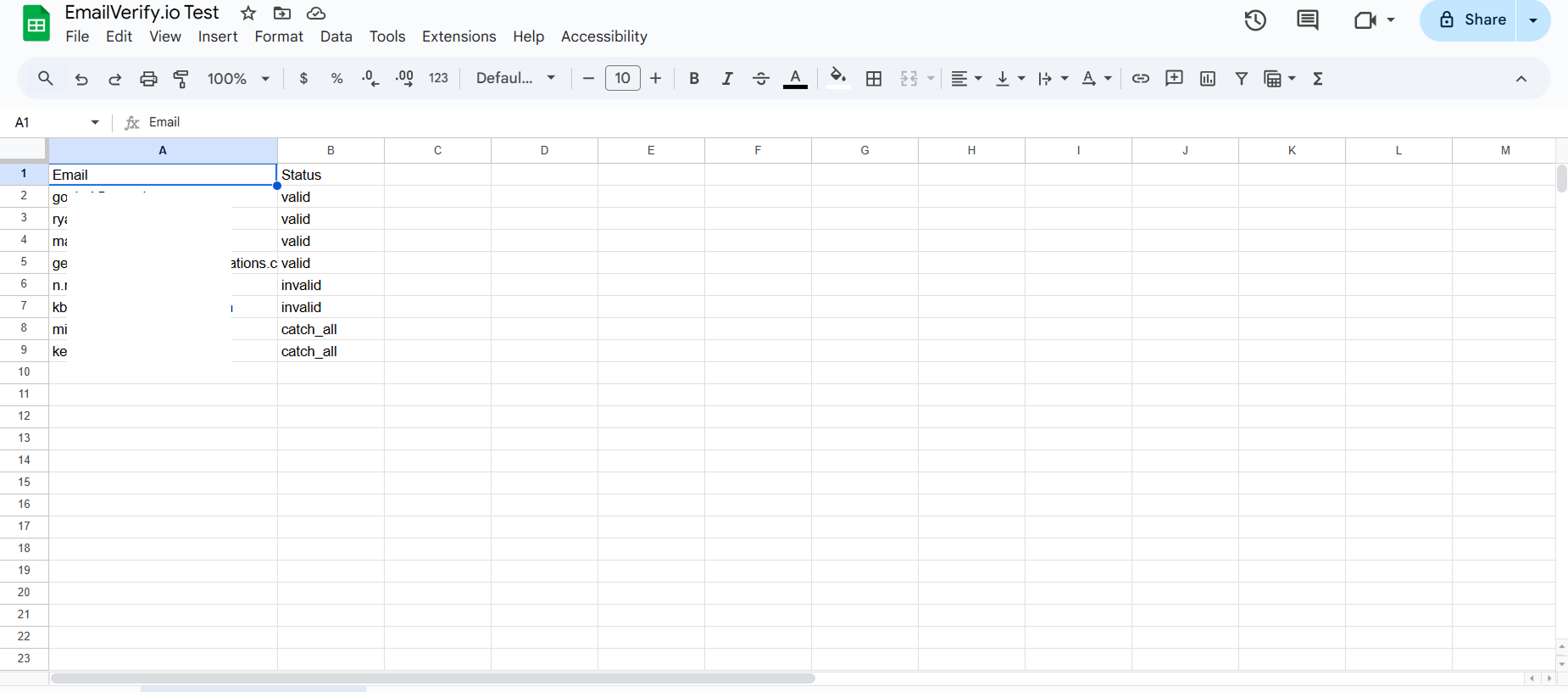
After processing, a new column labeled "Status" will be added next to your email data. Each row will display the verification result for the corresponding email address.
Setup Complete
You have successfully connected EmailVerify.io to Google Sheets. Your add-on is now ready to validate email addresses directly within your spreadsheets.
You can start verifying email columns anytime from the Extensions menu and keep your contact data accurate without leaving Google Sheets.
Troubleshooting & Tips
If you encounter any issues, review the tips below.
- Make sure your API key is copied correctly without extra spaces.
- Confirm you installed the add-on using the correct Google account.
- Ensure you select the correct email column before running verification.
- Refresh the spreadsheet if results do not appear immediately.
- For large lists, verify emails in smaller batches if processing takes longer than expected.
Get your Google Sheets Campaign-Ready Today!
Try the EmailVerify.io Google Sheets add-on and ensure your contacts are always real and reachable.