
Integration with Zoho CRM
EmailVerify.io keeps your Zoho CRM contact data accurate and reliable. It verifies emails in real time, identifying invalid, disposable, role-based, and catch-all addresses to reduce bounce rates and improve deliverability.
With this integration, you can import contacts from Zoho CRM, validate them in EmailVerify.io, and automatically sync results back, ensuring your teams work with clean, high-quality data.
Prerequisites
Before starting the integration, ensure you have:
- A valid Zoho CRM account.
- A free EmailVerify.io account with available verification credits.
- Access to a browser to log in to both platforms.
Step-by-Step Integration Setup
Follow these steps to connect Zoho CRM and verify your contacts.
Step 1: Sign in to EmailVerify.io
Sign in to your EmailVerify.io account using your credentials and navigate to the Integrations section from the dashboard.

Step 2: Connect Zoho CRM
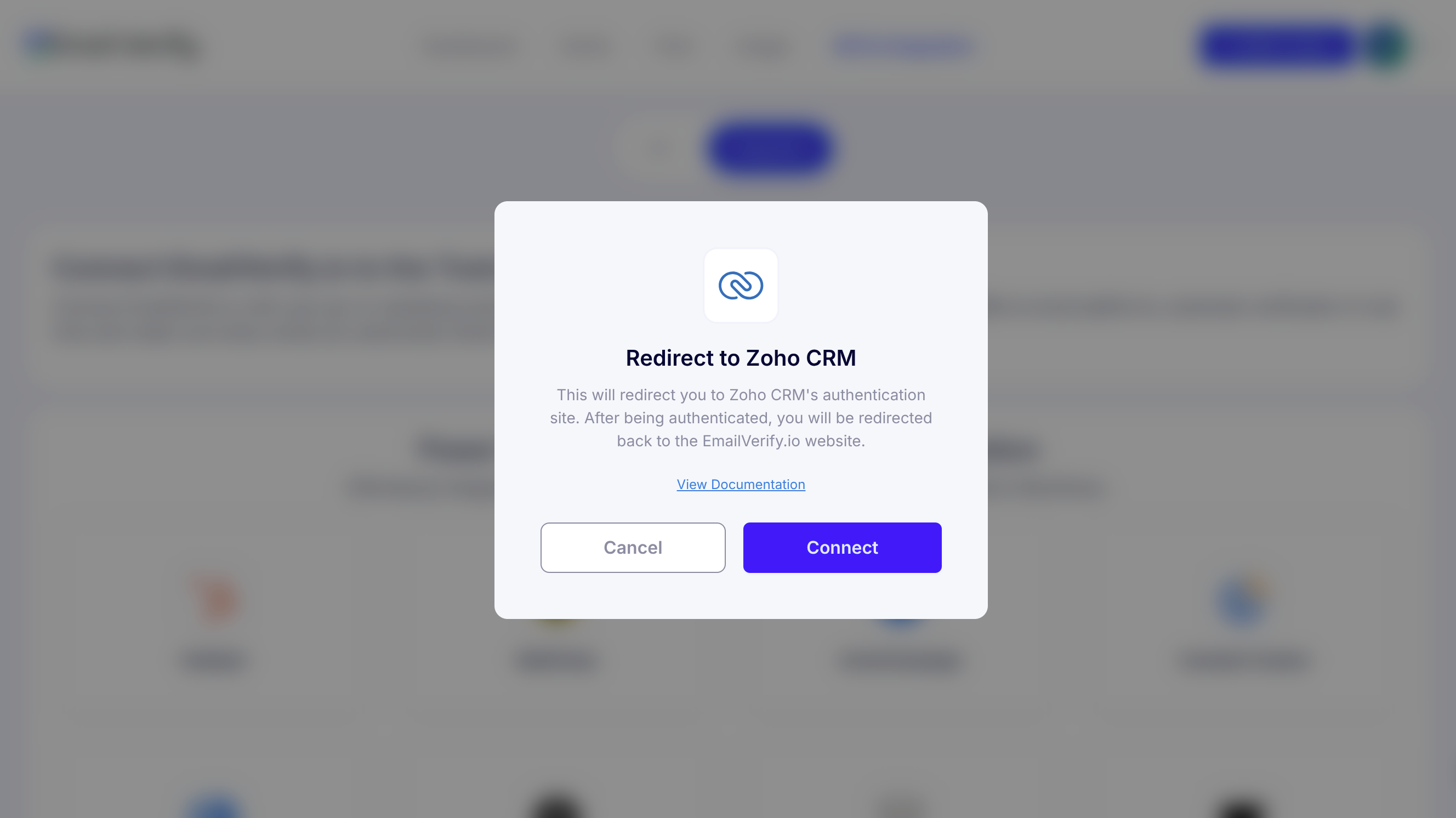
On the Integrations page, select Zoho from the list of available integrations, then click Connect in the Zoho CRM pop-up to start linking your accounts.
Step 3: Authorize Access
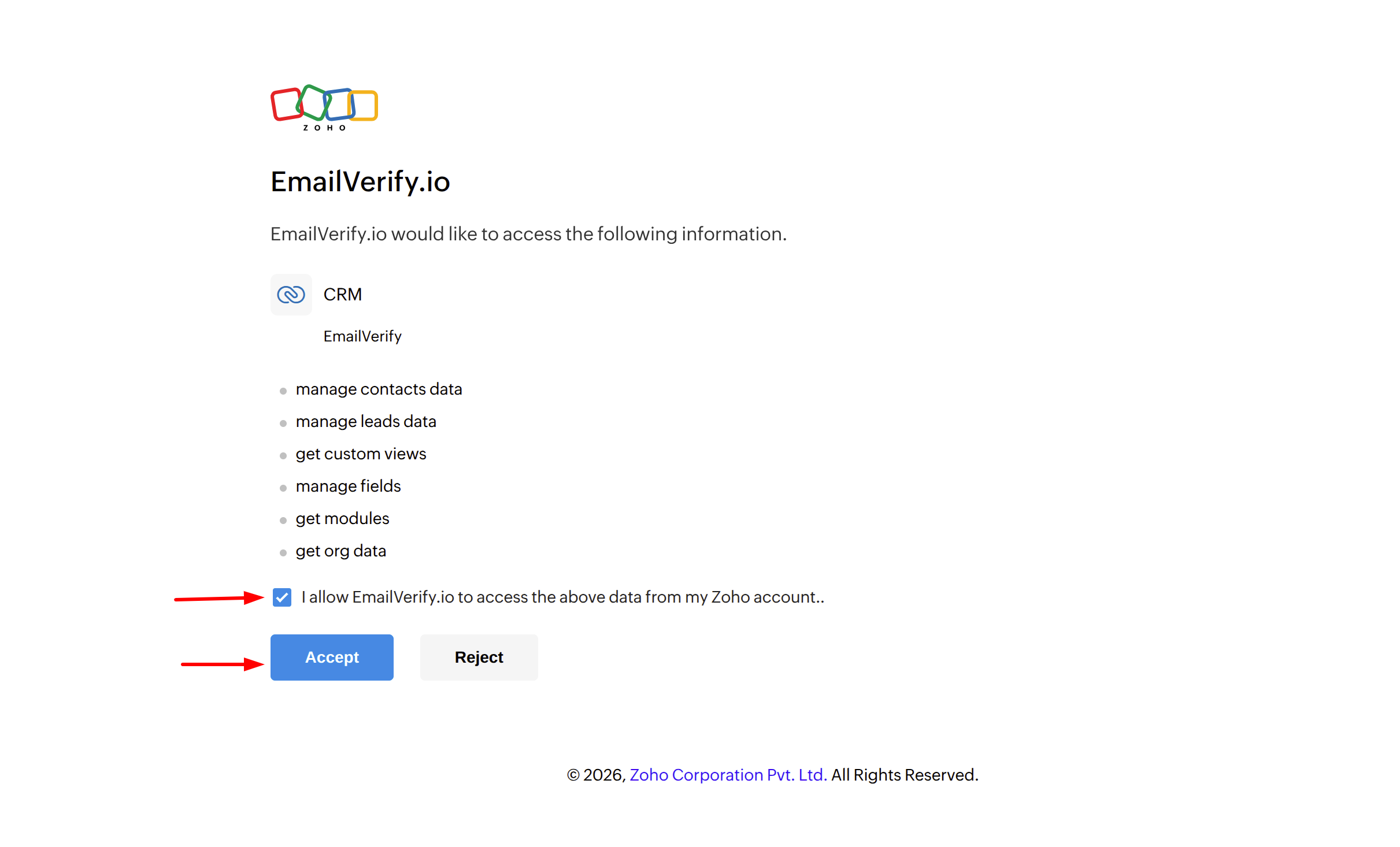
On the Zoho authorization screen, click Accept to grant EmailVerify.io access, and the integration will be connected.
Step 4: Access Contacts and Leads
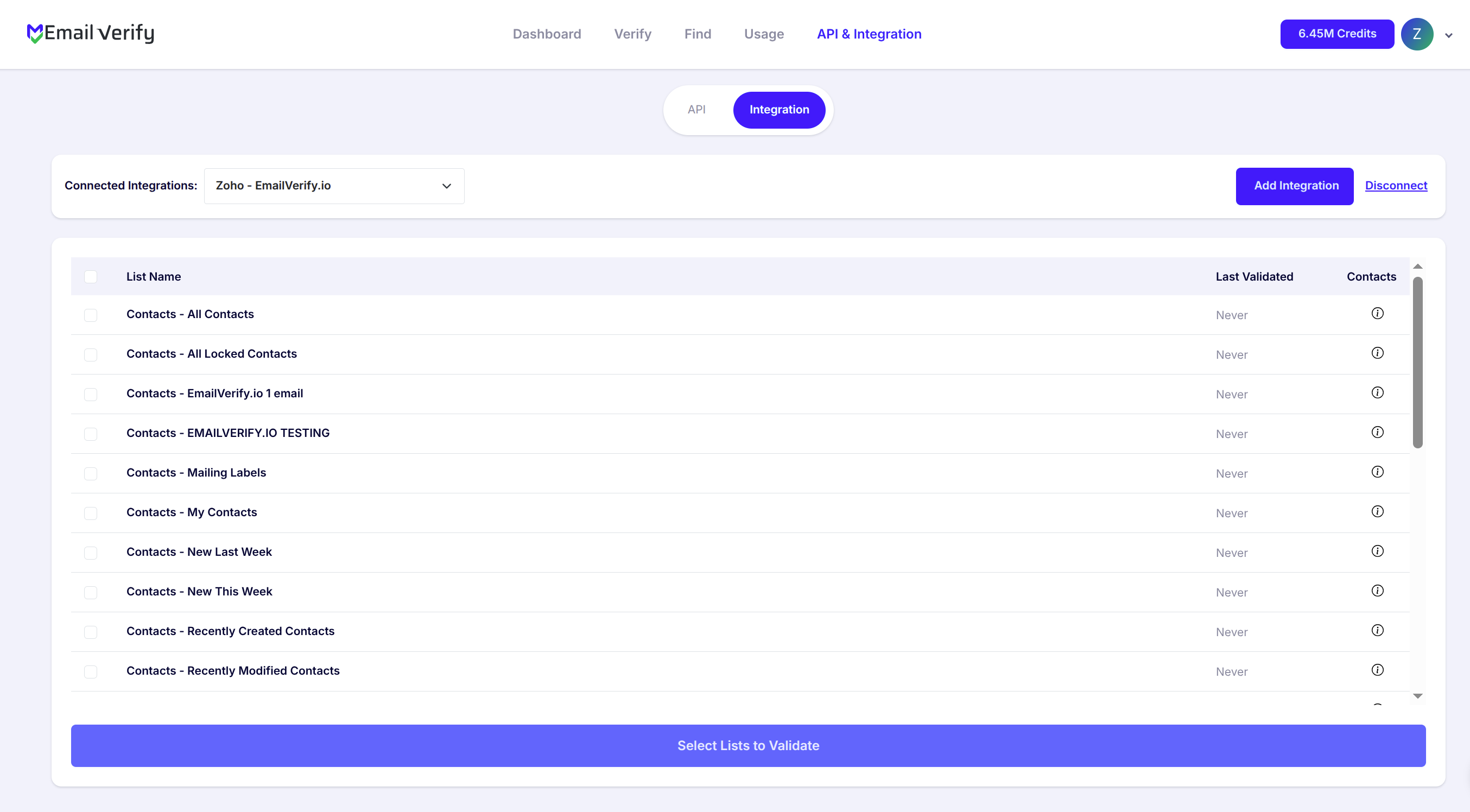
Once authorized, your Zoho CRM contacts and leads will appear under the EmailVerify.io integration page, allowing you to browse and select the contacts you want to verify.
Step 5: Validate Contacts
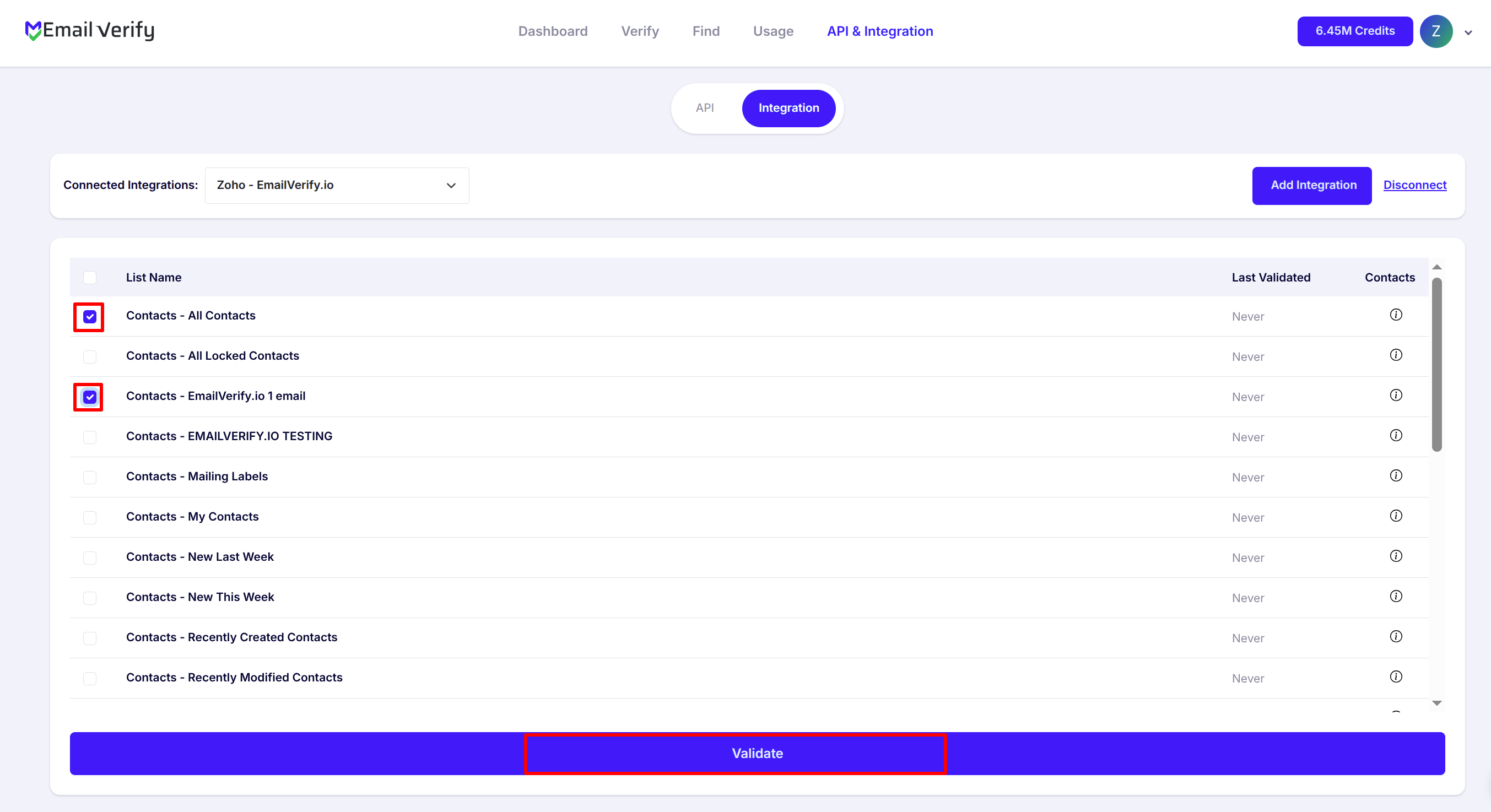
Select the contacts or leads to verify and click Validate to initiate the process. The verification results will automatically sync back to Zoho CRM.
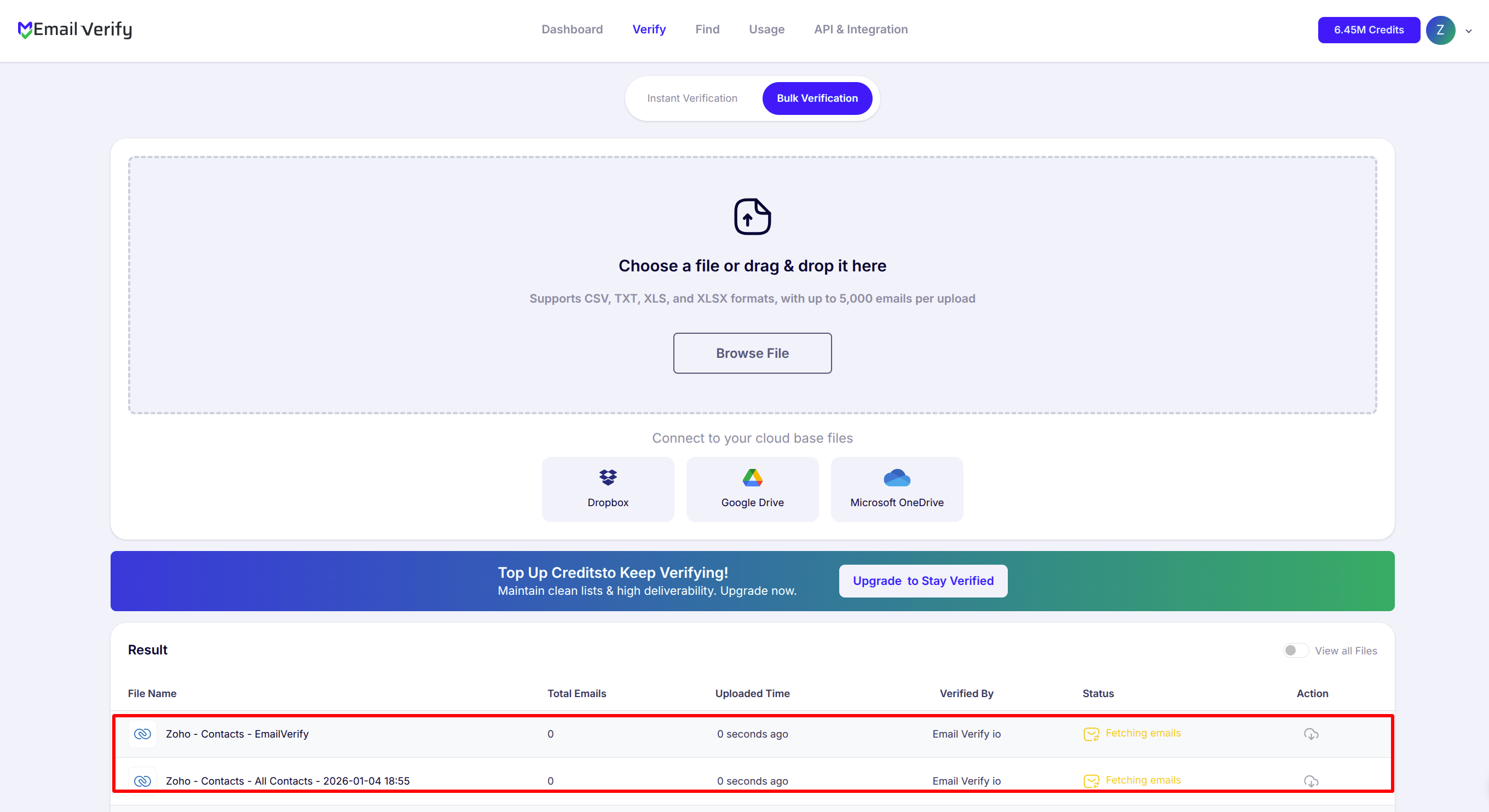
Step 6: Monitor Progress
You’ll be redirected to the Bulk Verification page to track the processing of selected lists. Verification runs automatically in the background.
Each record will include:
- EV_Status
- EV_SubStatus
- EV_Validation_Timestamp
Step 7: Download Results
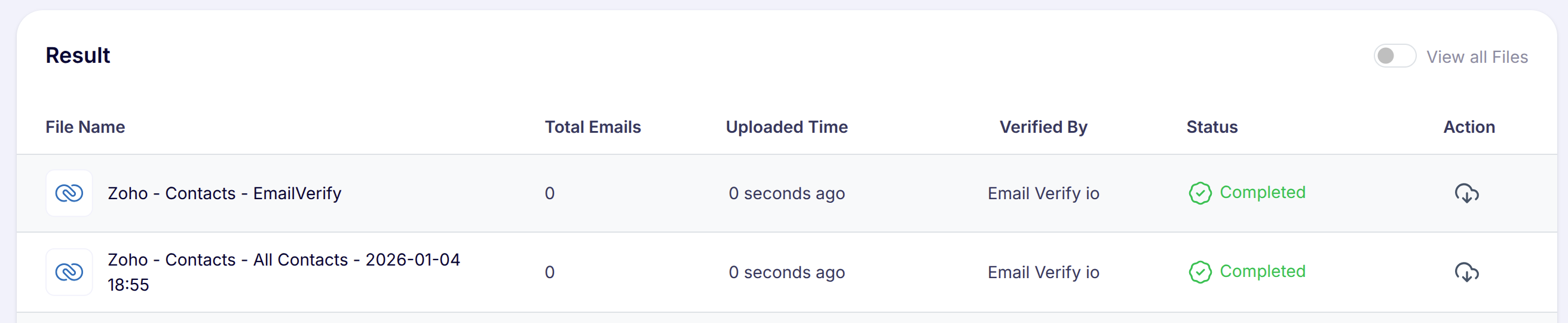
When verification is complete, you will receive an email notification, and you can click Download to access the verified list if needed. The results are already updated in Zoho CRM for immediate use.
Troubleshooting & Tips
If you encounter any issues or want to optimize your verification process, consider the following tips:
- Refresh the integration page if your contacts do not appear, and ensure your connected Zoho account has the correct access permissions.
- Check that your EmailVerify.io account has enough verification credits if the verification process does not start for selected contacts.
- Run verifications regularly to maintain high-quality contact data and reduce email bounce rates.
- Use the verification fields in Zoho CRM to filter, segment, and trigger workflows based on email quality.
Your CRM Deserves Clean Data.
Sync EmailVerify.io with Zoho CRM to automatically validate emails and provide your marketing team with reliable contacts.