
Integration with Pipedrive
The EmailVerify.io integration for Pipedrive helps you validate email addresses stored in your CRM. This ensures your contact data stays accurate, reduces bounce rates, and protects your sender reputation.
Once connected, you can:
- Import and verify email addresses directly from Pipedrive contacts.
- Run bulk email verification for large CRM lists.
- Automatically sync verification results back to Pipedrive, with clear statuses for each contact.
This integration adds verification data to your CRM without modifying or deleting records, preserving your existing workflows while keeping your contact lists actionable and clean.
Prerequisites
Before setting up the integration, ensure you have:
- An active Pipedrive account.
- A free EmailVerify.io account.
- Permission to install and authorize third-party apps in Pipedrive.
The integration uses secure OAuth 2.0 authentication. Your Pipedrive credentials are never stored or shared.
Step-by-Step Integration Setup
Follow these steps to connect EmailVerify.io to Pipedrive and start validating your CRM contacts:
Step 1: Sign in to EmailVerify.io
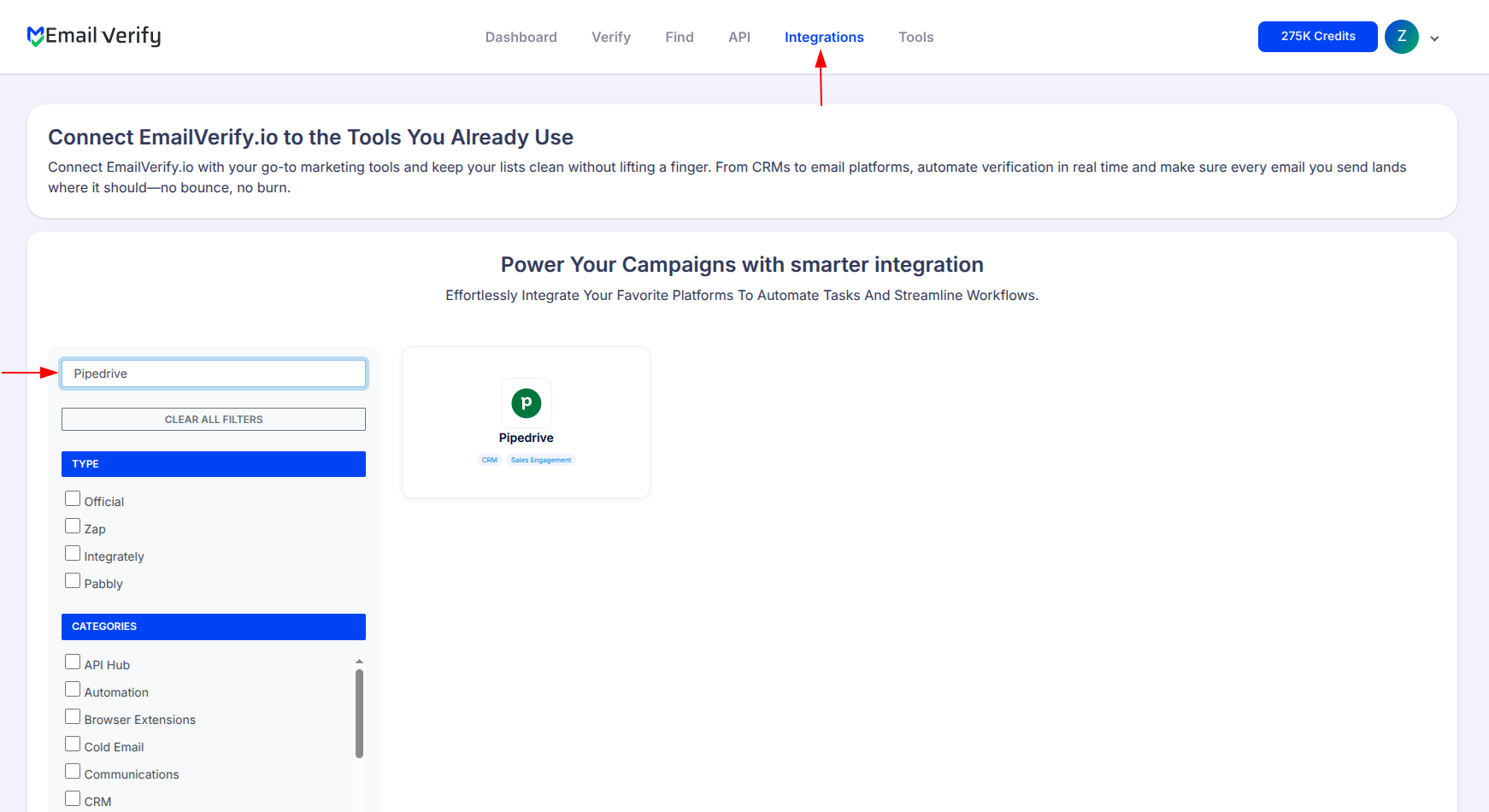
Log in to your EmailVerify.io account at app.emailverify.io. Navigate to the Integrations section and search for Pipedrive.
Step 2: Open the Pipedrive Integration
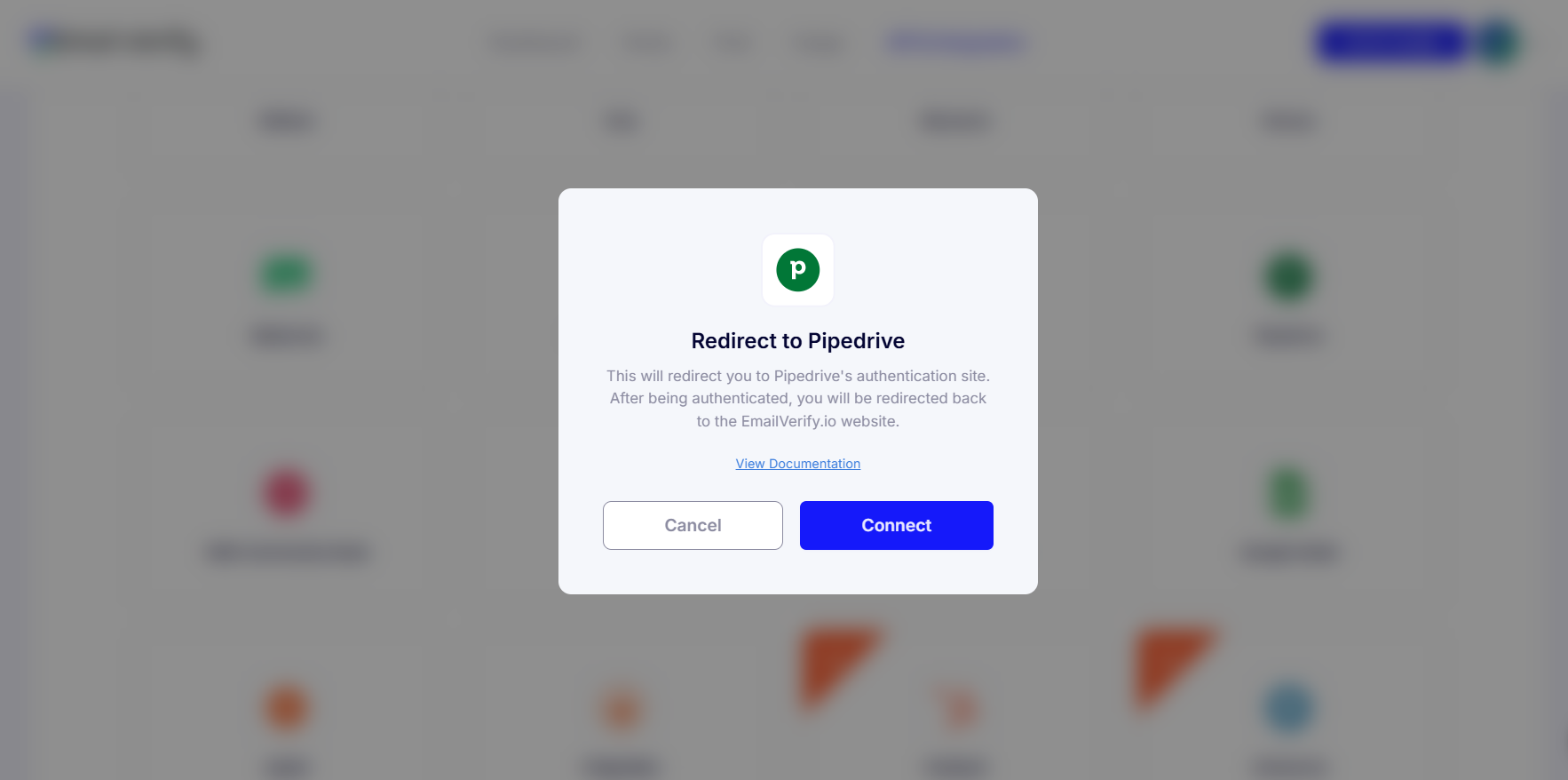
Select Pipedrive from the integration list. A Pipedrive Connect pop-up will appear. Click Connect to initiate the integration.
Step 3: Sign in to Pipedrive
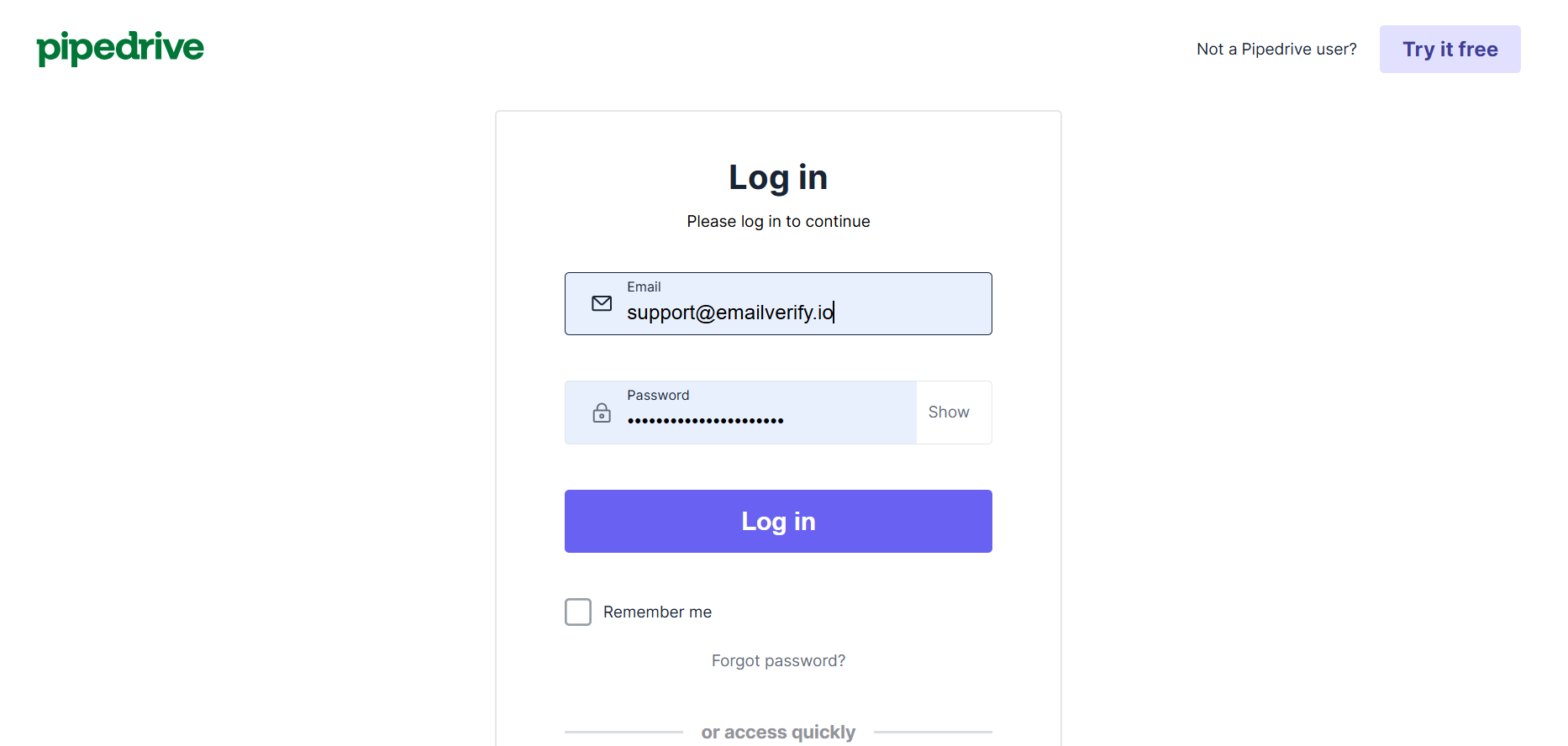
You will be redirected to Pipedrive’s login page. Log in to continue.
Step 4: Grant Permission
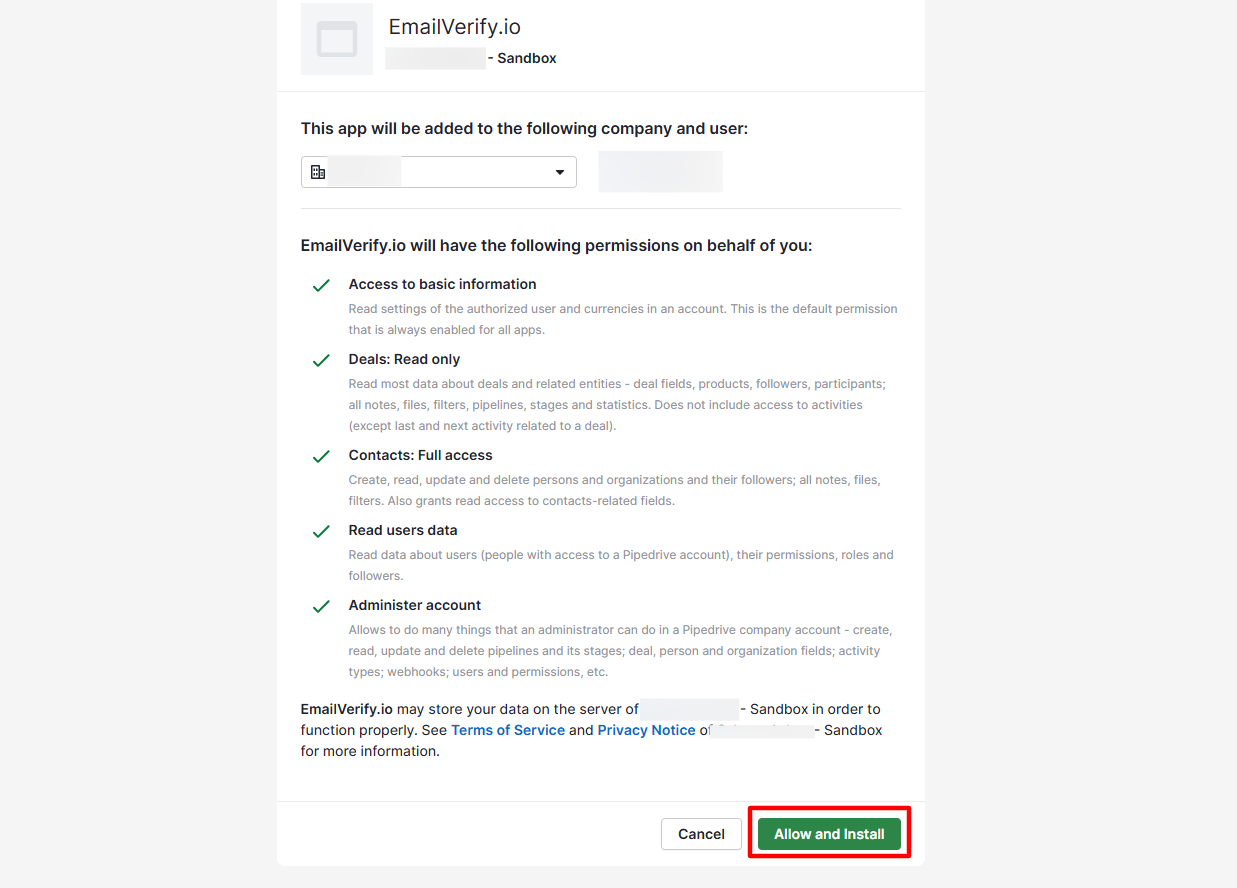
On the permission screen, click Allow and Install to authorize EmailVerify.io to access your Pipedrive contacts.
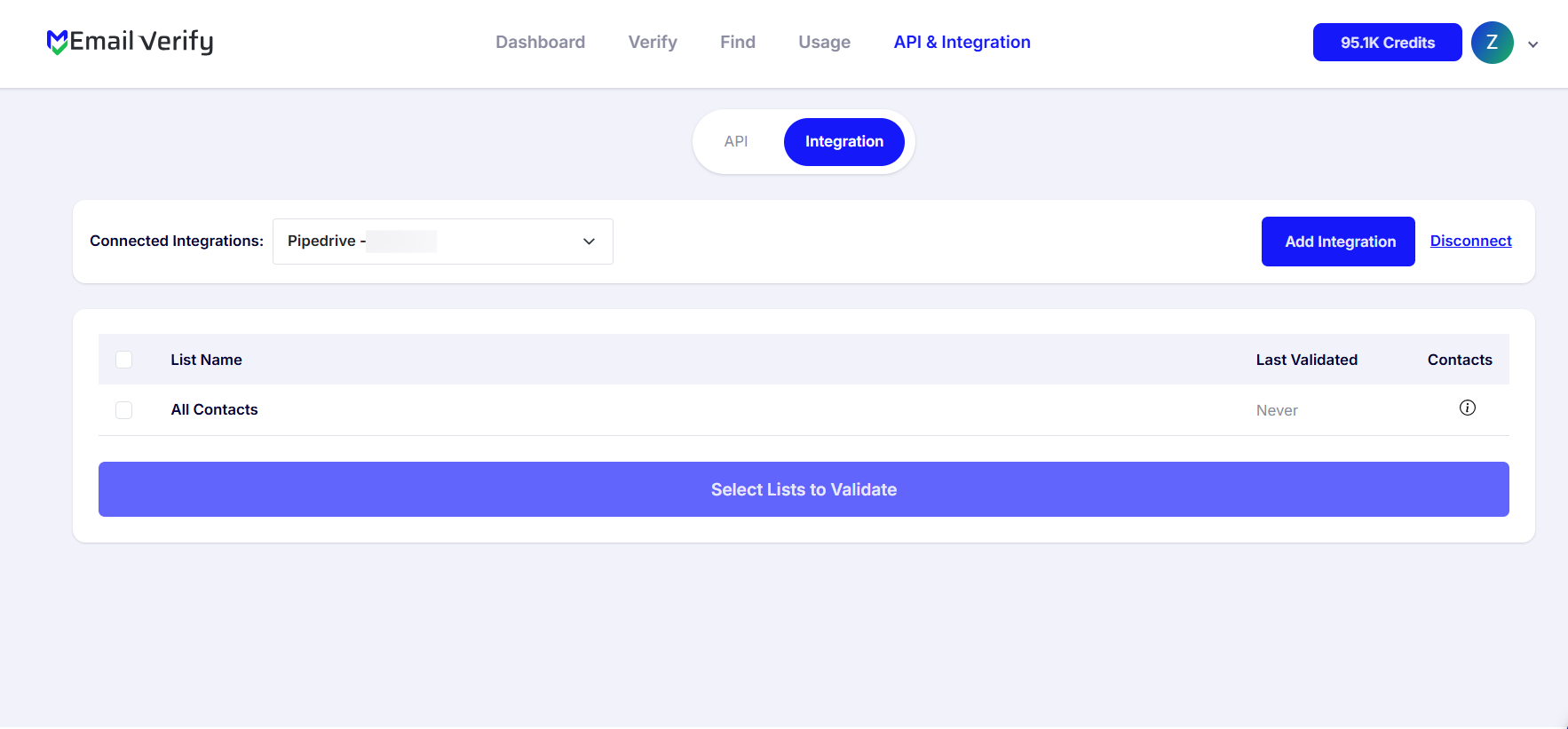
Step 5: View Pipedrive Contacts
After authorization, your Pipedrive contacts will appear in the EmailVerify.io Integrations page.
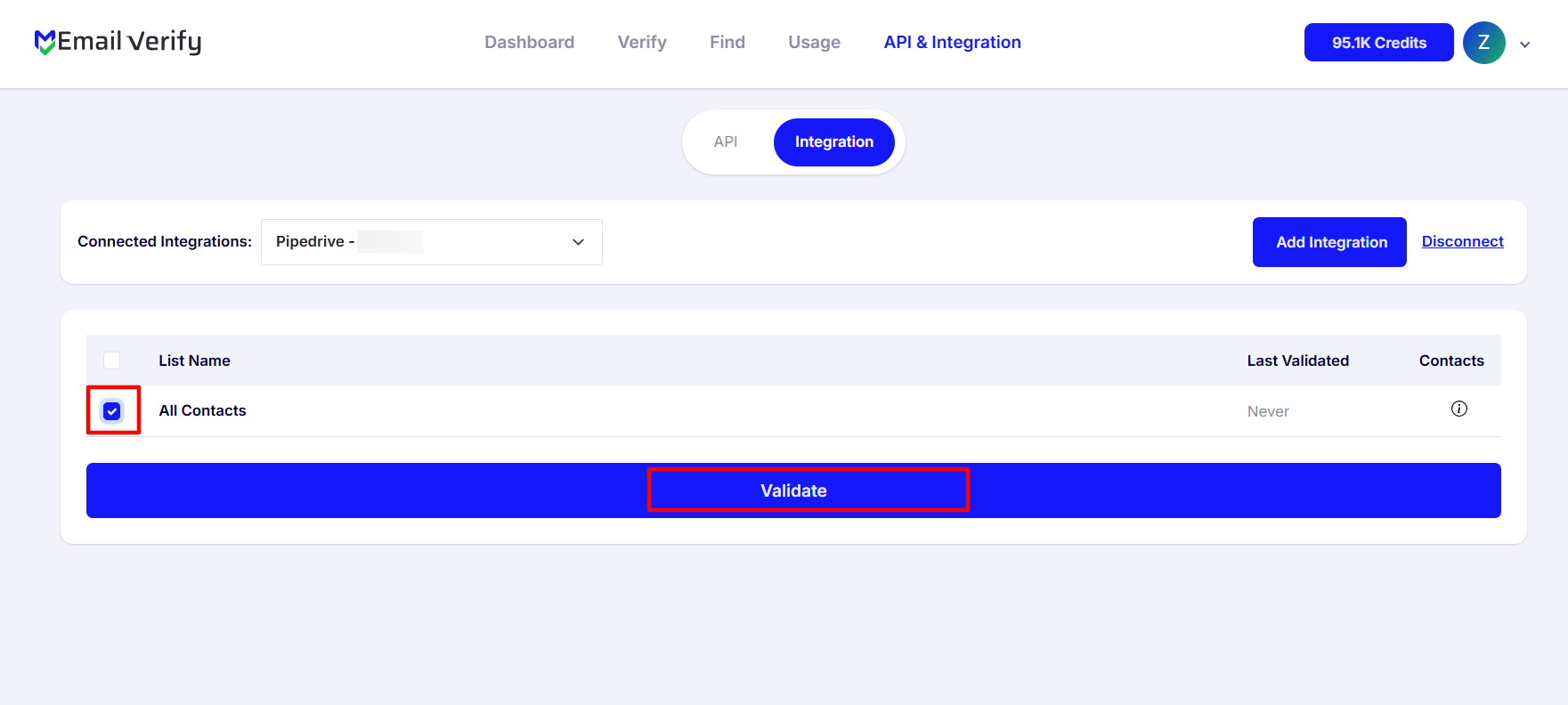
Step 6: Choose Contacts to Validate
Select the contacts you want to verify and click Validate. Your selected records will be queued for processing.
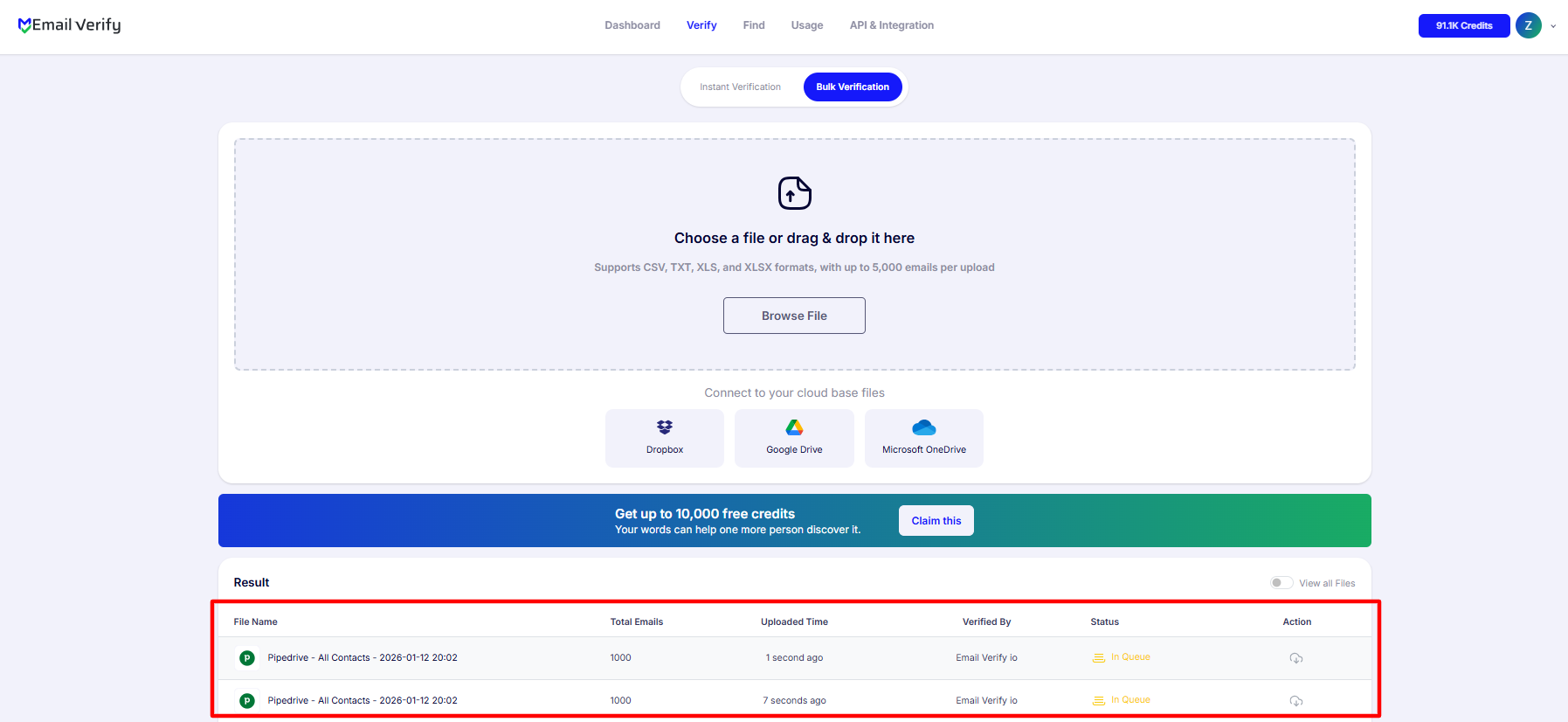
Step 7: Track Validation Progress
Monitor the progress of your validation on the Bulk Verification page.
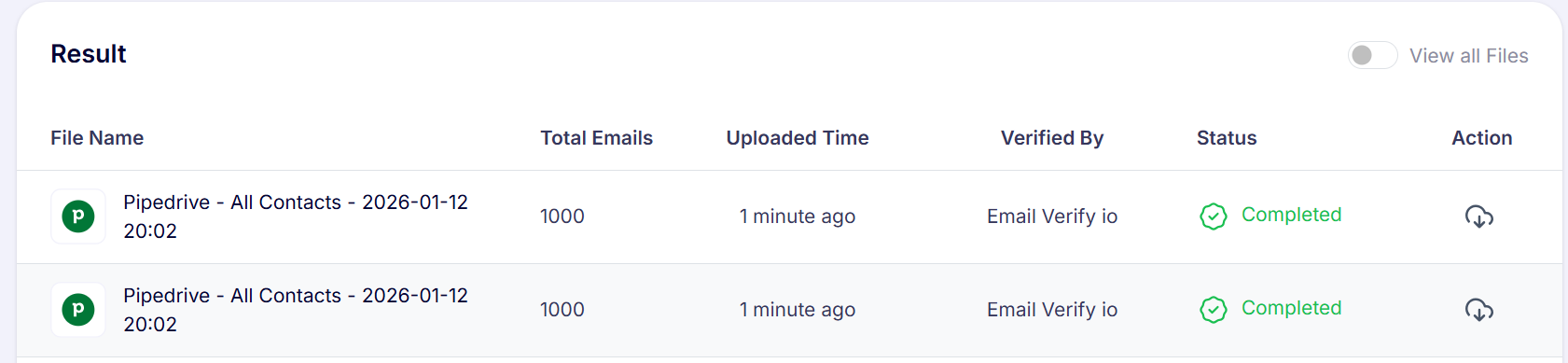
Step 8: Receive and Access Validation Results
Once processing is complete, results are automatically synced to Pipedrive.
Three custom columns are added to each contact:
- EV_Status
- EV_SubStatus
- EV_Validation_Timestamp
These fields allow you to filter, segment, and manage contacts without altering your existing CRM data.
Setup Complete
Your EmailVerify.io–Pipedrive integration is now ready. You can start verifying email addresses directly from your CRM and maintain accurate, deliverable contact data.
Troubleshooting & Tips
- Ensure the integration is installed in your Pipedrive account before authorization.
- Confirm you have the required permissions to install and authorize apps.
- Make sure you select the correct contacts before running verification.
- Refresh the page if results do not appear immediately.
- For large lists, verify contacts in smaller batches to avoid processing delays.
Want Better Deliverability and Fewer Bounces?
Make EmailVerify.io part of your Pipedrive workflow and verify every contact with confidence.