
Integration with GetResponse
The EmailVerify.io integration with GetResponse allows you to connect your GetResponse account directly to EmailVerify.io to verify your email contact lists. Once connected, you can import your lists, validate them in real time, and automatically sync the results back.
This helps keep your email lists accurate, up-to-date, and optimized for higher inbox placement and better campaign performance.
Prerequisites
Here’s what you’ll need to connect GetResponse with EmailVerify.io:
- An active GetResponse account
- An EmailVerify.io account with available credits
- Access to your GetResponse API Key
Step-by-Step Integration Setup
Follow these steps to connect GetResponse with EmailVerify.io:
Step 1: Sign in to EmailVerify.io
Sign in to your EmailVerify.io account and go to the Integrations section. Use the search bar to find GetResponse.
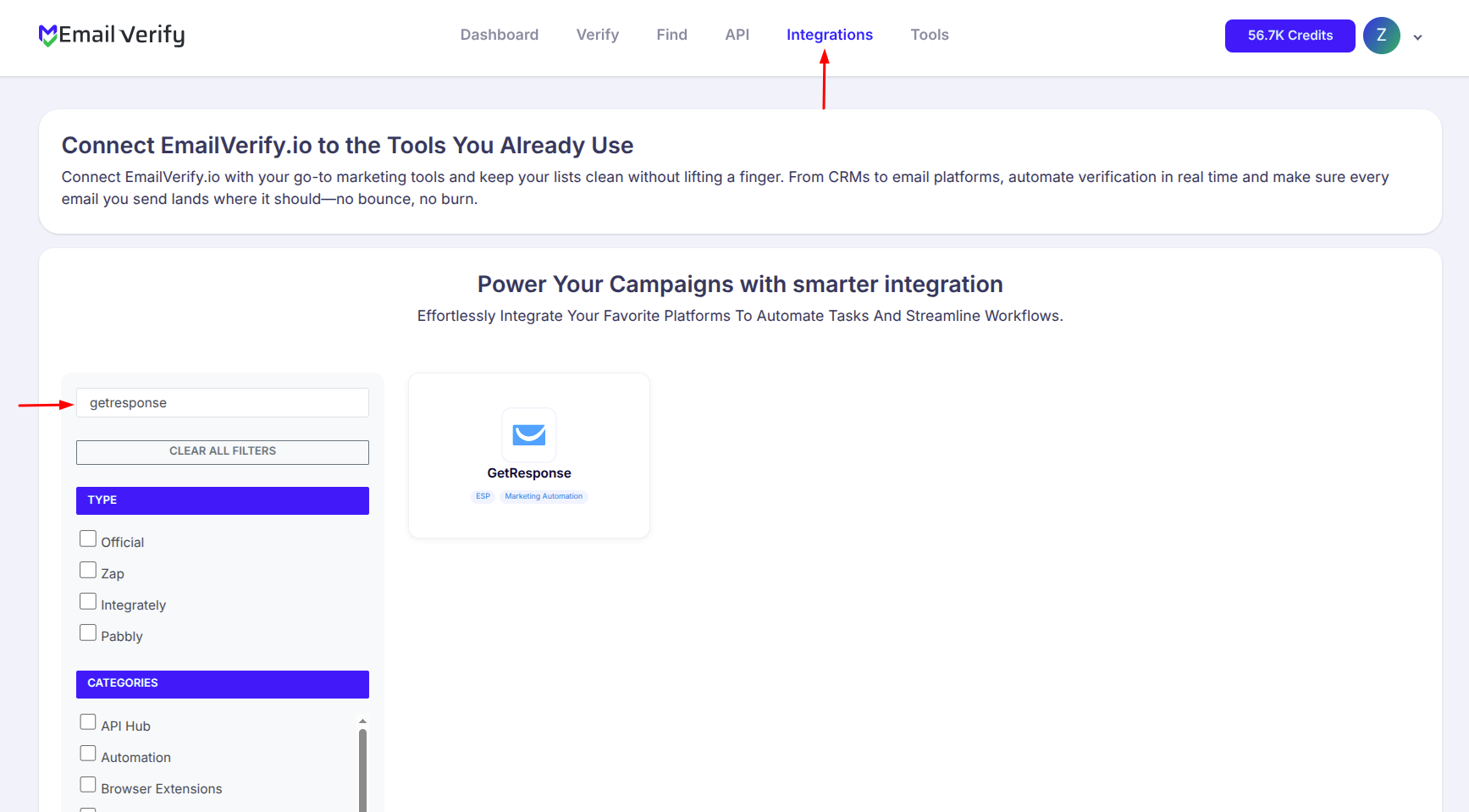
Step 2: Select GetResponse
From the integration list, select GetResponse. You’ll be prompted to enter your GetResponse API Key to connect your account securely.
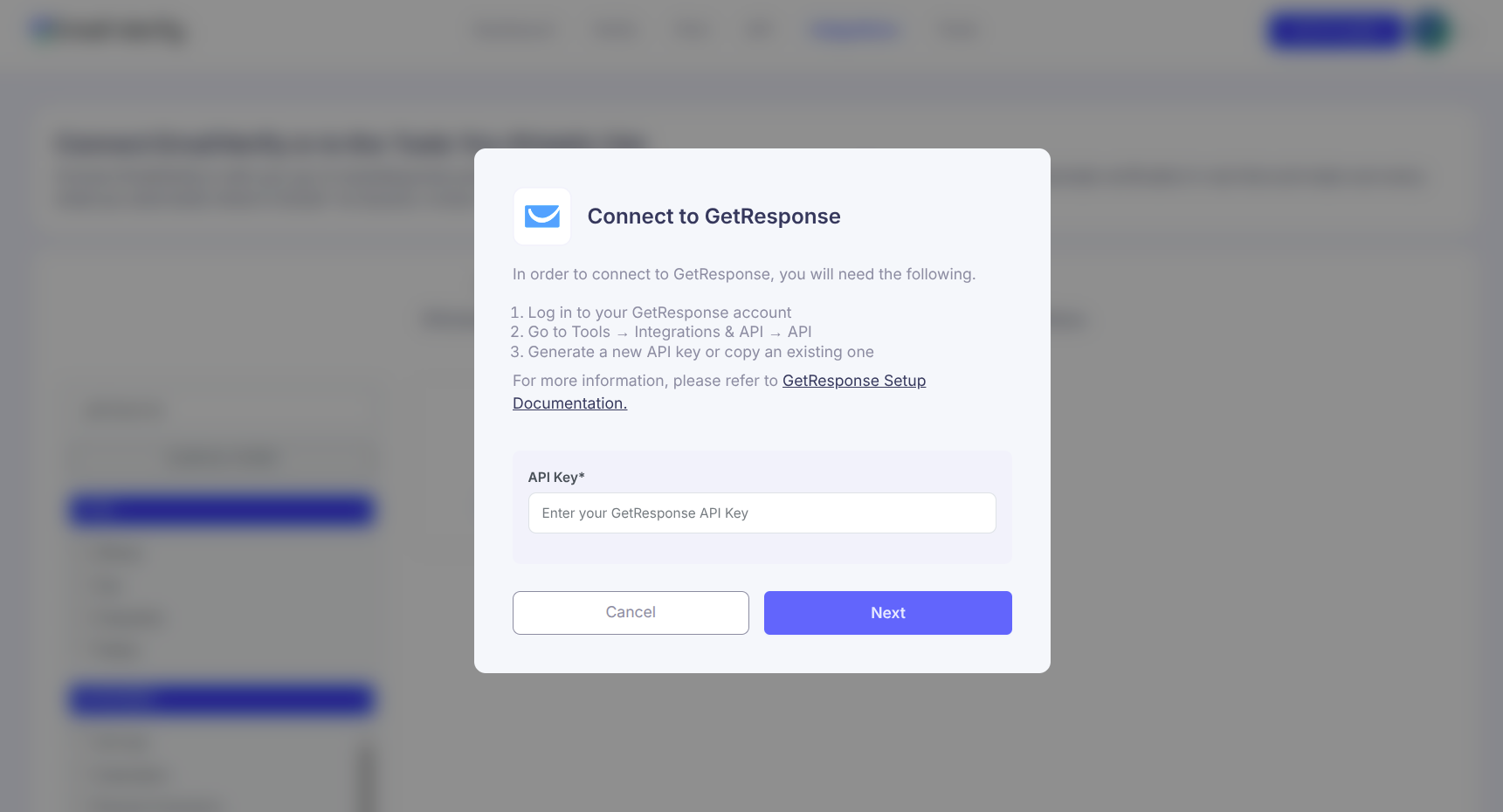
Step 3: Log in to GetResponse
Sign in to your GetResponse account and go to Tools → Integrations & API.
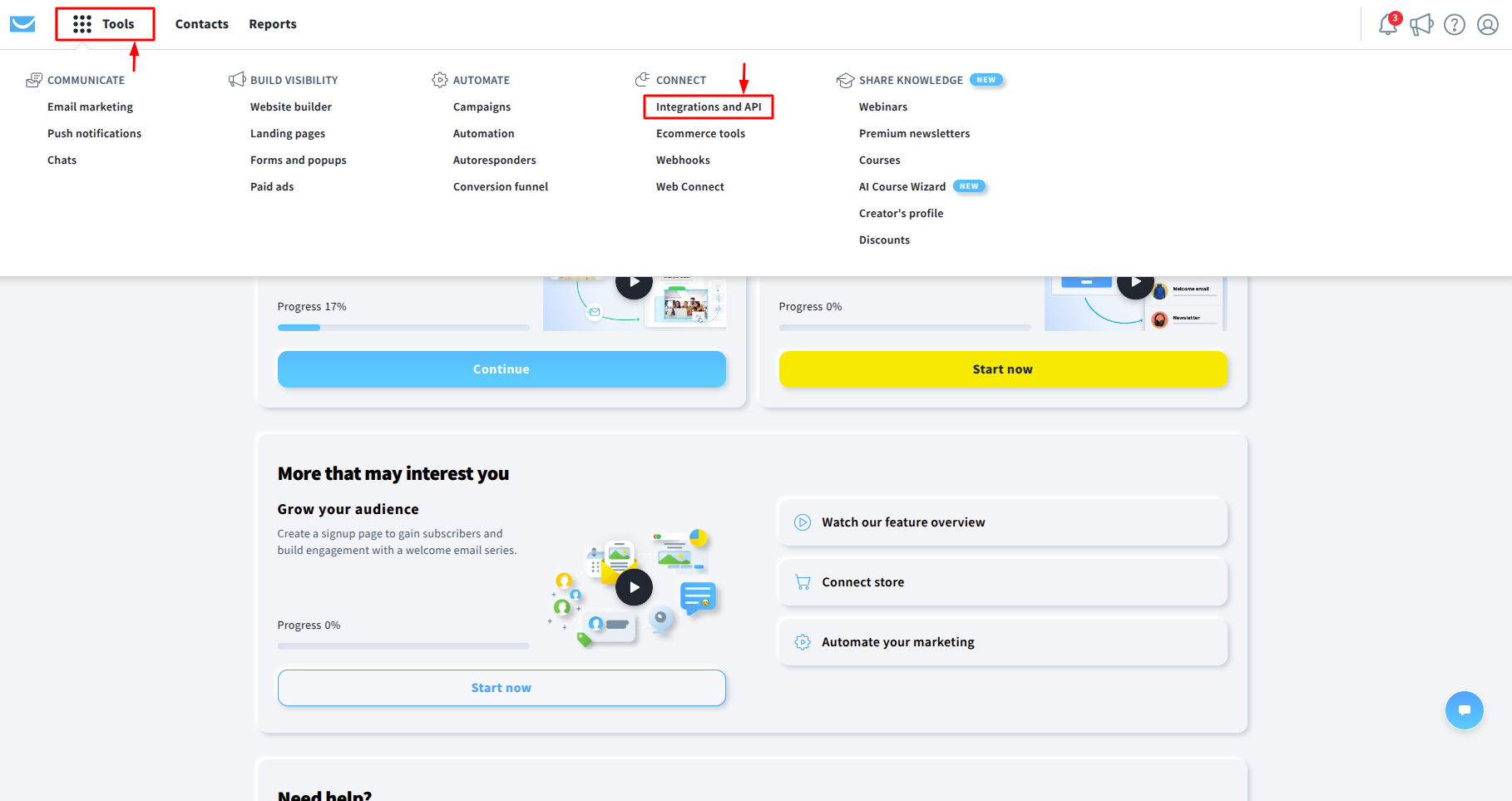
Step 4: Open the API Page
Navigate to the API section in GetResponse to create a new API Key for integration.
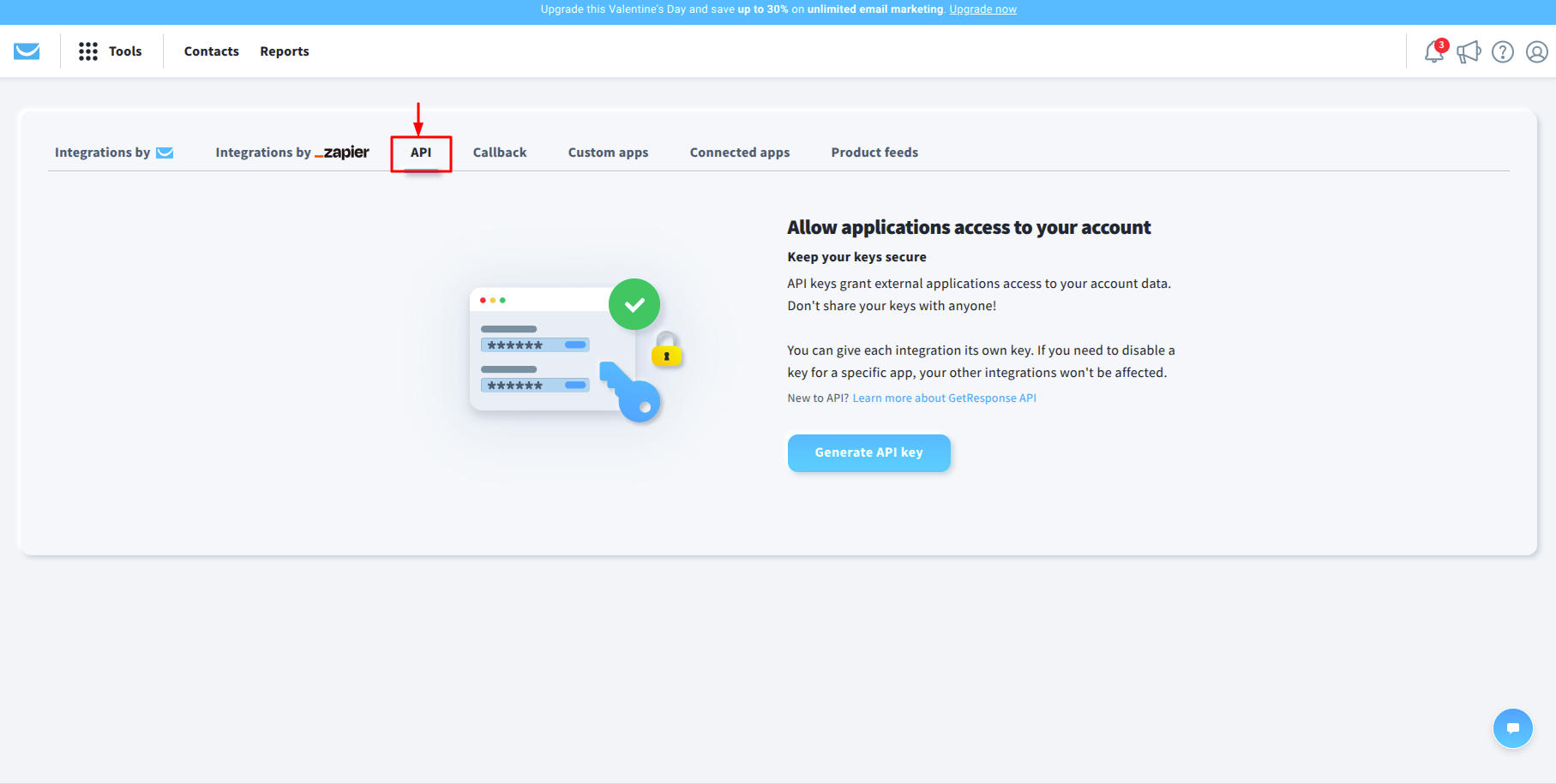
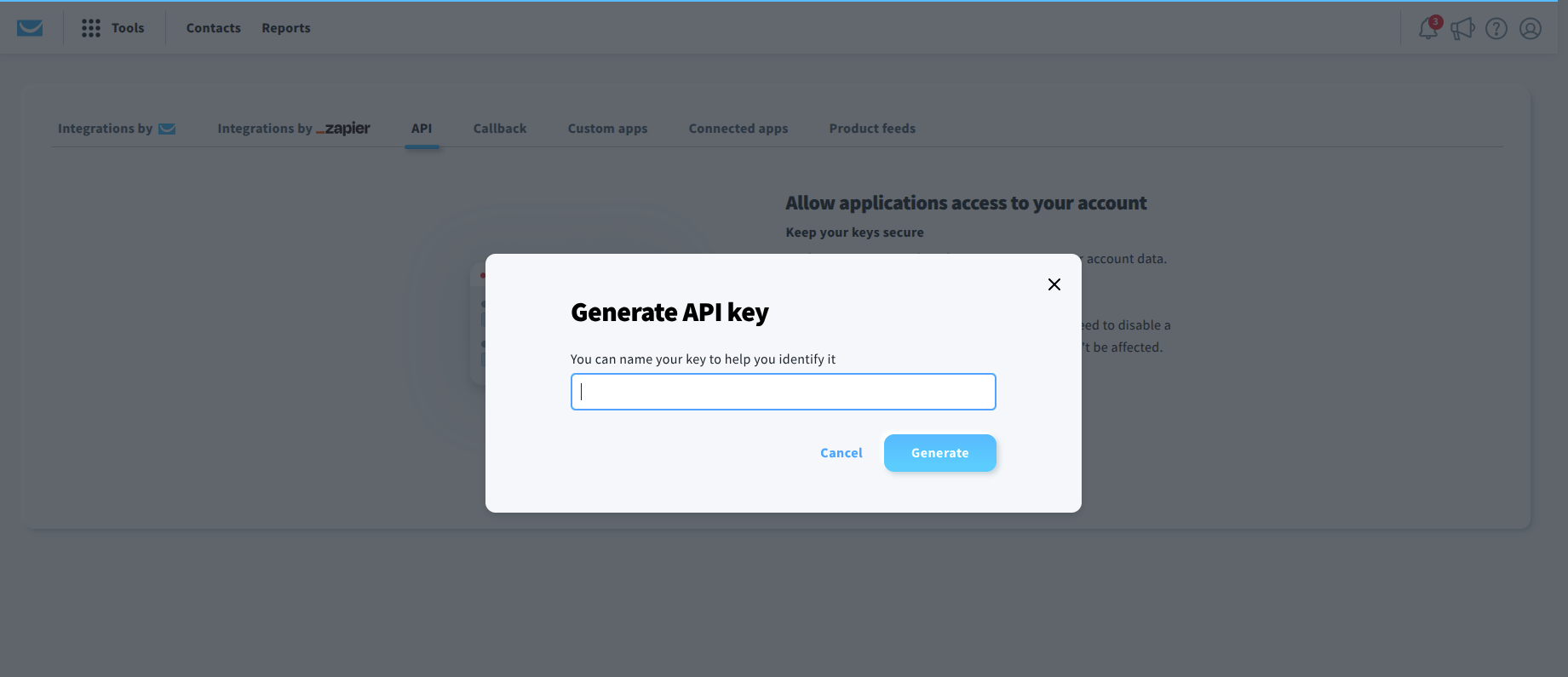
Step 5: Generate API Key
Generate a new API Key specifically for EmailVerify.io and copy it.
Step 6: Authorize the Connection
Paste the API Key into EmailVerify.io and confirm. Once authorized, your GetResponse account will be securely linked. After authorization, all your GetResponse contact lists will appear in EmailVerify.io.
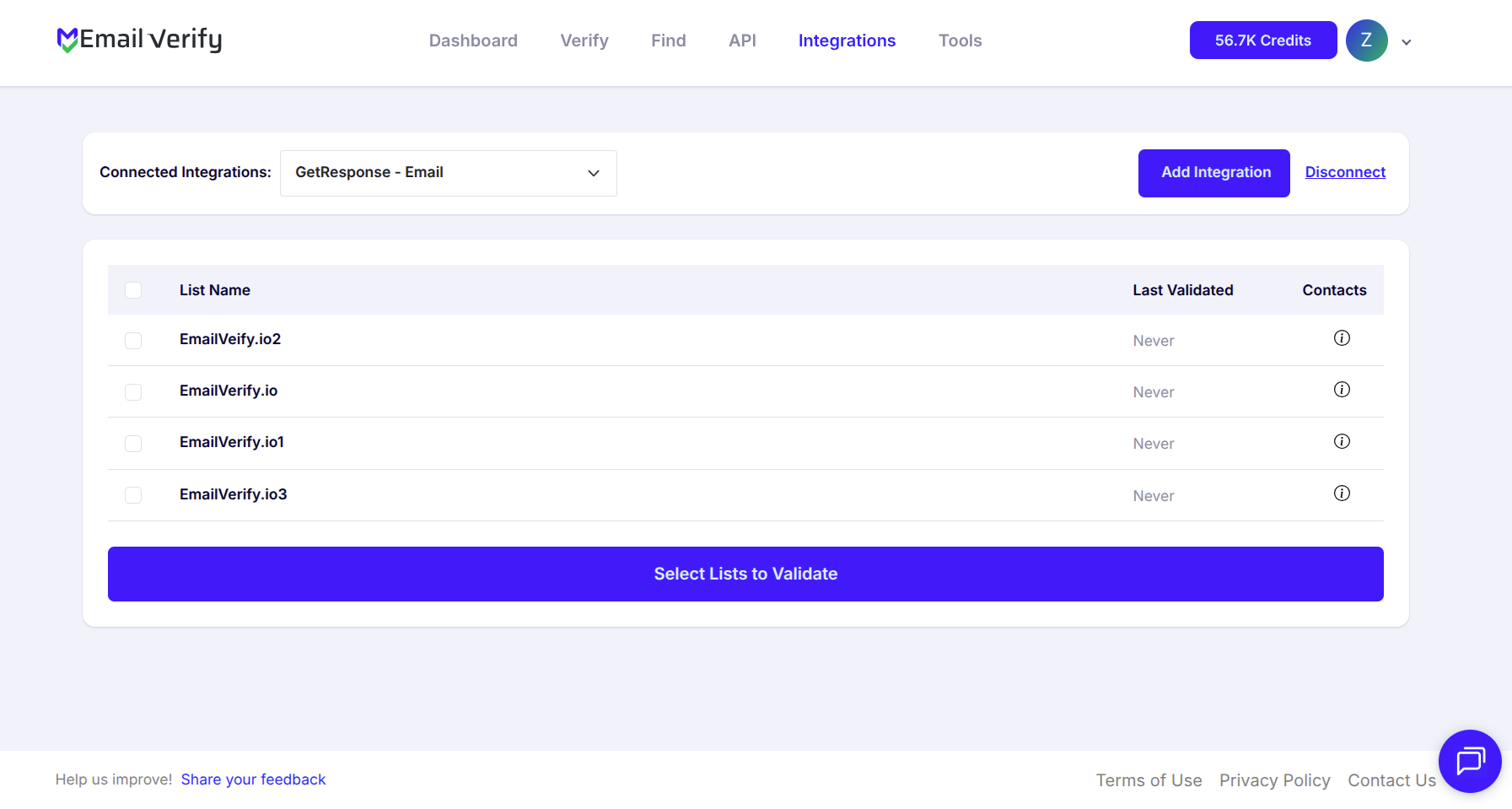
Step 7: Select Lists to Verify
Check the boxes for the lists or contacts you want to validate, then click Validate to start the process.
Note: Results are automatically synced back to GetResponse.
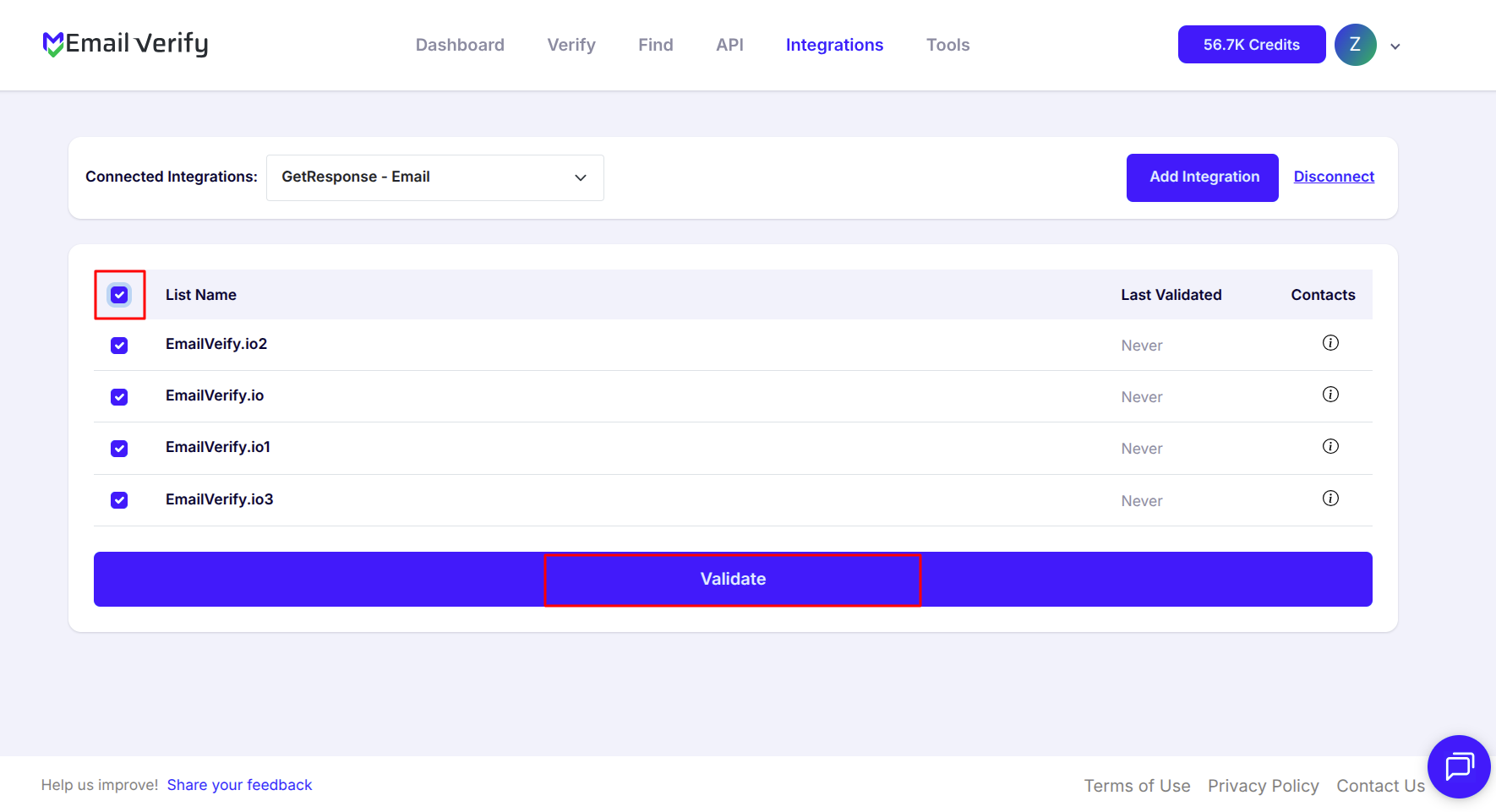
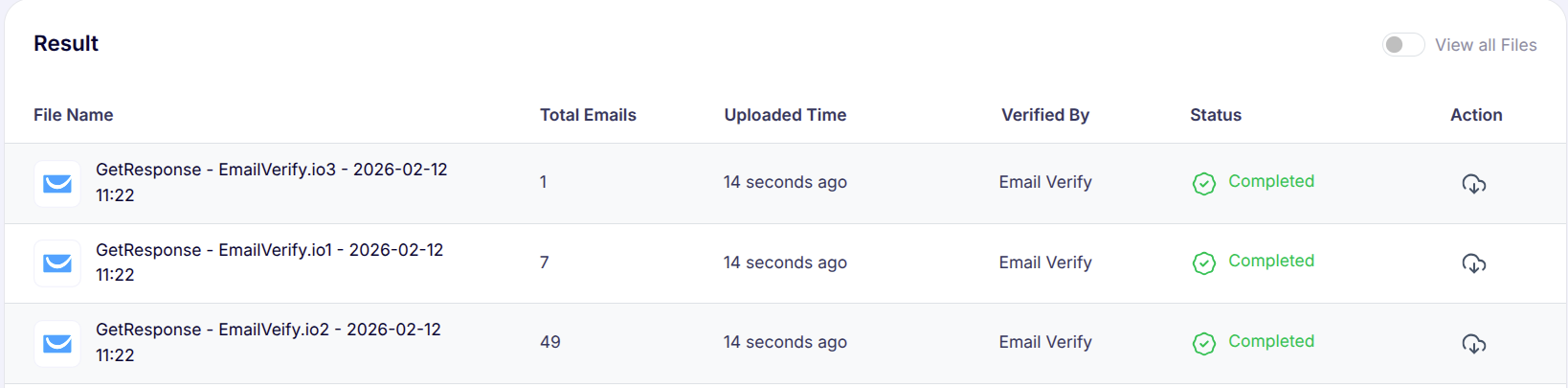
Step 8: Monitor and Download Results
Once the verification process is complete, the Download button will become available on the Bulk Verification page. Click it to download your results.
Each contact in the list will include the following custom attributes to help you maintain accurate, actionable data:
- EV_Status
- EV_SubStatus
- EV_Validation_Timestamp
Troubleshooting & Tips
Here are some helpful tips to make the integration smoother:
- Make sure your API Key is active and correctly copied from GetResponse.
- If your lists don’t appear, refresh the Integrations page or check your account permissions in GetResponse.
- For very large lists, verify in smaller batches to avoid processing timeouts.
- Only the lists you select are accessed; EmailVerify.io does not permanently store your contact data.
- Regularly verify new subscribers to maintain high inbox placement and campaign performance.
- Connecting your GetResponse account is free; verification consumes EmailVerify.io credits.
Next Steps
Don’t Wait; Optimize Your Email Campaigns Today!
Sync your GetResponse account with EmailVerify.io, clean your lists, and boost engagement with fully verified contacts.