
Integration with Monday.com
The EmailVerify.io integration with Monday.com enables you to validate email addresses stored in your Monday.com boards and CRM workflows. This helps reduce bounce rates, eliminate invalid or disposable email addresses, and improve overall deliverability before launching outreach campaigns.
Once connected, you can:
- Import contacts and leads directly from Monday.com boards.
- Run bulk email verification using EmailVerify.io’s verification engine.
- Automatically sync validation results back to Monday.com.
This integration preserves your existing board structure by adding verification data as new columns rather than modifying or removing records. It ensures your teams work with clean, actionable data while maintaining workflow integrity.
Prerequisites
Before configuring the integration, make sure you have:
- An active Monday.com account
- An EmailVerify.io account
- Permission to install apps within your Monday.com workspace
The integration uses secure OAuth 2.0 authentication. Your Monday.com login credentials are never stored or shared.
Step-by-Step Integration Setup
Follow the steps below to connect Monday.com with EmailVerify.io and begin validating your contacts.
Step 1: Log in to EmailVerify.io
Go to https://app.emailverify.io/users/sign_in and log in to your EmailVerify.io account. From your dashboard, navigate to the Integrations section.

Step 2: Select Monday.com
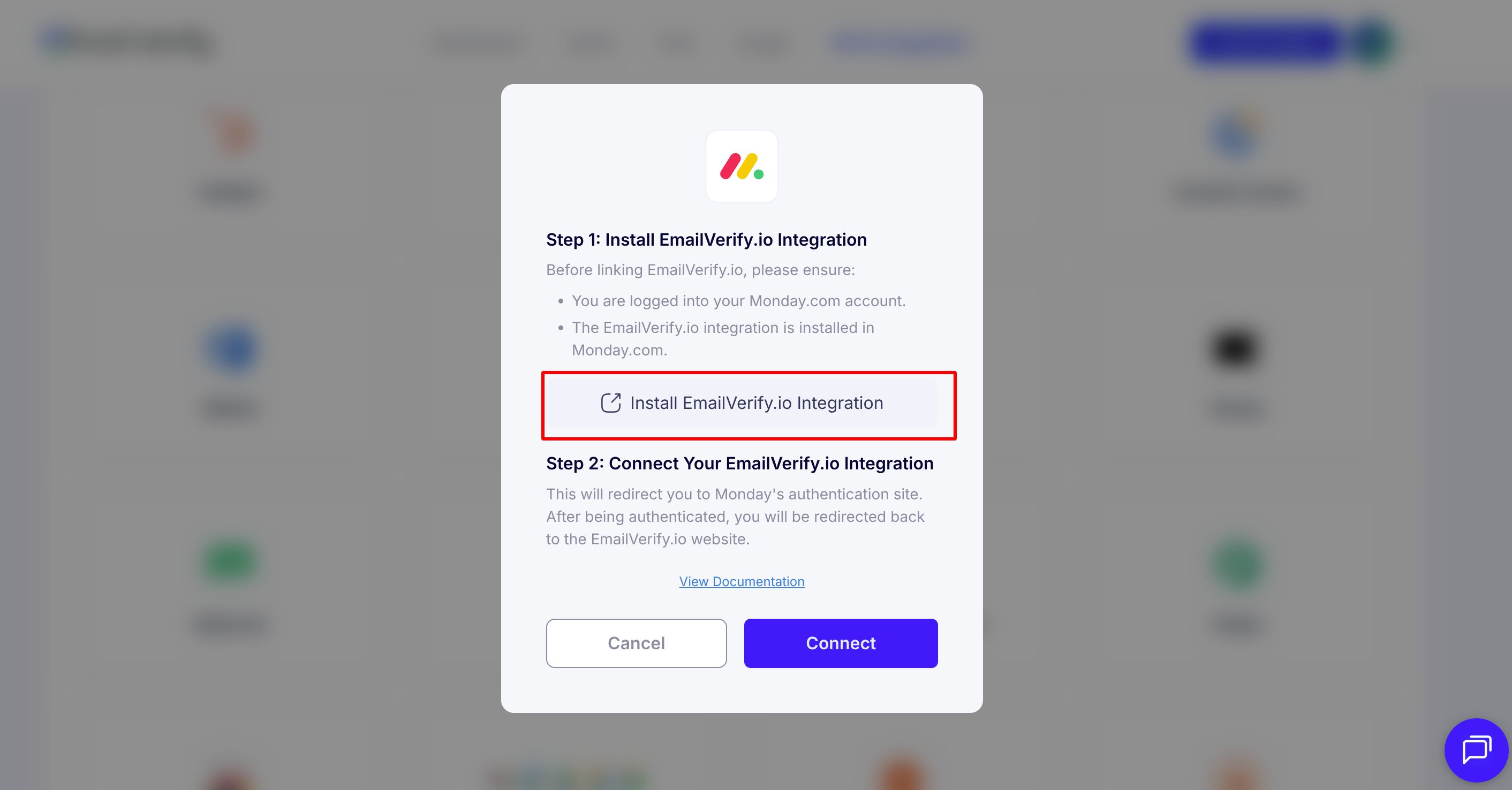
On the Integrations page, choose Monday.com from the list of available integrations. A Monday.com pop-up window will appear. Click Install EmailVerify.io Integration to proceed with setup.
Step 3: Install the Integration in Your Workspace
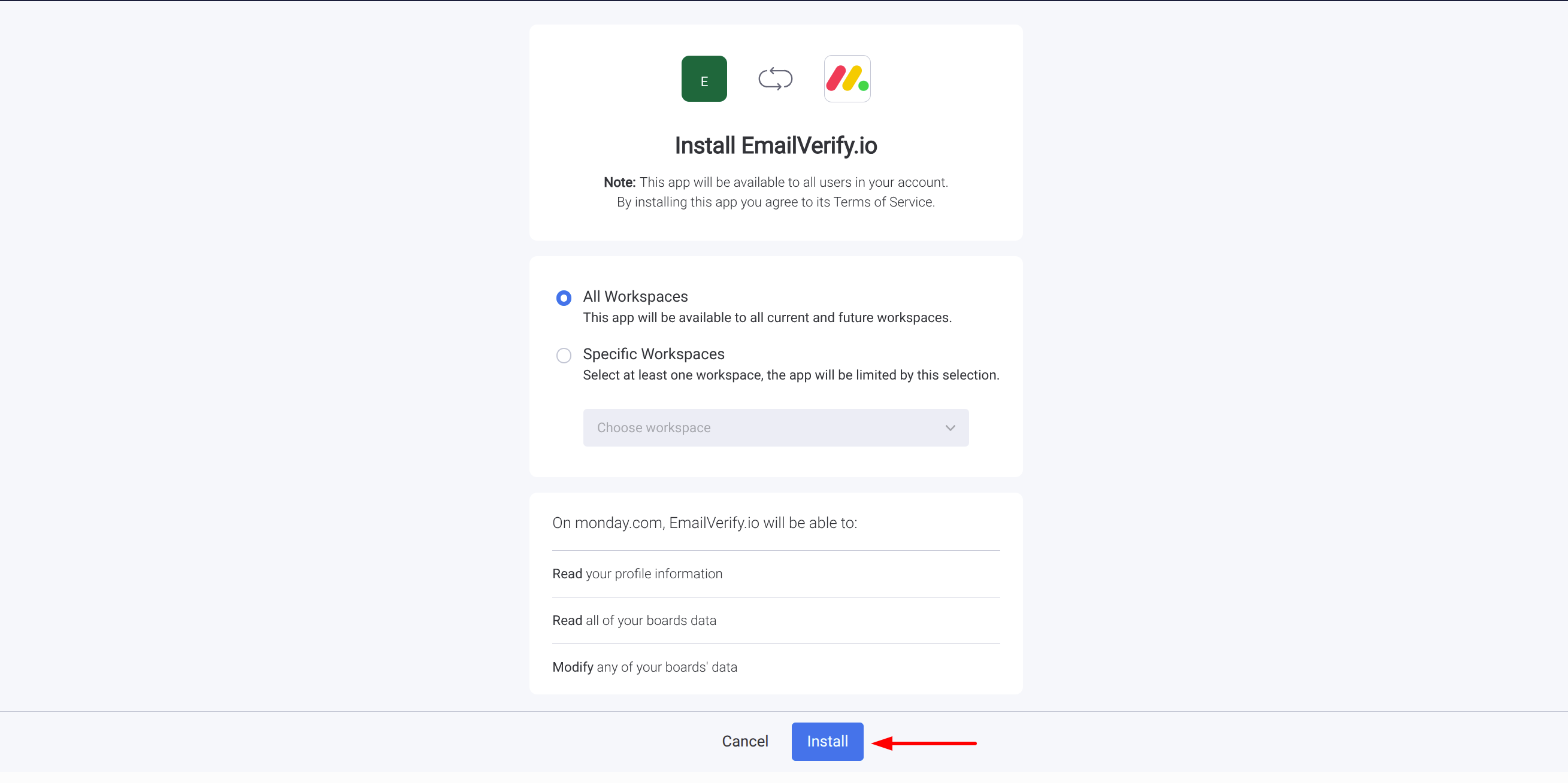
Select the Monday.com workspace where you want to enable the integration. Click Install to add EmailVerify.io to your workspace.
Step 4: Authorize the Connection
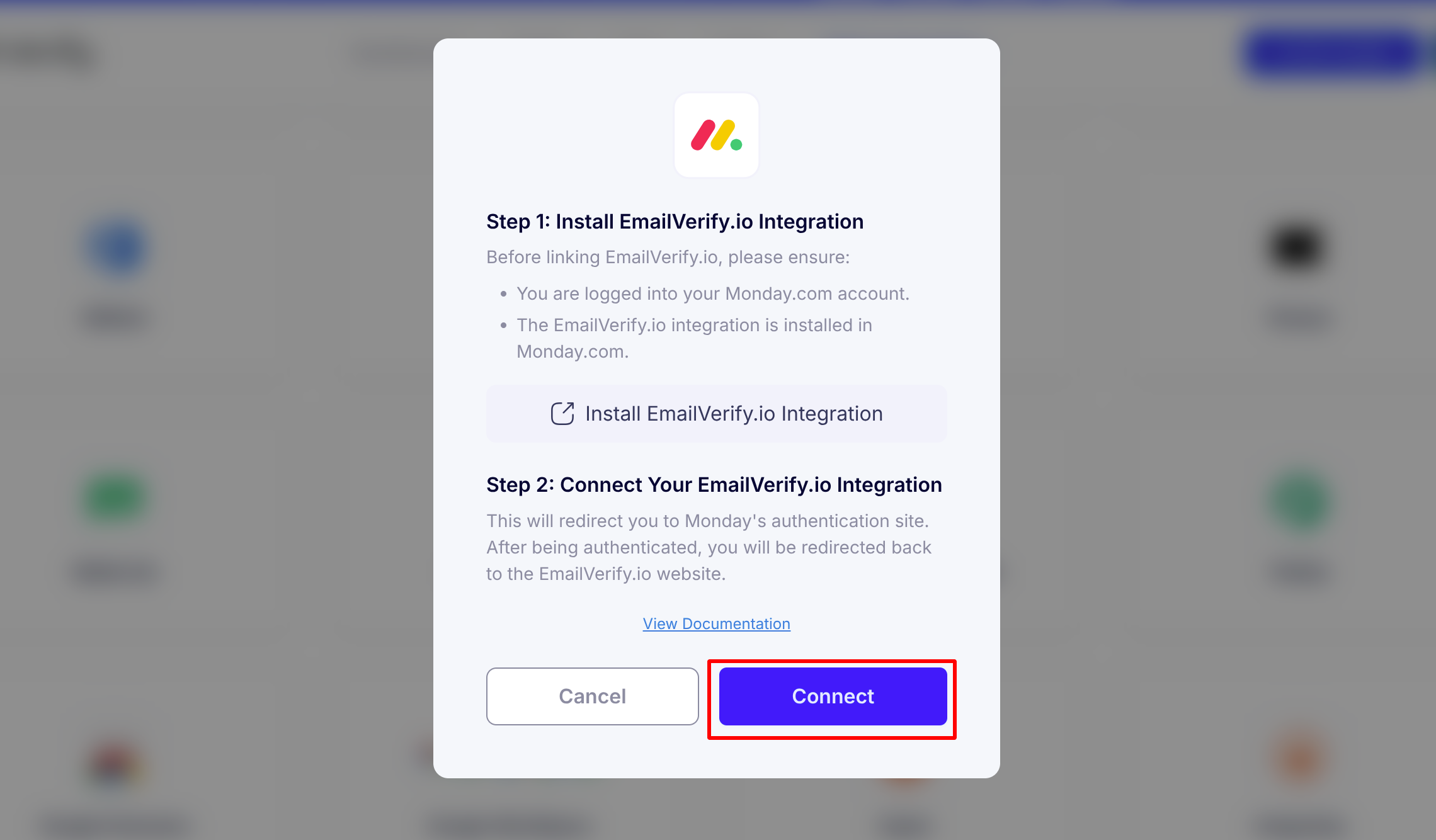
After installation, click Connect. You will be redirected to Monday.com’s secure authentication page.
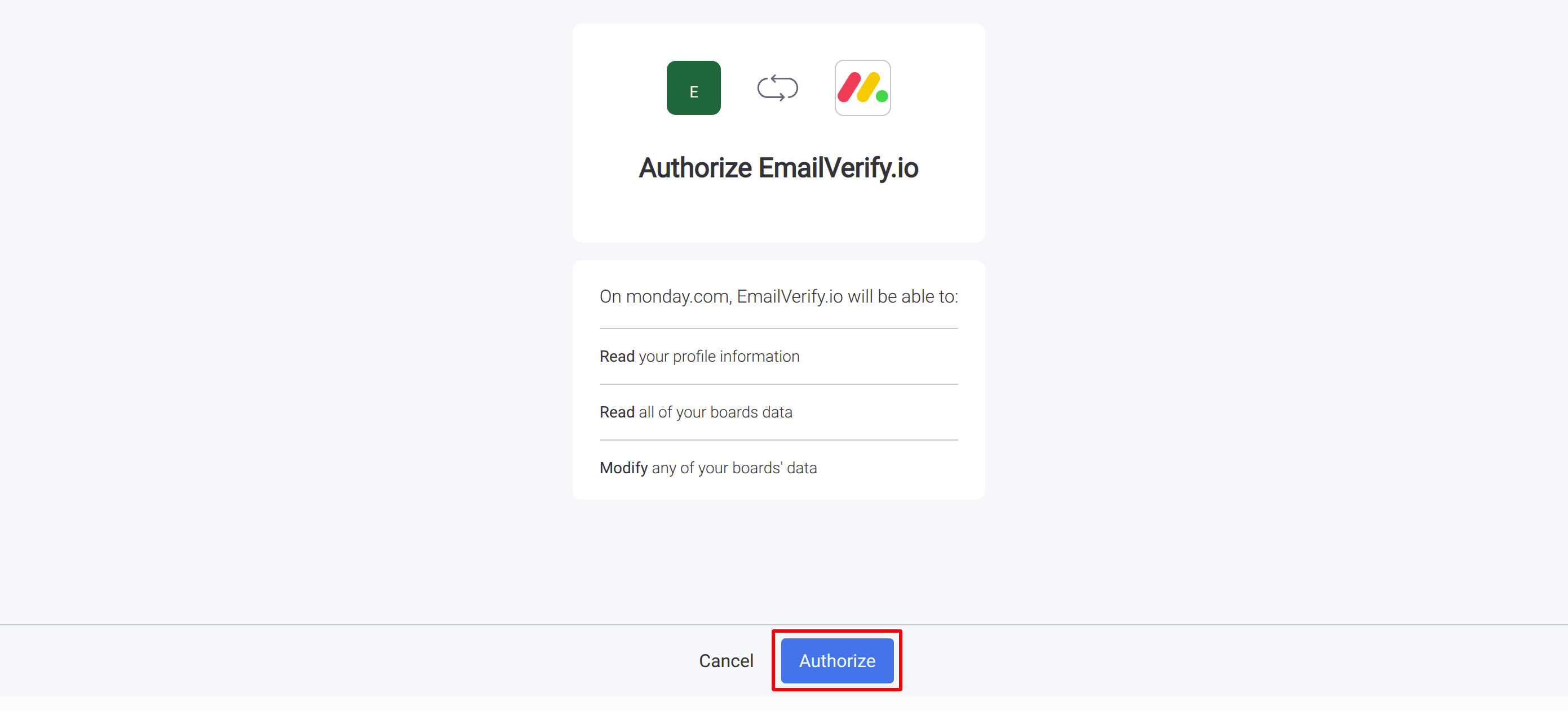
Click Authorize to grant the necessary permissions. Once completed, your Monday.com account will be successfully connected to EmailVerify.io.
Step 5: View Monday.com Boards and Contacts
After authorization, your Monday.com boards, contacts, leads, and associated groups will appear in the Integrations section within EmailVerify.io.
You can now view available records ready for verification.
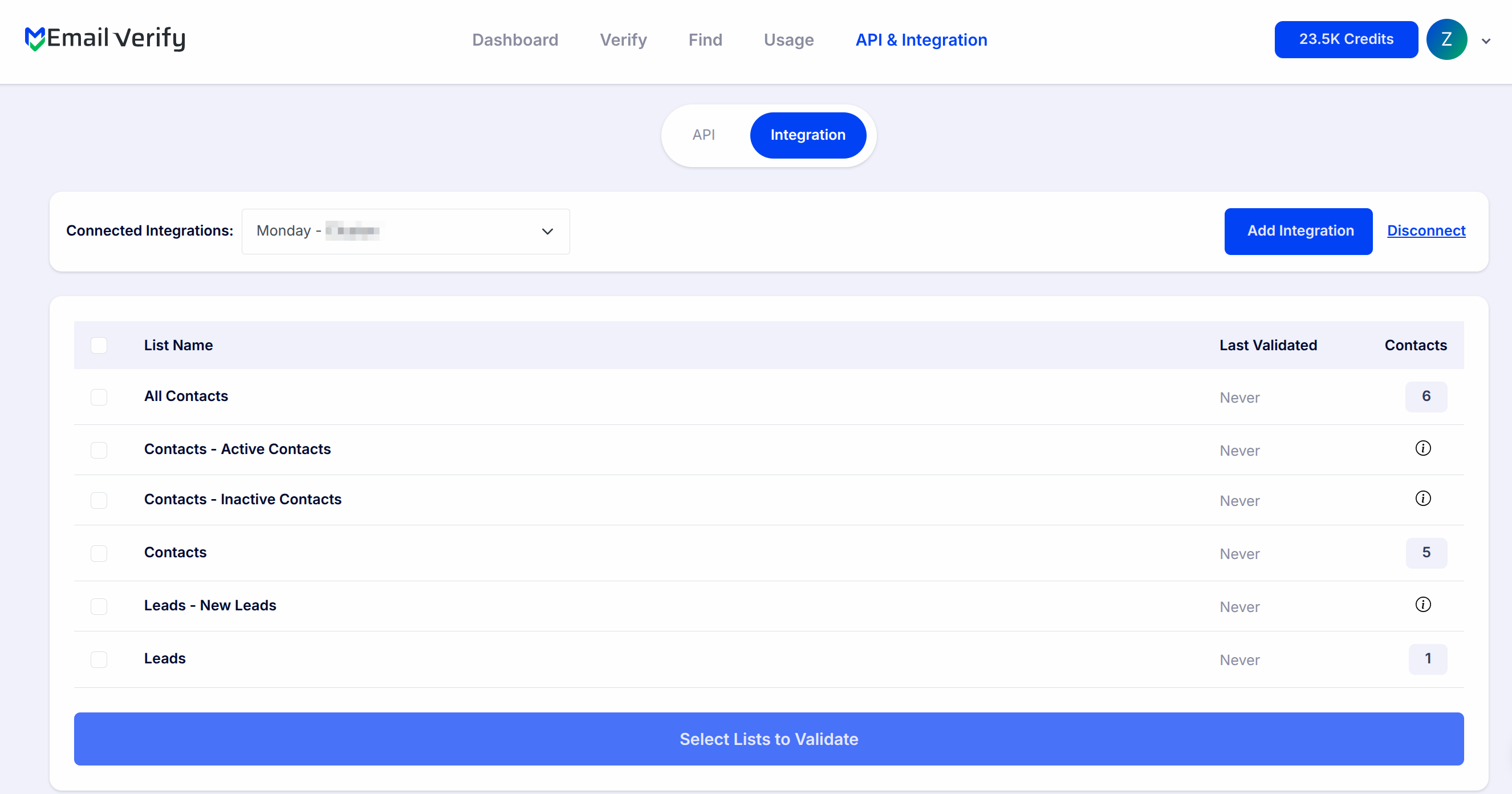
Step 6: Select Records for Verification
Choose the contacts, leads, or groups you want to validate. Click the validate button to initiate the process. Your selected records will be queued under Bulk Verification for processing.
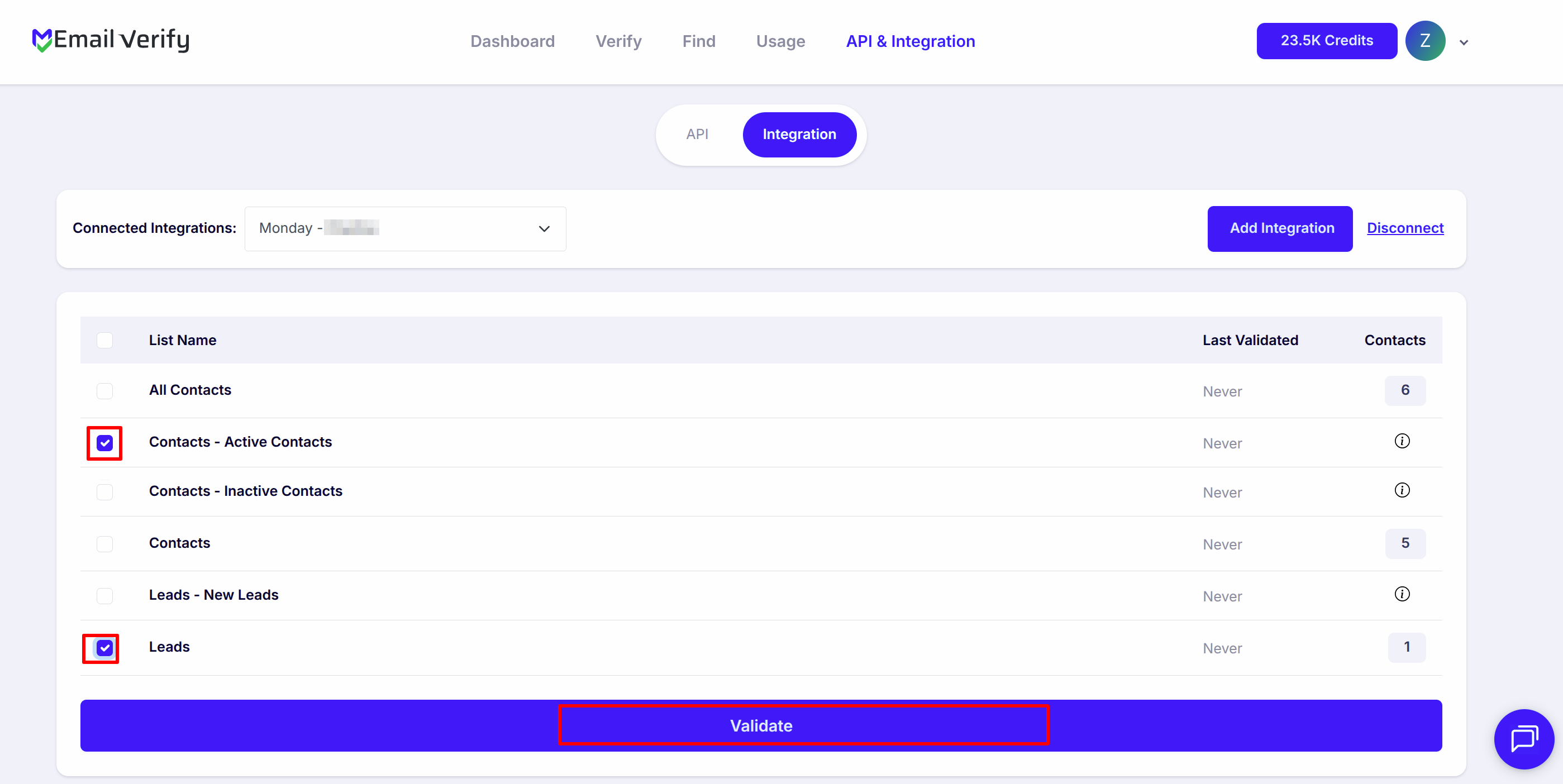
Step 7: Track Verification Progress
Monitor the status of your selected records on the Bulk Verification page. You will receive an email notification once the verification process is complete.
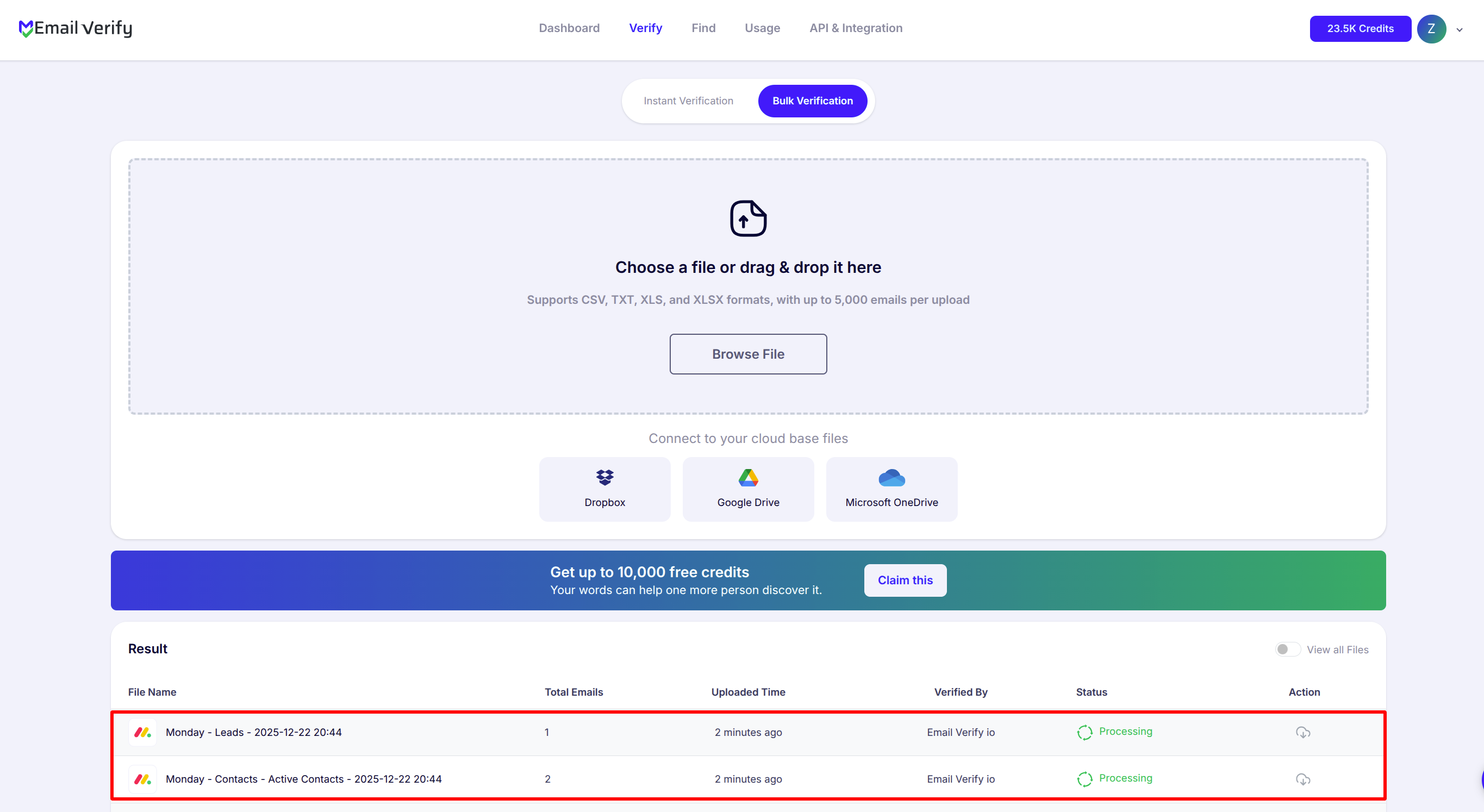
Step 8: Access Verified Results
When verification is finished, results are automatically synced back to your Monday.com boards.
Three new columns are added to each verified record:
- EV_Status
- EV_SubStatus
- EV_Validation_Timestamp

These fields allow you to filter, segment, and trigger automations based on email quality without disrupting your existing workflows.
You may also download verified results from EmailVerify.io for reporting or further analysis.
Troubleshooting & Tips
If you encounter issues during setup or verification:
- Ensure the integration is properly installed in your Monday.com workspace before attempting authorization.
- Confirm you have the required permissions to install and authorize apps.
- If boards or contacts do not appear, disconnect and reconnect the integration.
- Allow sufficient processing time for large boards and monitor progress via bulk verification.
- For initial testing, verify a smaller group first to confirm the configuration before processing large datasets.