
Integration with n8n Community Node
The EmailVerify.io integration with the n8n Community Node allows you to incorporate email verification and email discovery directly into your automation workflows.
With this integration, you can validate email addresses in real time. You can find work email addresses using a name and domain. You can also track your verification credit balance in your n8n workflow.
It is compatible with both n8n Cloud and self-hosted installations.
What Can You Do with This Node?
Using the EmailVerify.io community node, you can:
- Verify email deliverability and quality in real time.
- Find professional email addresses based on name and domain.
- Monitor your EmailVerify.io account balance and credit usage.
- Automate email validation inside complex workflow logic.
Prerequisites
Before installing and configuring the node, ensure you have:
- An active EmailVerify.io account
- An API key from your EmailVerify.io dashboard
- n8n version 1.0.0 or higher
- Access to an n8n Cloud or self-hosted instance
Step-by-Step Integration Setup
Follow these steps to connect EmailVerify.io with n8n and start validating emails inside your workflows:
Step 1: Open n8n Settings
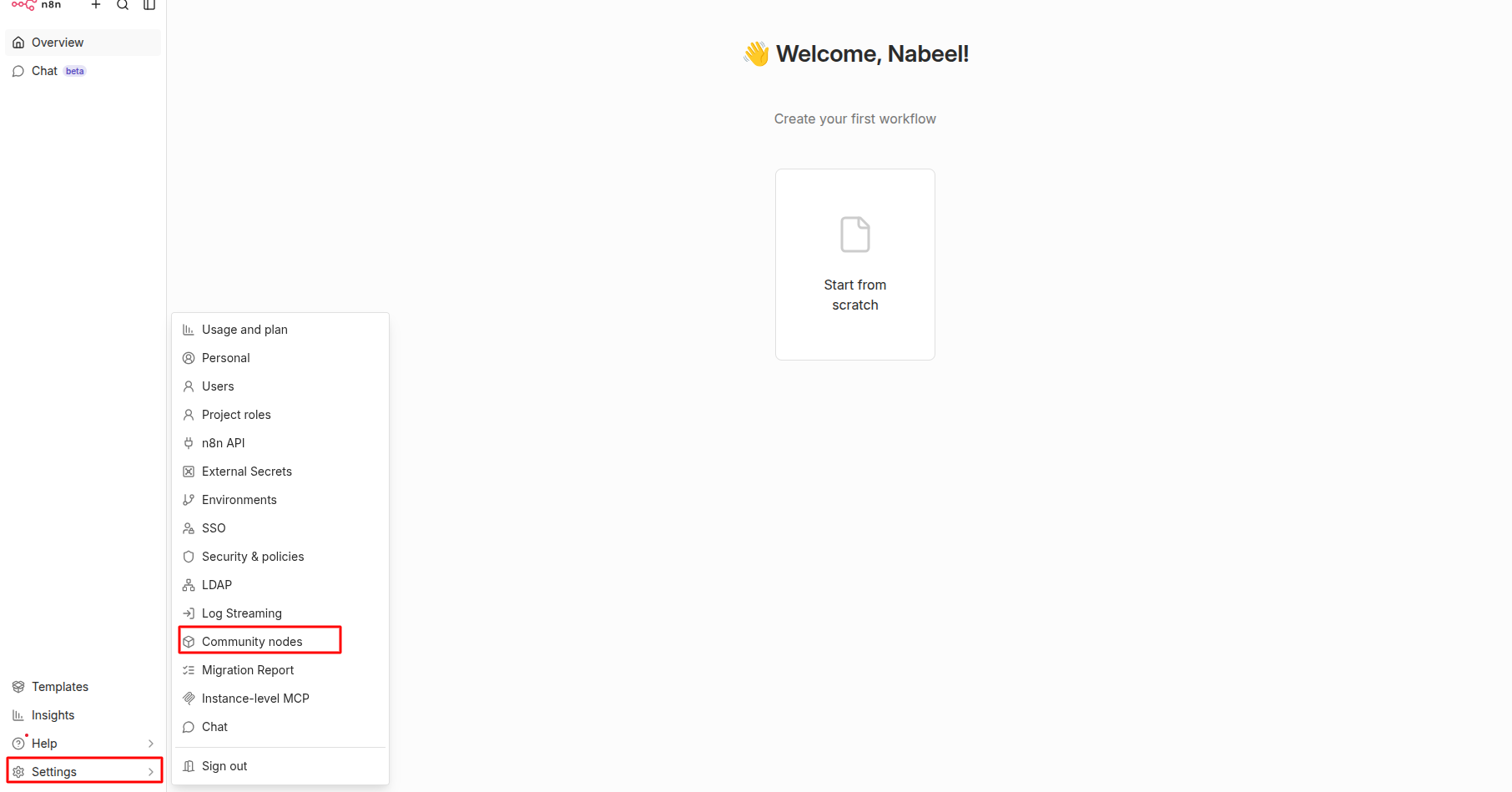
Log in to your n8n account and locate the Settings icon in the lower-left corner of the sidebar. From the settings menu, select Community Nodes to manage external node installations.
Step 2: Start Node Installation
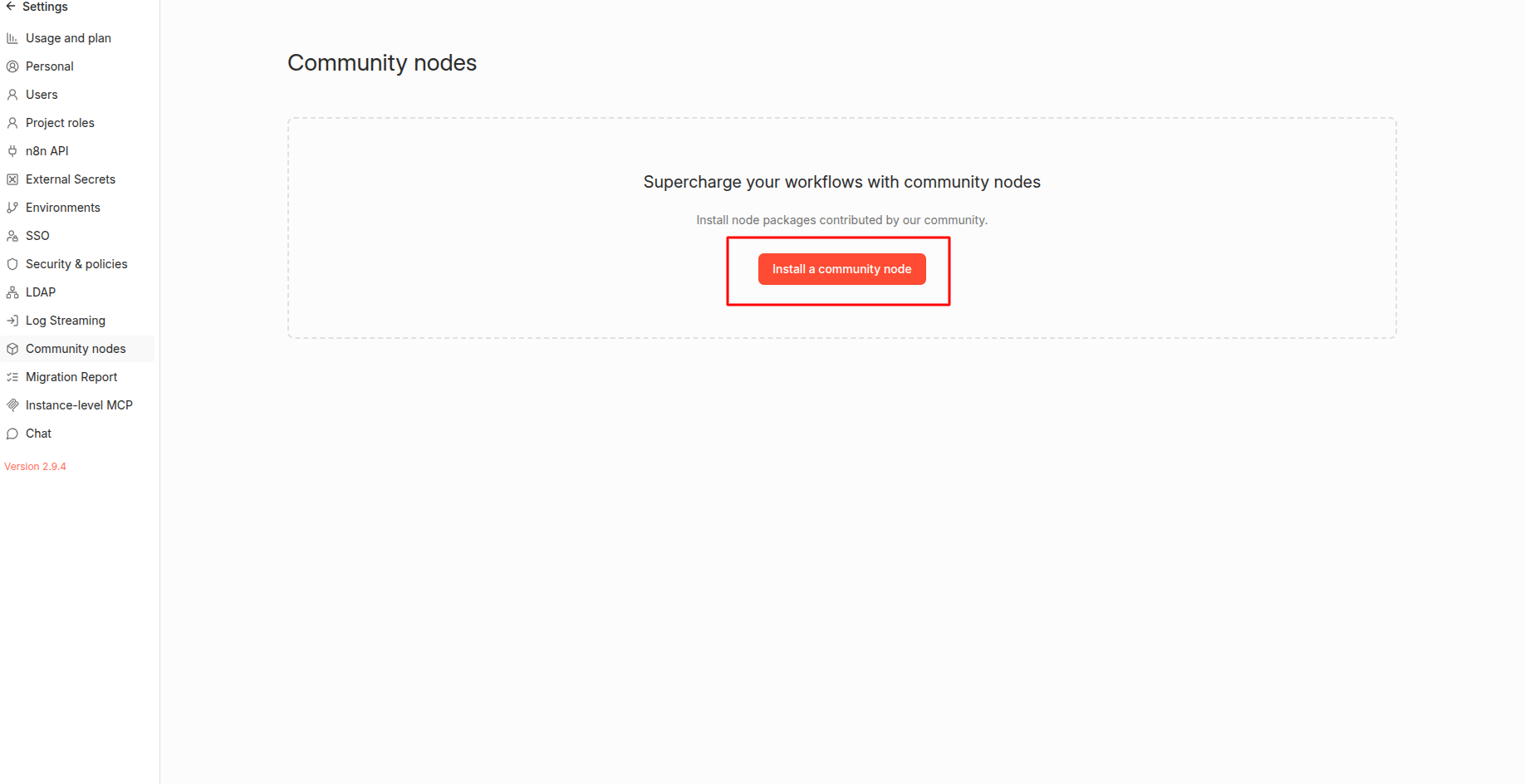
Click the Install a community node button. This will open a dialog window where you can install a new community node.
Step 3: Install the EmailVerify.io Node
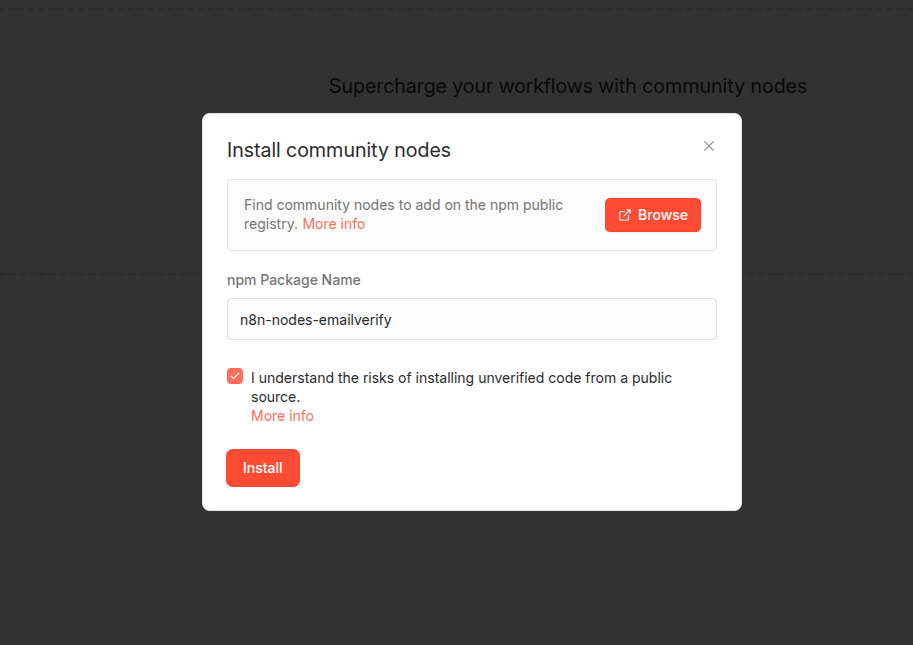
In the NPM Package Name field, enter n8n-nodes-emailverify. Review and accept the installation prompt, then click Install to add the node to your n8n instance.
Step 4: Generate Your API Key
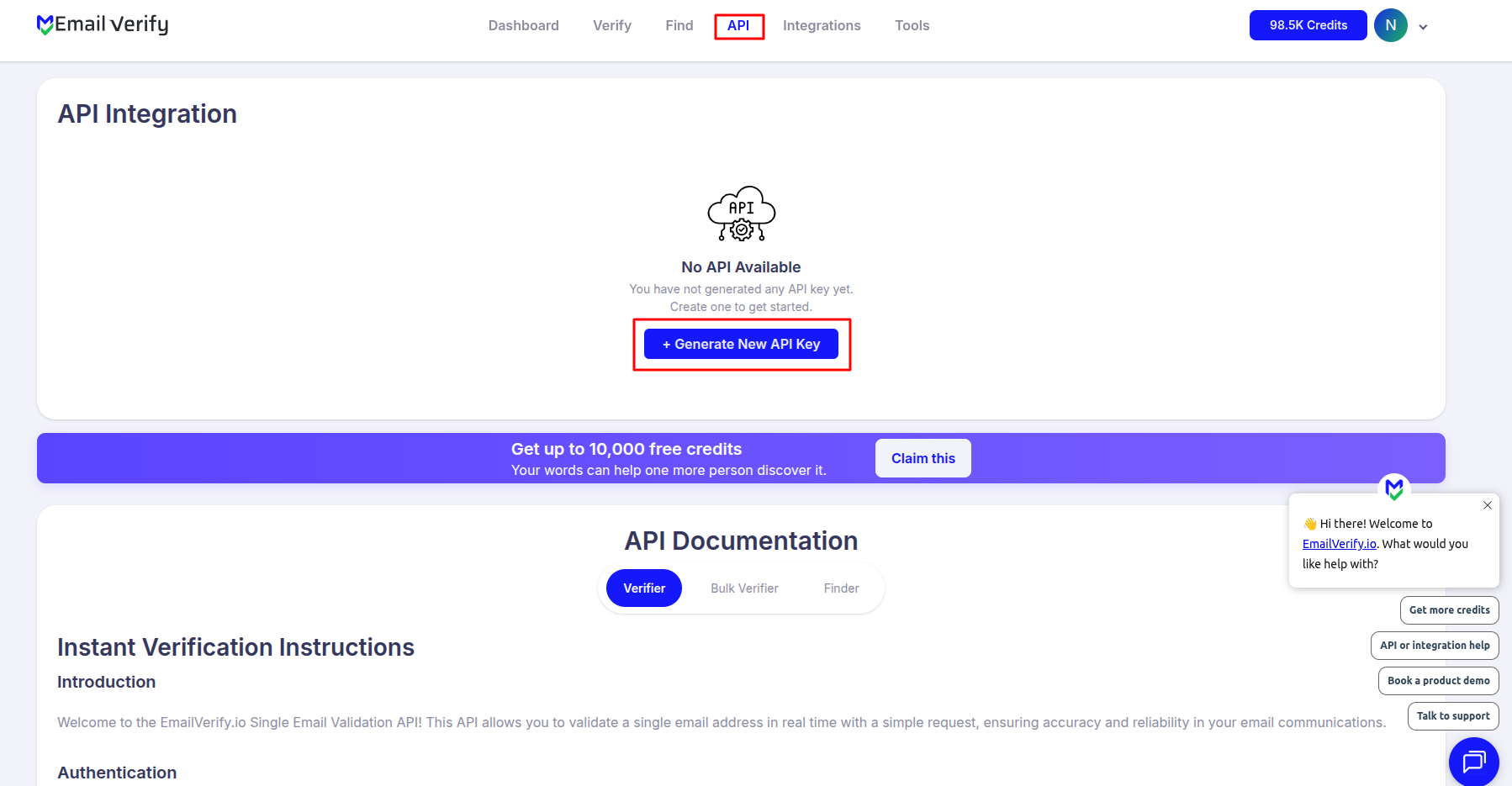
Sign in to your EmailVerify.io account and navigate to the API section from the dashboard. Generate a new API key and copy it for the next step.
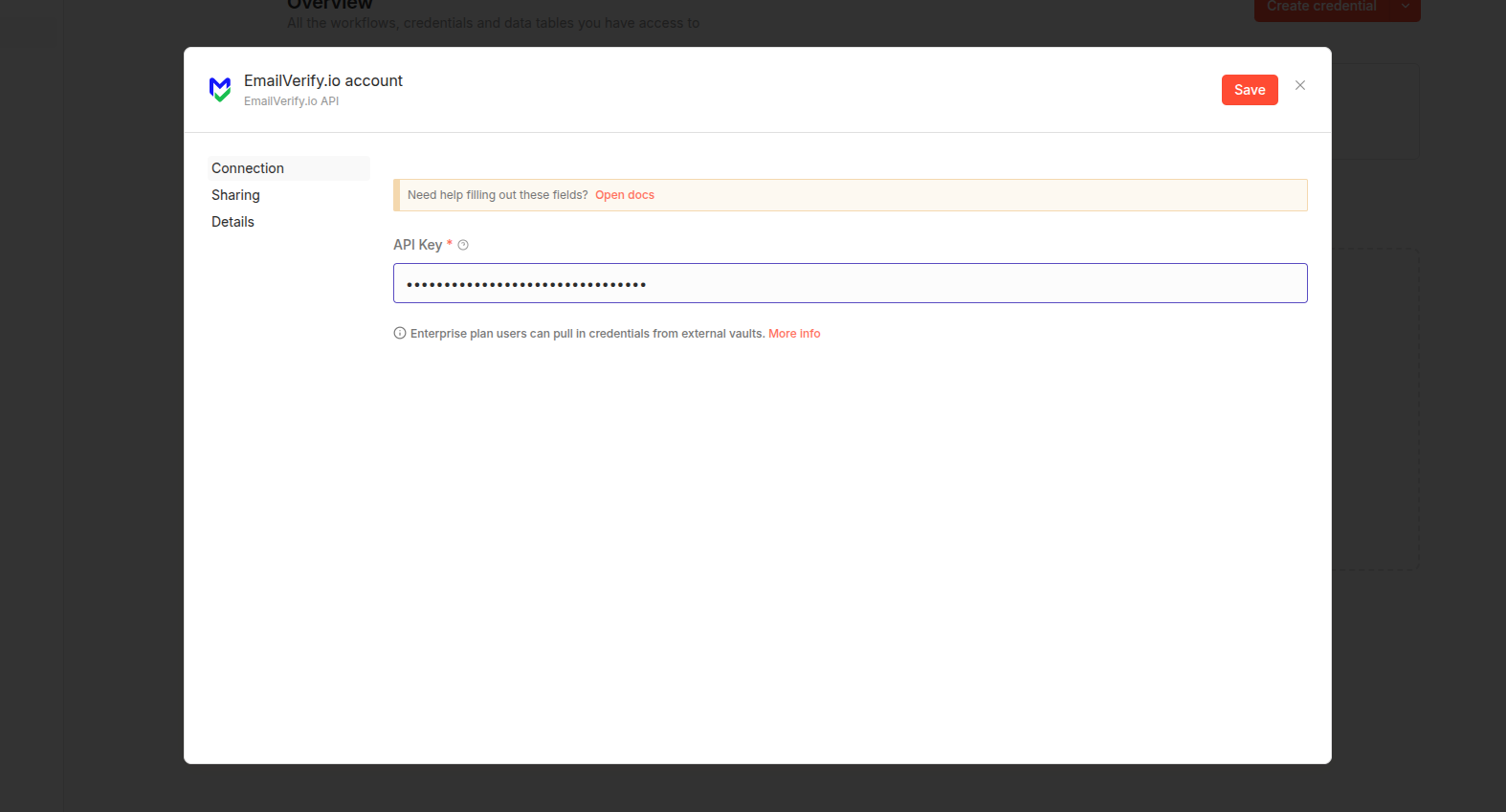
Step 5: Add EmailVerify.io Credentials in n8n
Within your workflow, search for "EmailVerify." When prompted, select "Create New Credential" and paste the API key you copied from your EmailVerify.io account.
Step 6: Configure the Email Field
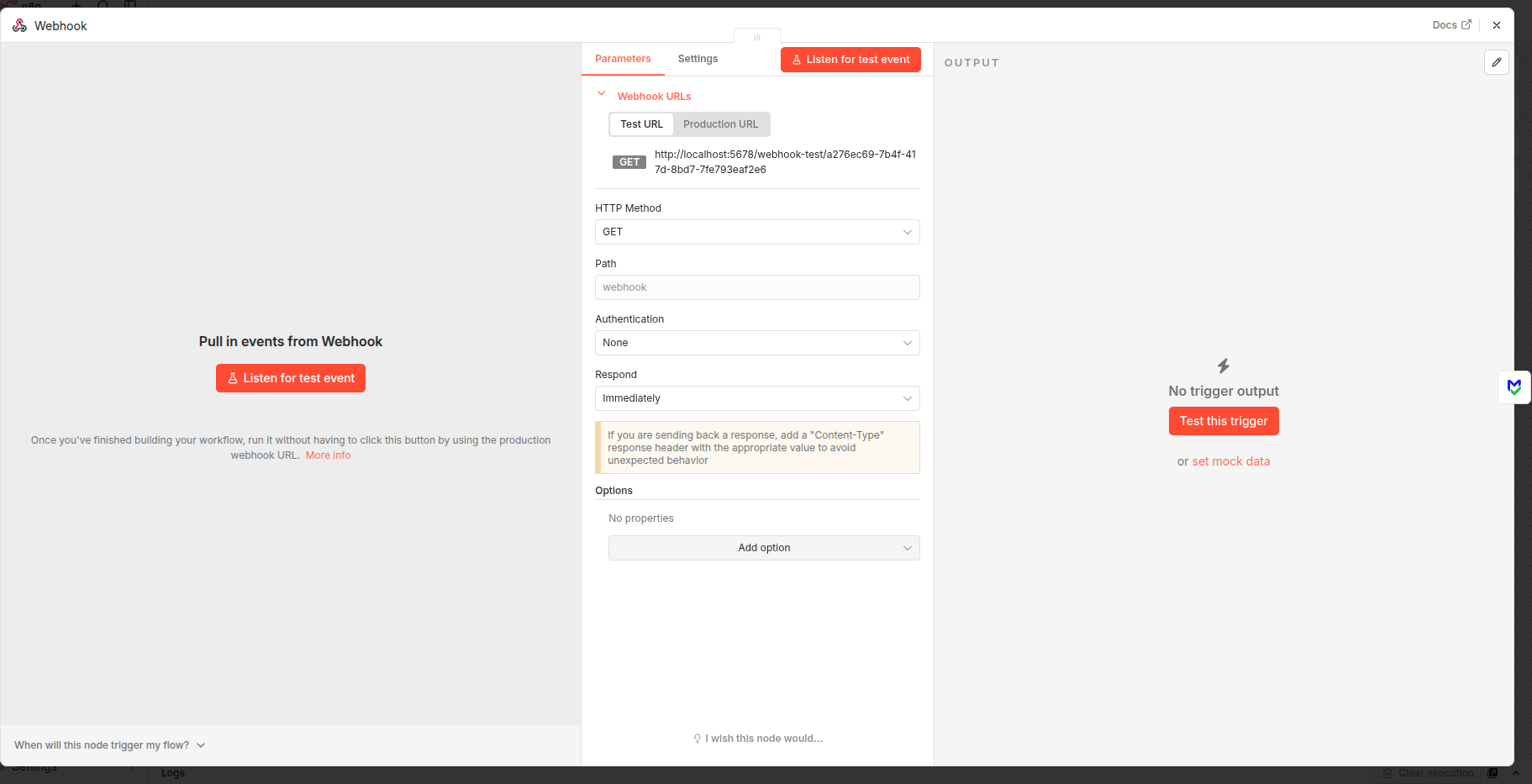
In the node settings, connect the email field using the expression editor. This allows you to pull the email address from a previous node, such as a Webhook, HTTP request, or another data source.
Step 7: Run a Test Verification
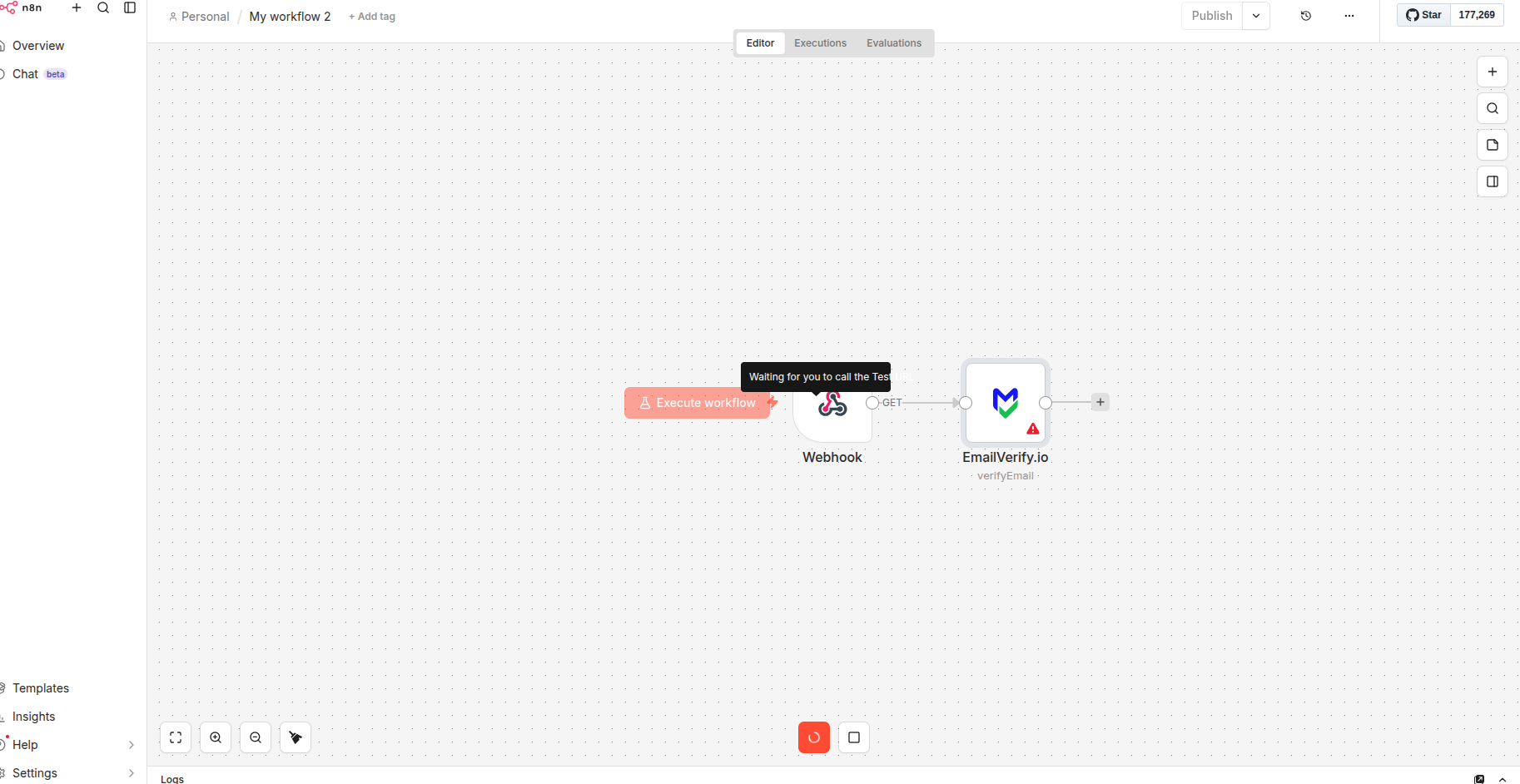
Execute the node with sample data. You’ll see a JSON response showing fields like status and sub_status.
Note: Once you see the response, your n8n integration is successfully connected, and your workflows can validate emails in real time.
Troubleshooting & Tips
If you run into any issues while using the EmailVerify.io node in your n8n workflows, the following tips can help resolve common problems:
- Check the package repository: Review the node’s package repository to see if the issue has already been reported or discussed.
- Verify your API credentials: Make sure your EmailVerify.io API key is correctly added and active in the n8n credentials configuration.
- Confirm n8n compatibility: Ensure your n8n instance is running version 1.0.0 or higher, as older versions may not support the community node.
- Contact support if needed: If the issue persists, reach out to support and include your workflow example along with any error messages to help diagnose the problem faster.
Next Steps
Build Smarter Automation with Verified Emails!
Validate email addresses inside your n8n workflows to ensure accurate data flows through every step of your automation.