
Integration with Pabbly Connect
The EmailVerify.io integration with Pabbly Connect lets you automatically verify email addresses across 2,000+ apps using simple workflow automation. Validate new leads, contacts, or subscribers the moment they enter your system.
This ensures only valid, deliverable emails move through your workflows, reducing bounce rates, protecting your sender reputation, and keeping your contact data clean across all connected tools.
With Pabbly Connect, EmailVerify.io works with CRMs, lead forms, marketing platforms, spreadsheets, and eCommerce tools, automating email verification without writing a single line of code.
Prerequisites
Before starting, ensure you have:
- An active EmailVerify.io account
- An active Pabbly Connect account
- Access to your EmailVerify.io API key
You can also explore the EmailVerify.io integration on Pabbly Connect here: https://www.pabbly.com/connect/integrations/emailverify-io/ to see available triggers and actions before setting up your workflow.
Step-by-Step Integration Setup
Follow the steps below to connect EmailVerify.io with Pabbly Connect and automatically verify emails across your connected applications:
Step 1: Sign in and Navigate
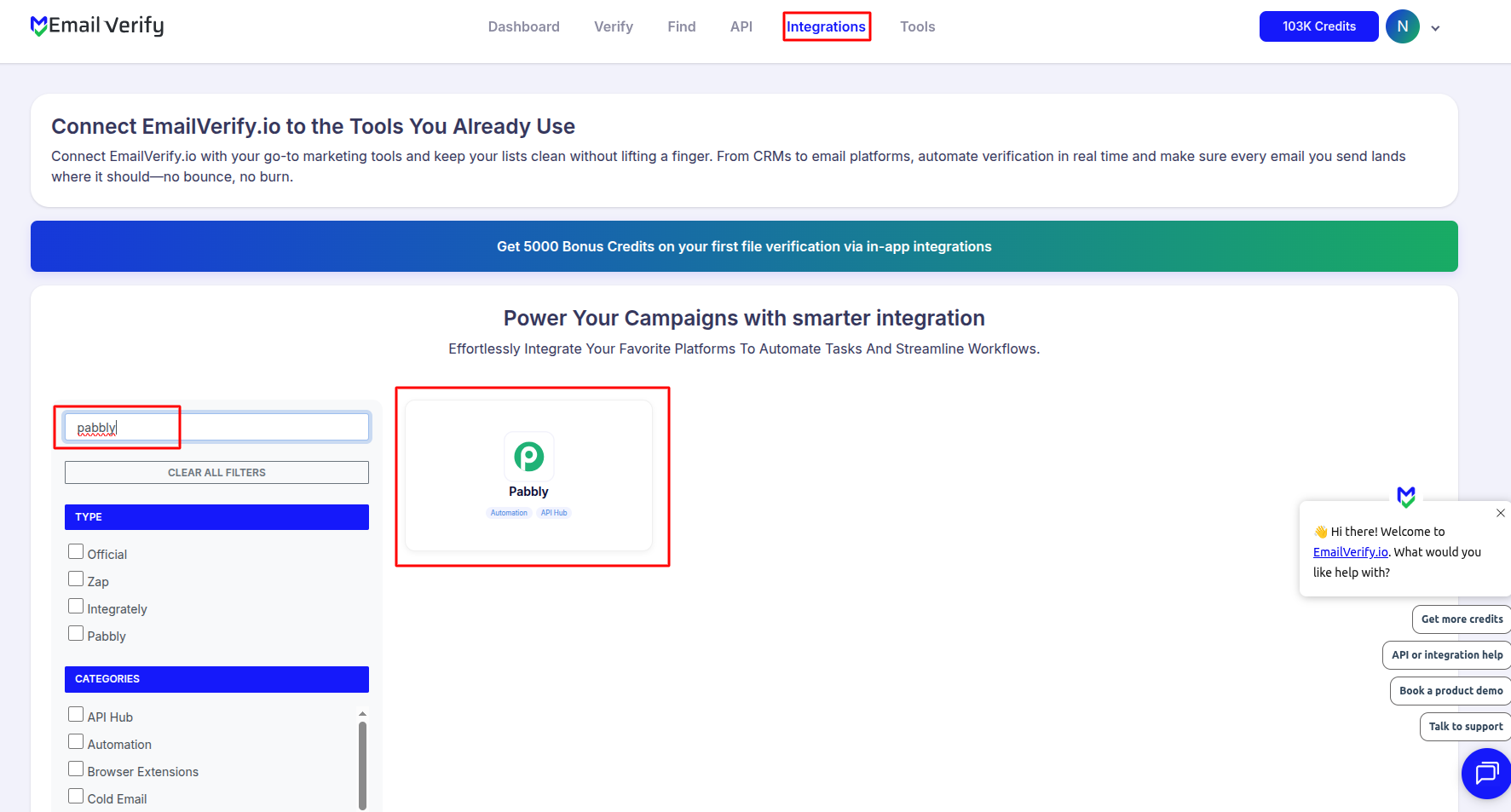
Log in to your EmailVerify.io account. From the navigation bar, go to Integrations and search for Pabbly.
Step 2: Choose Your App
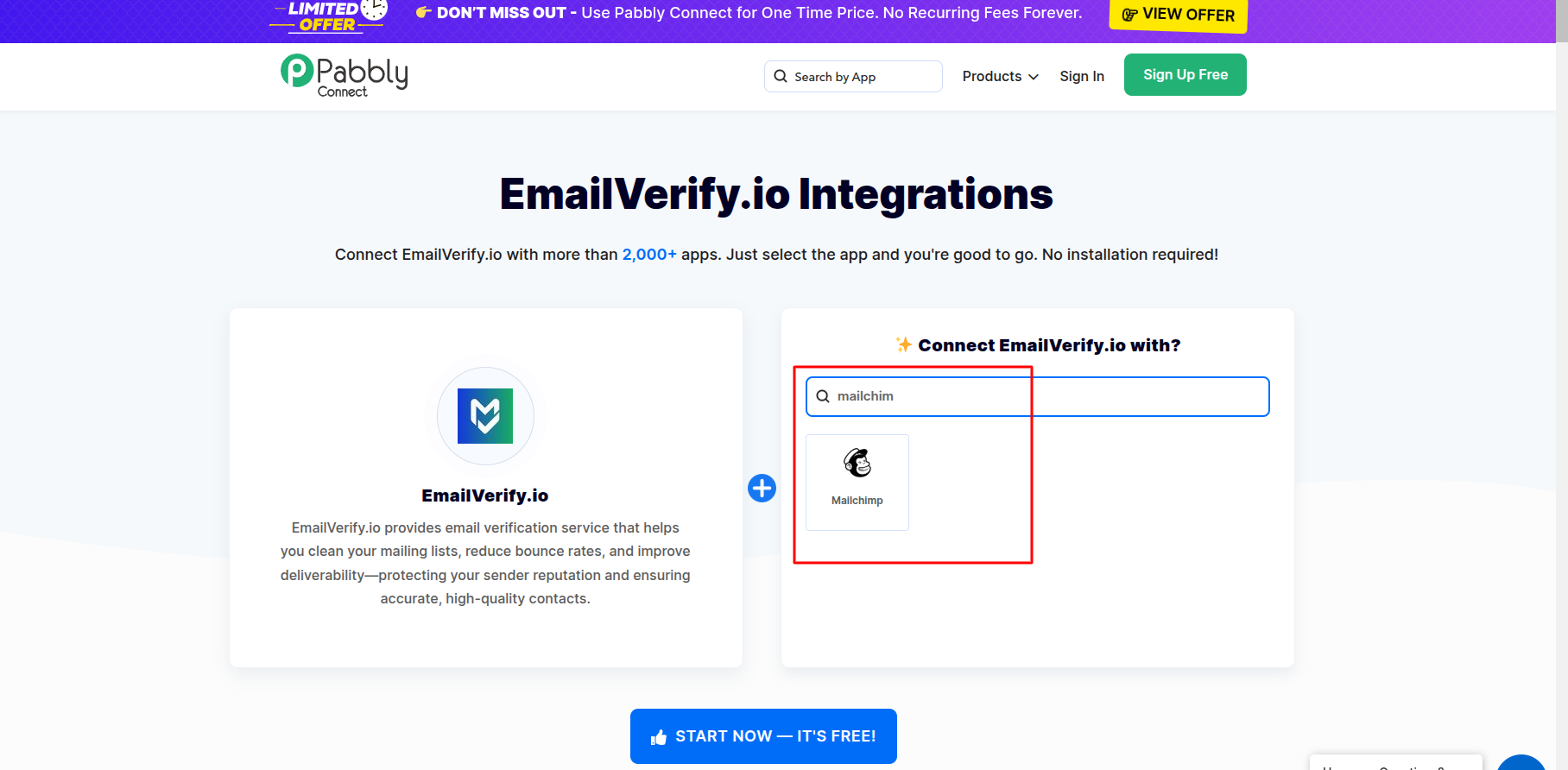
On the Pabbly integration page, search for the specific application you want to integrate with EmailVerify.io. Select the app to begin creating the automation workflow.
Step 3: Start Your Integration
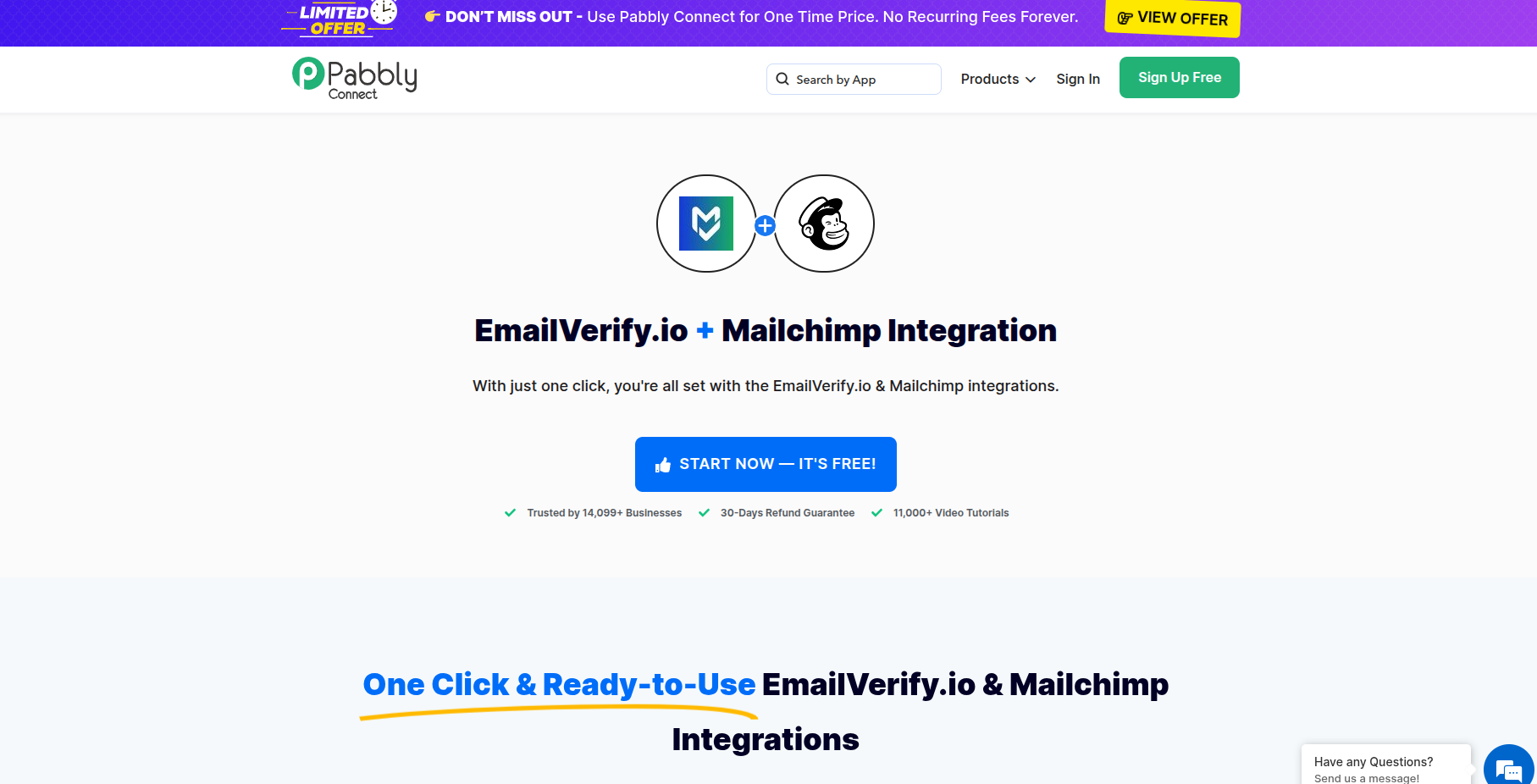
Click the "Start now it's free" button. This will redirect you to the Pabbly Connect portal, where you can begin configuring your automation workflow.
Step 4: Create or Log into Pabbly
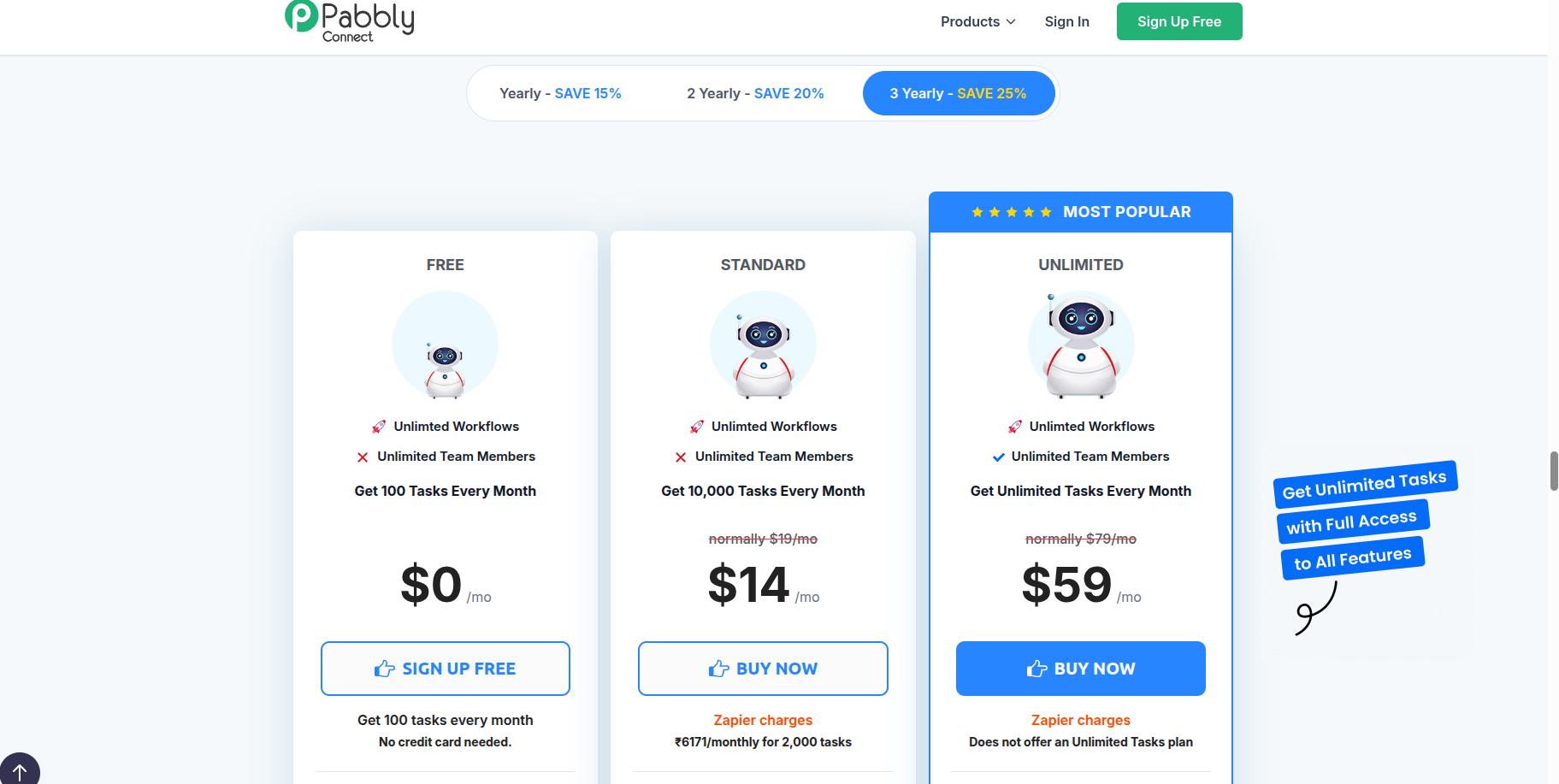
If you are new to Pabbly Connect, select "Sign up free" to create an account.
If you already have an account, simply click Sign in to access your dashboard.
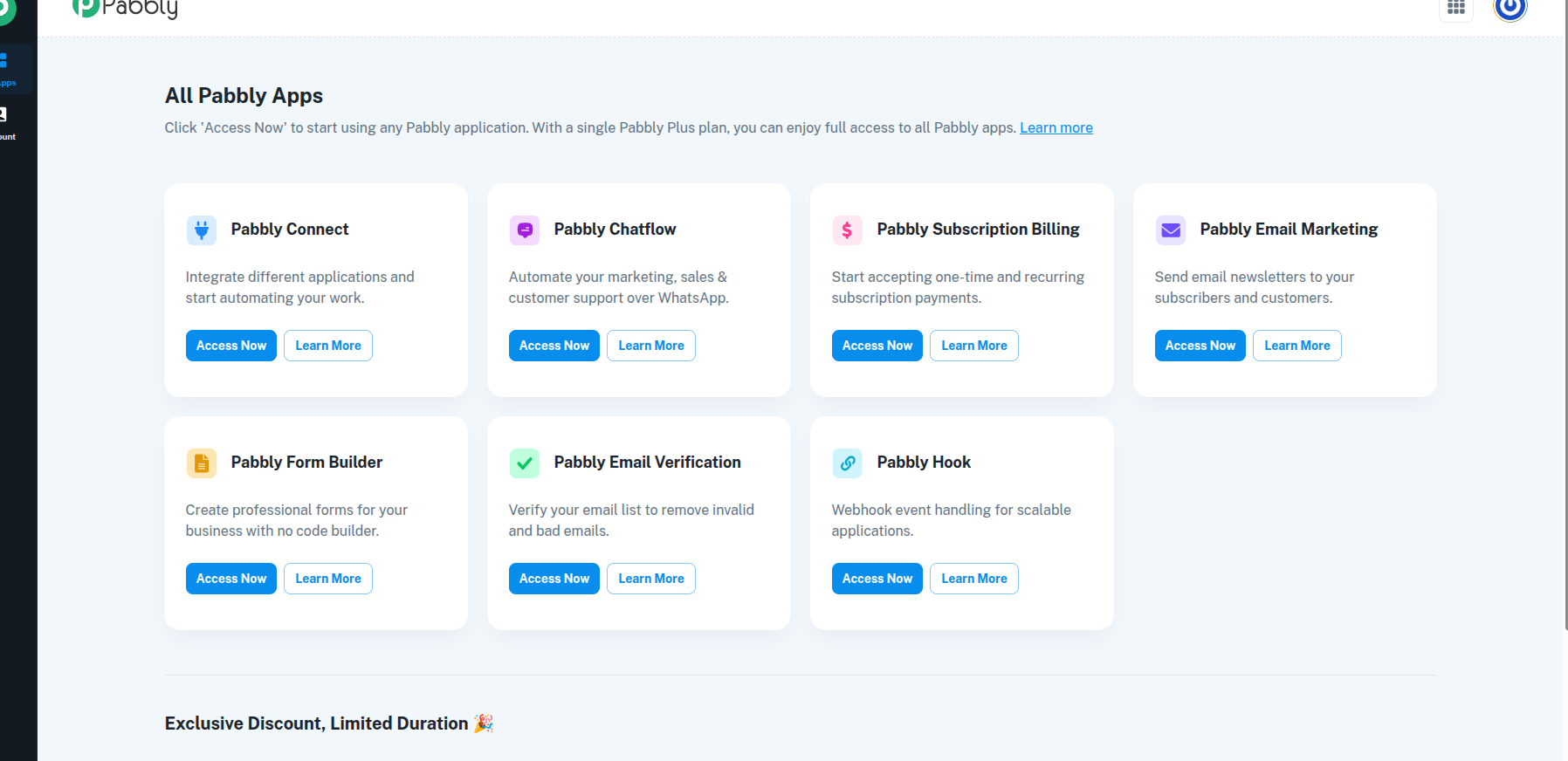
Step 5: Access Pabbly Connect
From your Pabbly dashboard, open the Pabbly Connect module. This is where you can create and manage your automation workflows.
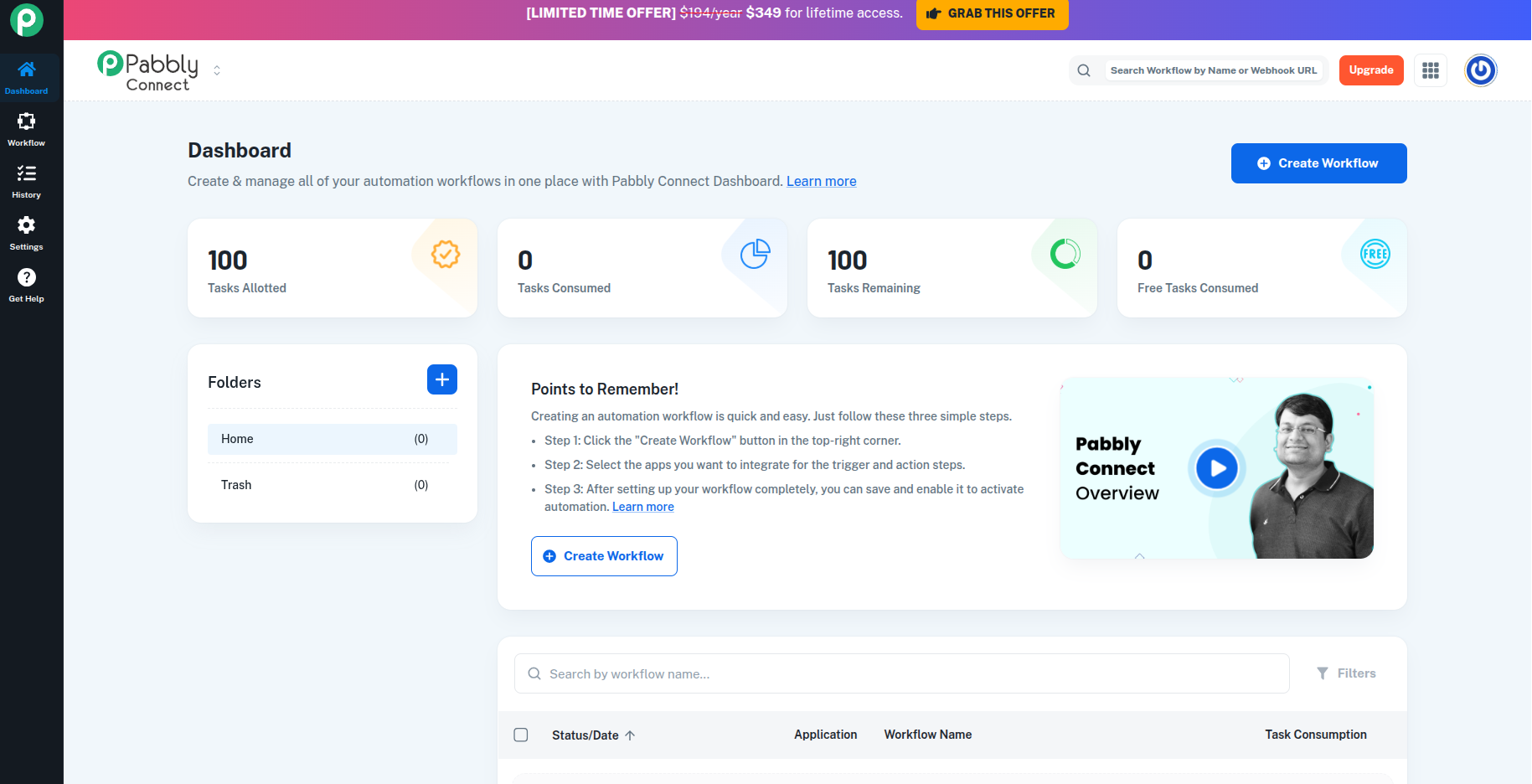
Step 6: Create a Workflow
Click Create Workflow and give your workflow a name (for example, Verify Leads). This will open the workflow builder, where you can configure triggers and actions.
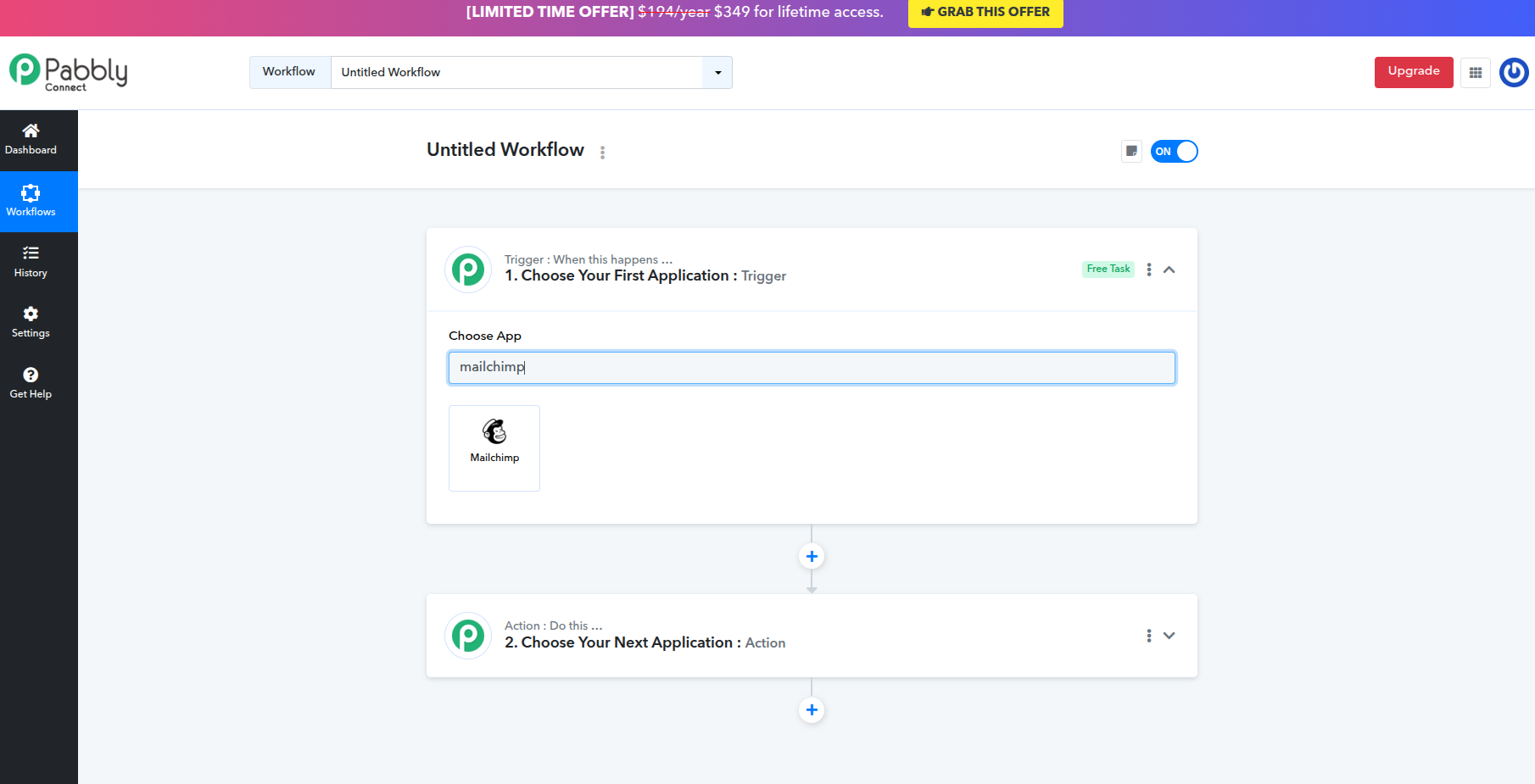
Step 7: Configure Triggers and Actions
Select the application that will trigger the workflow (such as a form submission, CRM contact, or new lead). Then choose EmailVerify.io as the action step to validate the email address automatically.
Your Pabbly Connect integration is now ready. New email addresses captured from any connected app can be automatically verified with EmailVerify.io before continuing through your workflow.
Troubleshooting & Tips
If you encounter issues while setting up the integration, the following tips can help ensure everything works smoothly:
- Ensure your EmailVerify.io API Key is correctly added to the workflow configuration.
- Double-check that the email field is properly mapped from the trigger application.
- Run a test trigger in Pabbly to confirm the workflow is receiving data correctly.
- If verification results do not appear, review the workflow execution logs inside Pabbly Connect.
- For better automation performance, consider filtering only valid emails before sending contacts to your CRM or marketing platform.
Next Steps
Prioritize Accurate Contacts in Every Workflow!
Verify new emails from any connected app instantly with EmailVerify.io, so only valid contacts move through your workflows.