
Integration with Wealthbox
The EmailVerify.io integration with Wealthbox helps financial advisors maintain accurate client contact records and improve email communication reliability.
You can import primary work email addresses from your Wealthbox contacts and verify them using EmailVerify.io. This helps identify invalid, risky, or undeliverable addresses before sending newsletters, updates, or campaign communications.
As a result, your client communications reach real inboxes, and your contact data remains reliable.
Prerequisites
Before connecting Wealthbox with EmailVerify.io, make sure you have the following:
- An active Wealthbox account
- An EmailVerify.io account with available credits
- Access to your Wealthbox API Access Token
Step-by-Step Integration Setup
Use the steps below to securely set up your Wealthbox integration with EmailVerify.io.
Step 1: Sign in to EmailVerify.io
Sign in to your EmailVerify.io account and open the Integrations section. Use the search bar to find Wealthbox.
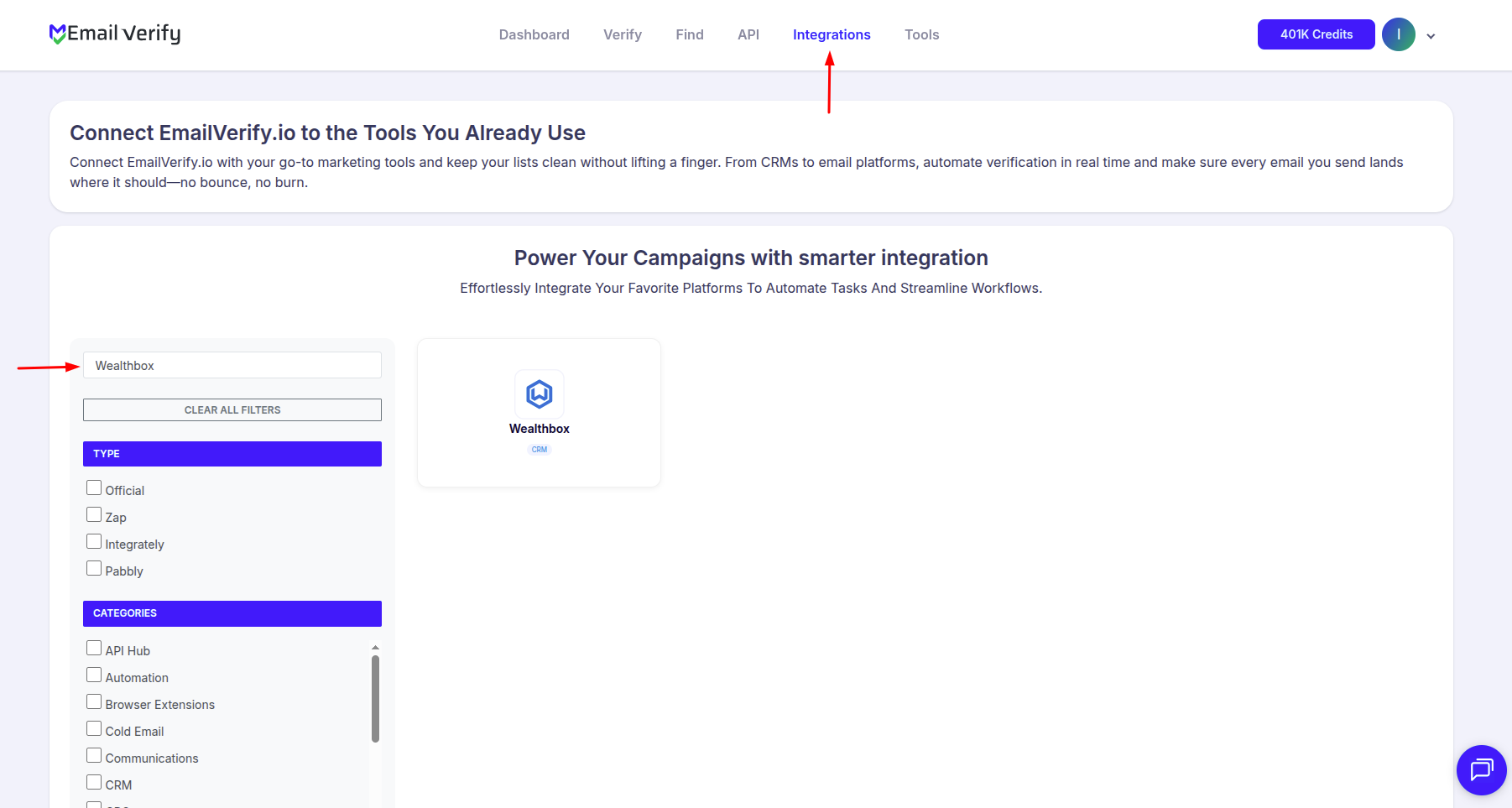
Step 2: Select Wealthbox
Choose Wealthbox from the integration list. You will be asked to enter your Wealthbox API Access Token to connect your account securely.
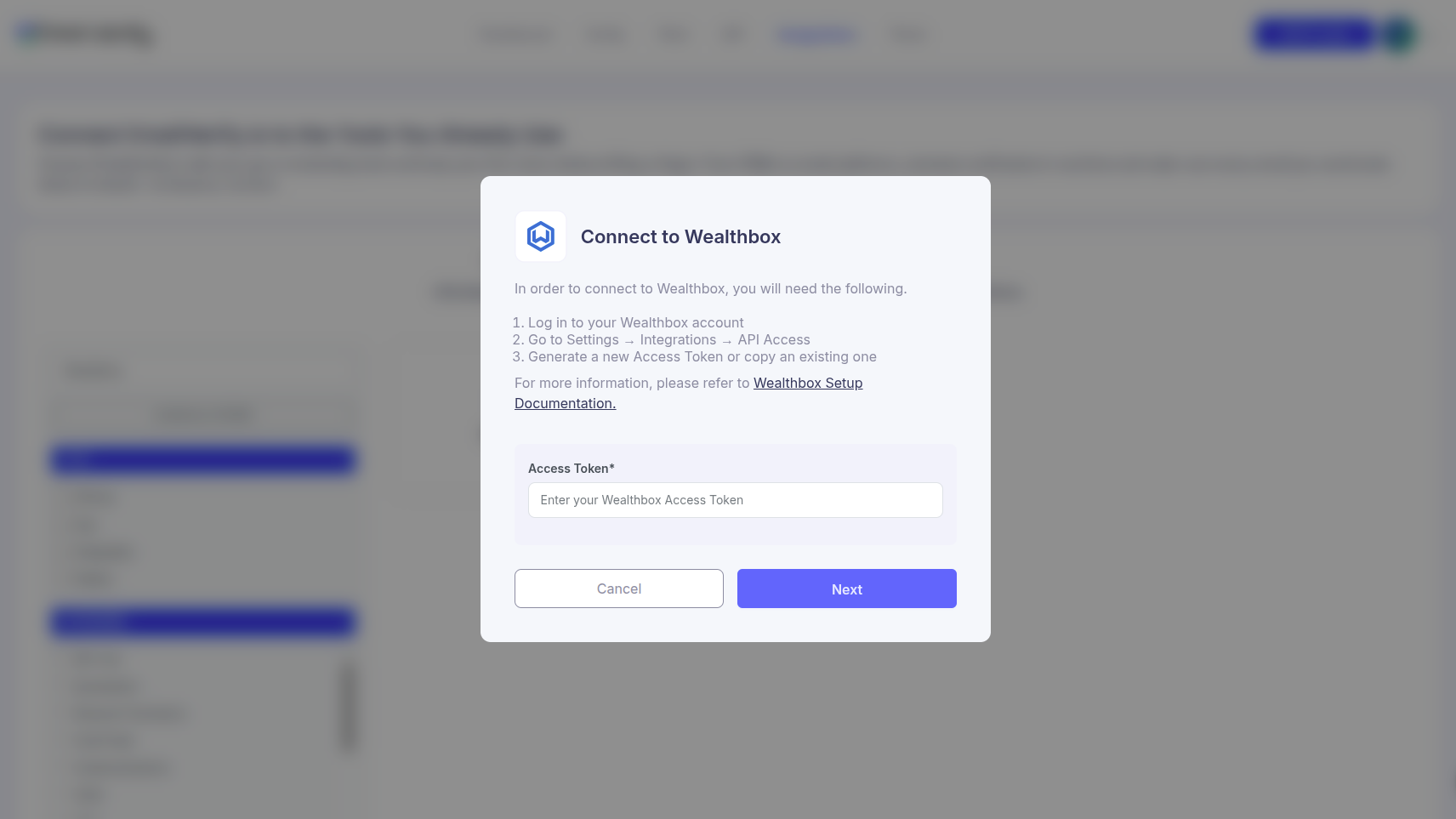
Step 3: Access API Settings in Wealthbox
Sign in to your Wealthbox account and navigate to Settings → API Access. From there, create a new Access Token.
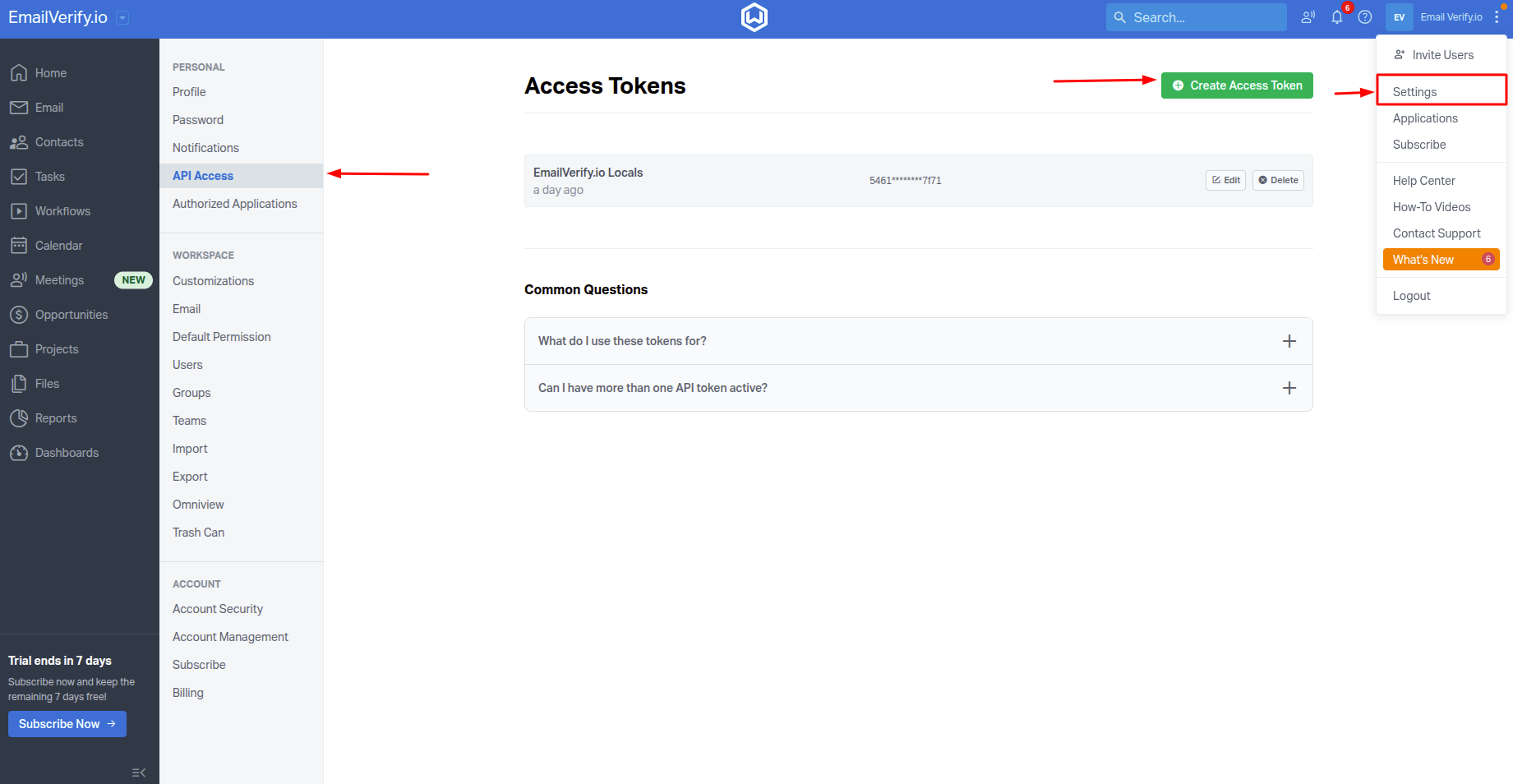
Step 4: Generate API Token
Create a new API token specifically for EmailVerify.io and copy it. Return to EmailVerify.io and paste the token into the integration field to authorize the connection.
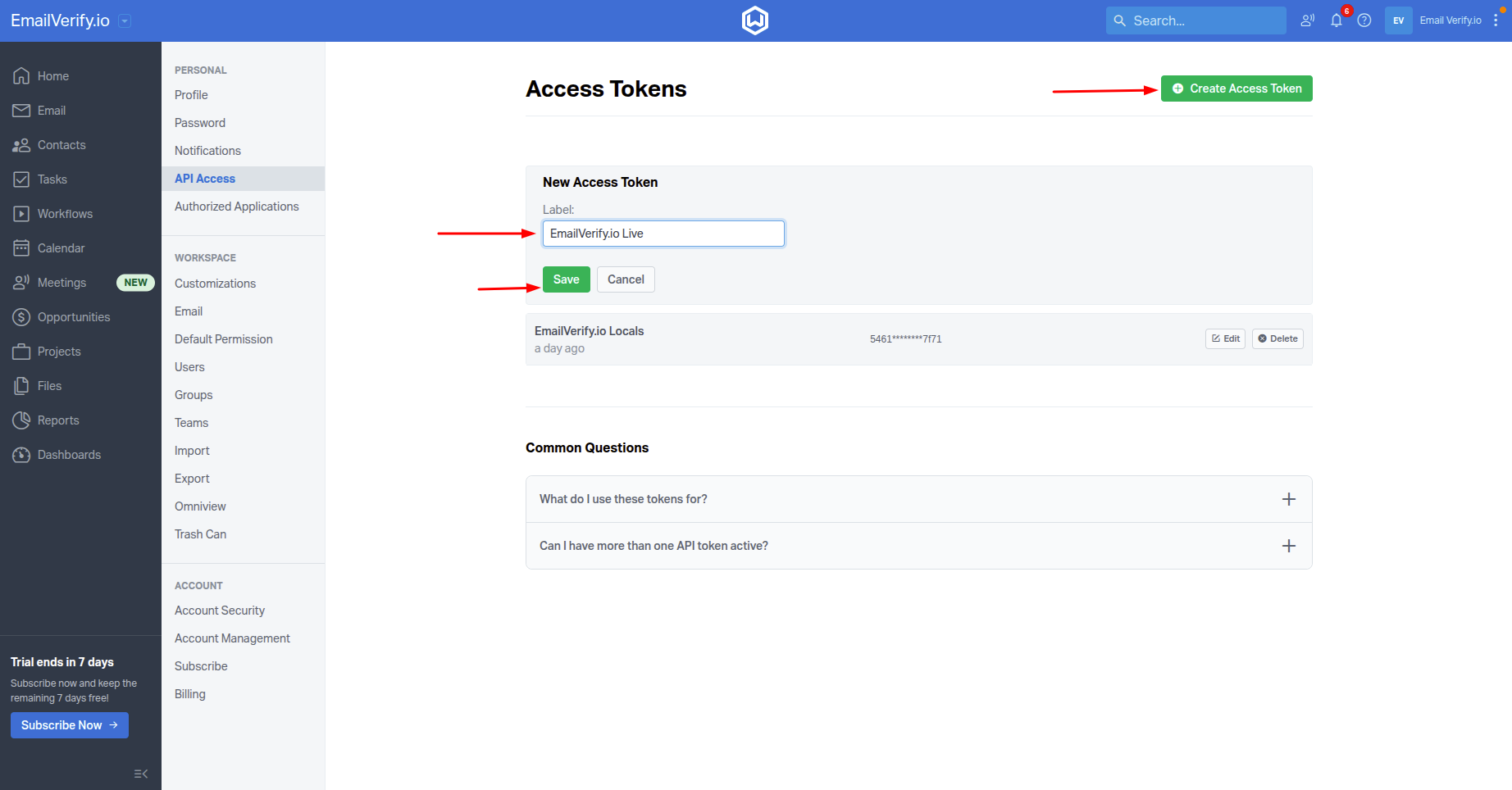
Step 5: View Your Contacts
Once the connection is authorized, your Wealthbox contacts will appear on the integrations page inside EmailVerify.io.
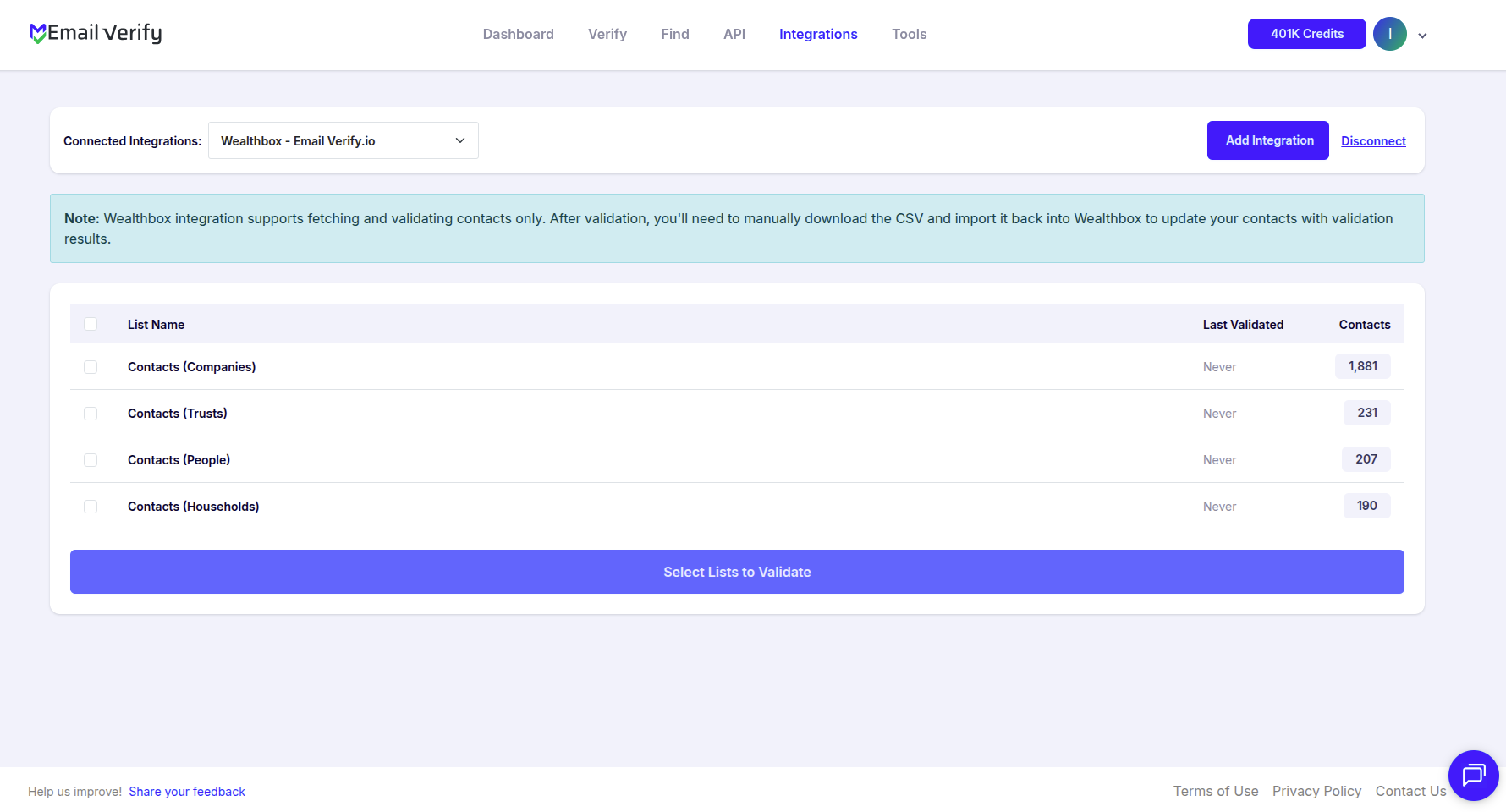
Step 6: Select Contacts to Verify
Select the contacts you want to verify by checking the respective boxes. Then, click Validate to begin the email verification process.
Note: Verification results are not automatically exported back to Wealthbox.
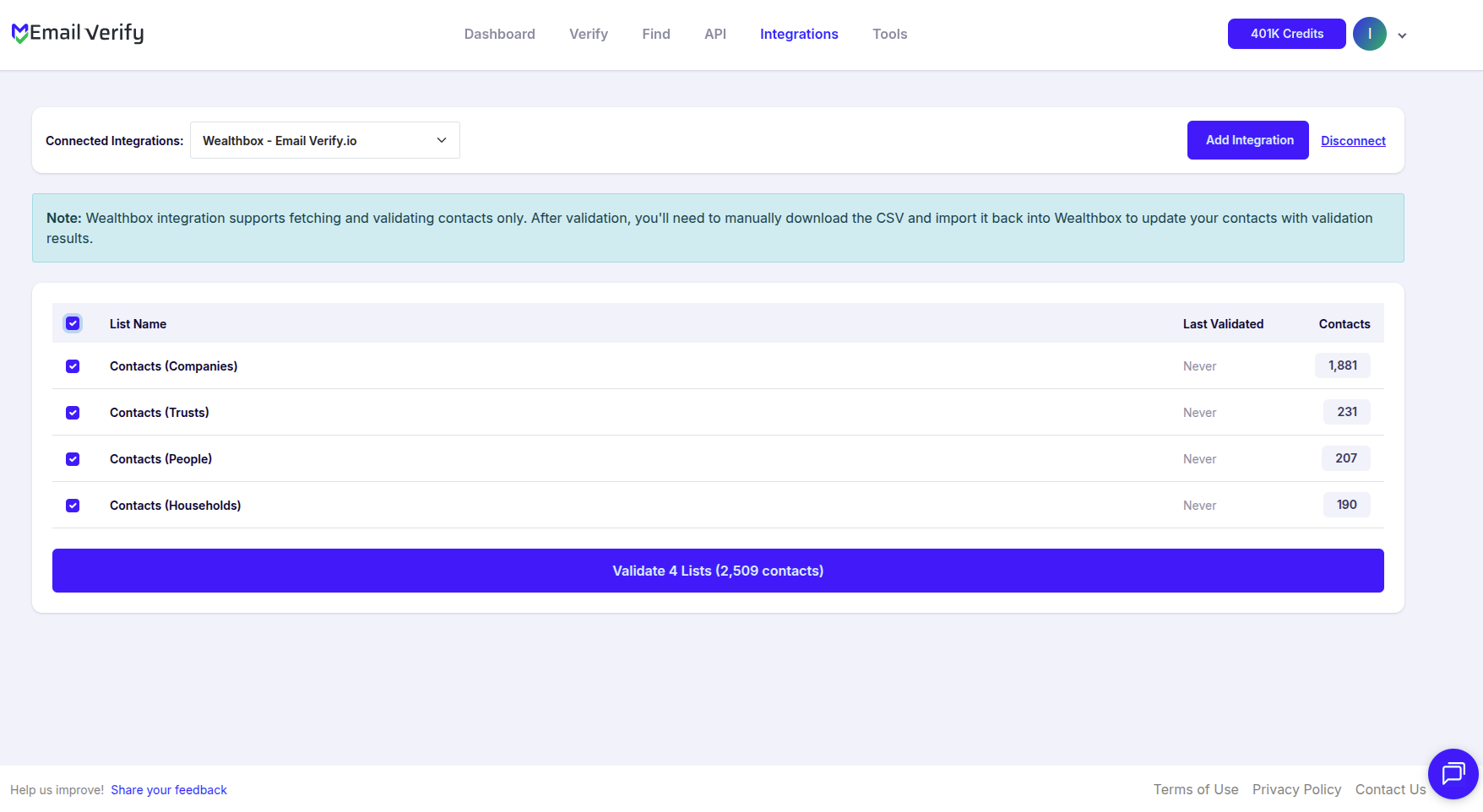
Step 7: Monitor Verification Progress
After starting verification, you will be redirected to the Bulk Verification page, where you can track the progress of your selected contact lists.
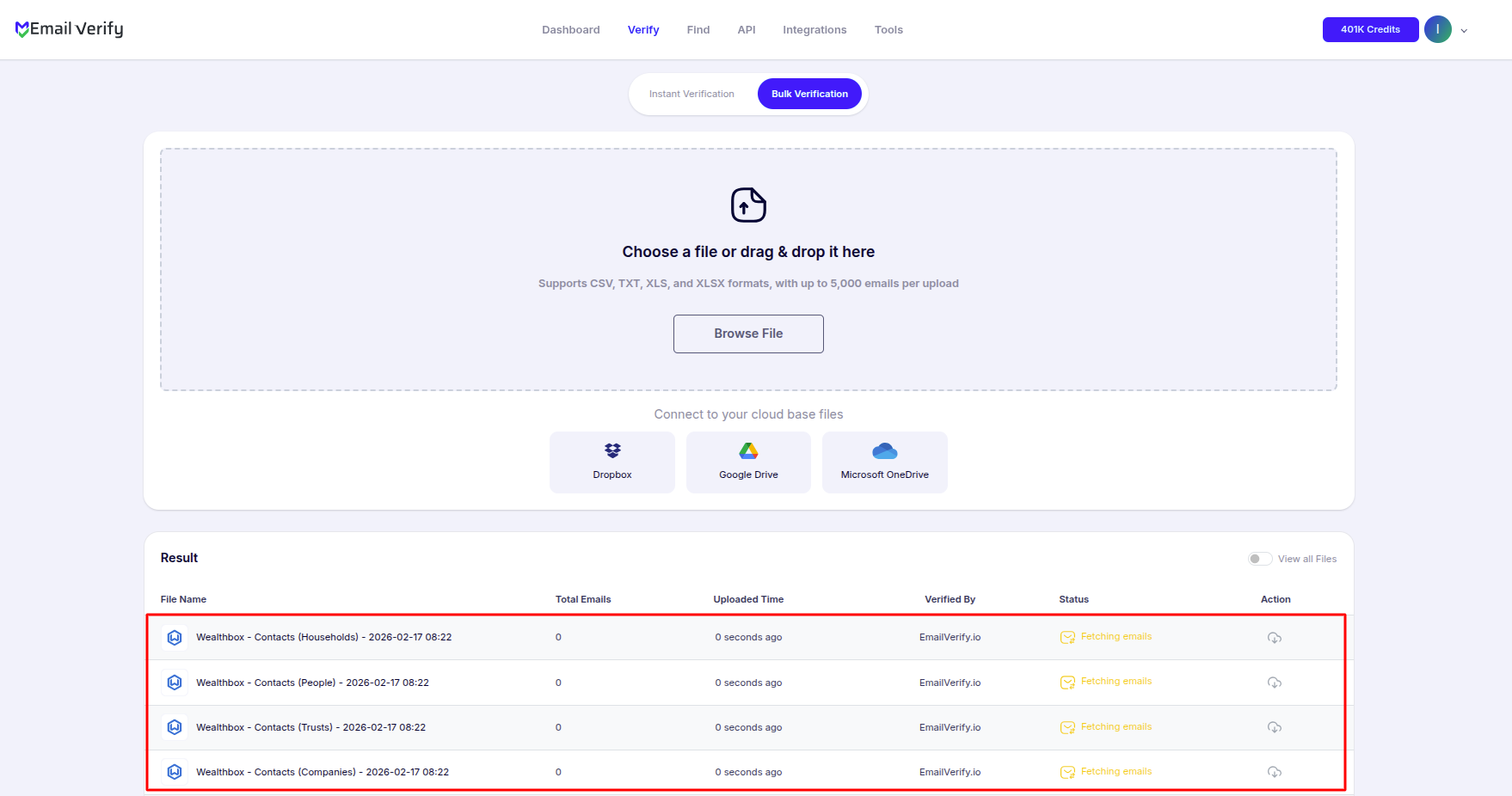
Step 8: Download Verification Results
When the verification process finishes:
- You will receive an email notification
- The Download button will become available on the Bulk Verification page
- You can download the results and review the verification status for each contact.
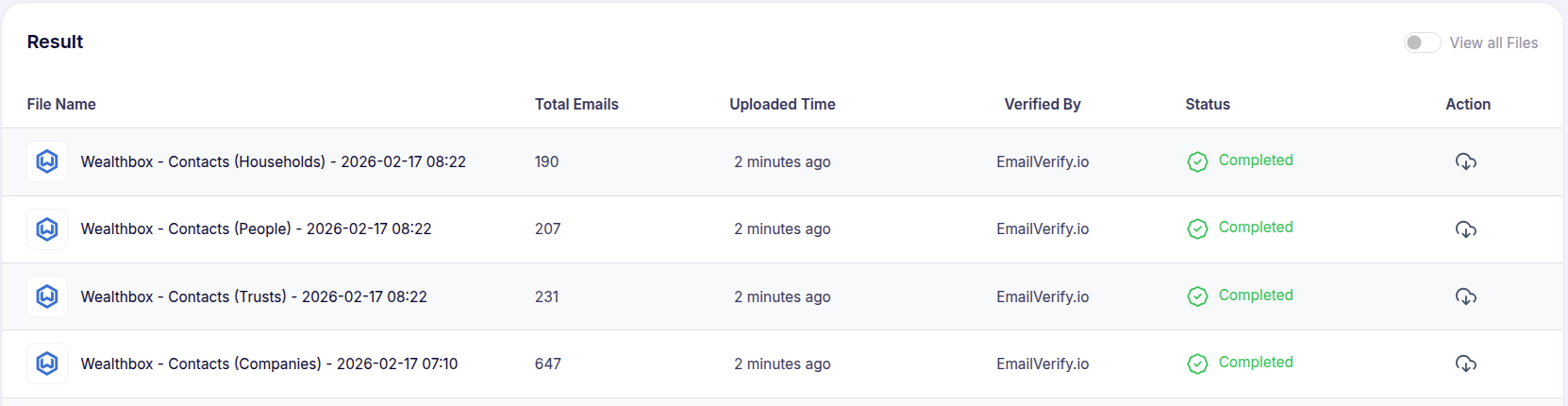
Note: Verification results remain inside EmailVerify.io and are not automatically synced back to Wealthbox.
Troubleshooting & Tips
Once your integration is set up, here are some helpful tips to ensure smooth verification:
- Double-check that your API token from Wealthbox is correct and active; it’s what keeps the connection secure.
- If you don’t see your contacts right away, try refreshing the integrations page and make sure your Wealthbox permissions allow access.
- Remember, all verification results stay safely inside EmailVerify.io; you decide when to act on them.
- For large contact lists, try verifying in smaller batches to avoid processing delays.
- Keep an eye on new contacts and verify them regularly to maintain strong deliverability and protect your sender reputation.
Next Steps
Take Control of Your Wealthbox Contact Lists!
Monitor and manage your contacts in EmailVerify.io to ensure your outreach is accurate and well-targeted.