
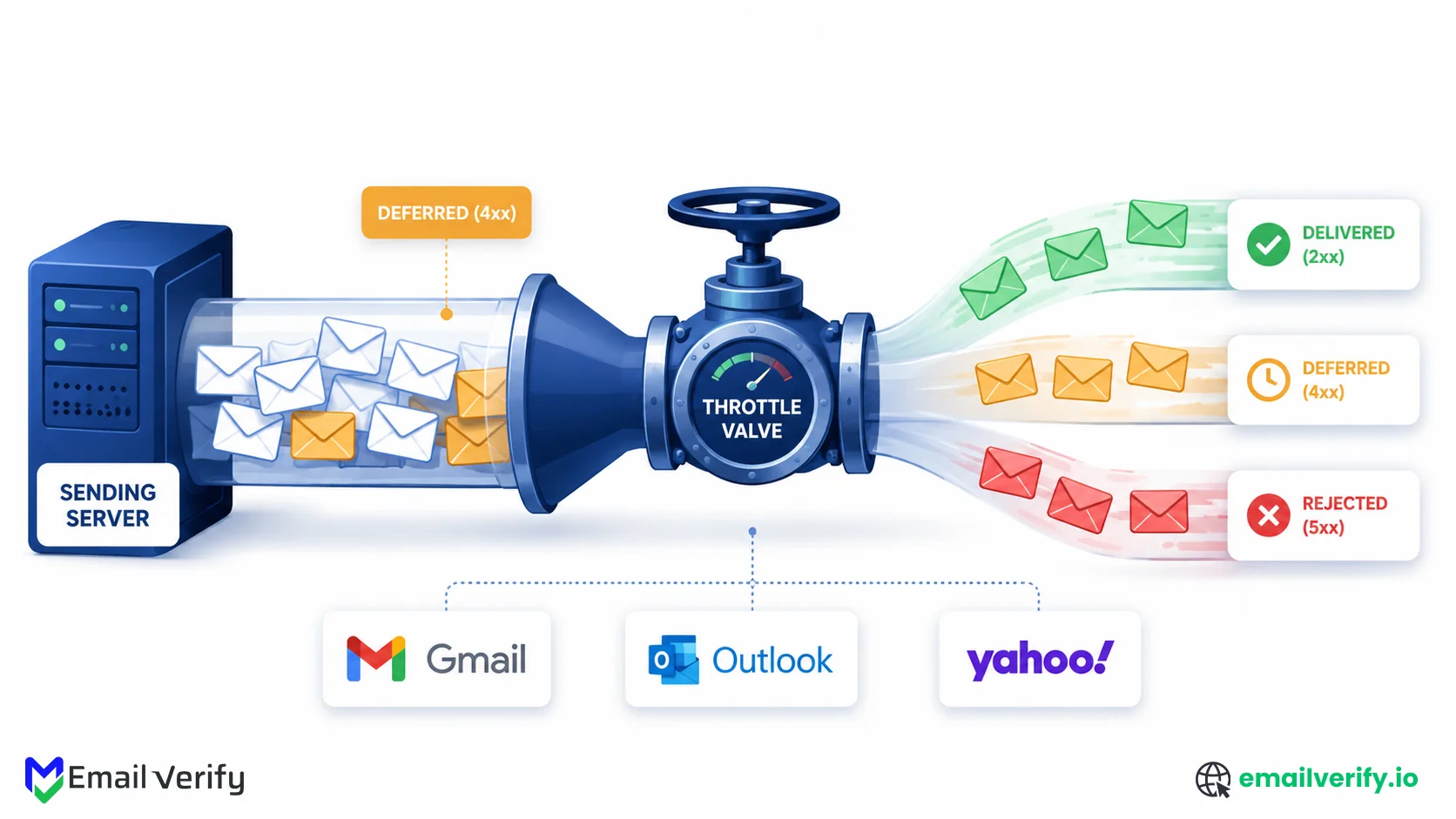

Email throttling is one of the easiest deliverability problems to miss. Your campaigns are sending, delivery rates look normal, and nothing in the dashboard appears broken, yet engagement starts dropping, recipients stop seeing your emails, and bounce logs quietly fill with 4xx “rate limit” responses.
By the time the pattern becomes obvious, throttling has often already damaged sender reputation and pushed mail toward spam folders or blocks.
Most senders assume throttling only happens at high volume, but mailbox providers now enforce behavioral limits long before published caps are reached.
For example, a new Google Workspace account can face throttling well below the official 2,000/day limit if bounce rates rise or sending ramps up too quickly.
That’s where the real challenge begins: identifying whether the issue is caused by volume spikes, reputation decline, authentication problems, or silent throttling where mail is accepted but delayed for hours without warning.
In this guide, we’ll break down how email throttling actually works, the current send-rate limits at Gmail, Microsoft 365, Yahoo, and other providers, how to read SMTP 4xx and 5xx errors correctly, and the safest ways to ramp volume without damaging domain reputation.
We’ll also cover silent throttling, detection methods, recovery steps, and the role verification plays in preventing bounce-triggered throttling before it escalates further.
Let’s start.
Email throttling is when a mailbox provider deliberately slows or temporarily refuses your mail, usually because you’re sending faster than your reputation supports. It’s signaled by SMTP 4xx response codes (most commonly 421),different from 5xx codes which are permanent rejections. Throttling is your sending environment’s warning sign that something needs to change before it escalates to spam-folder placement, blocks, or blacklisting.
Concrete daily send limits in 2026: Gmail free 500/day; Google Workspace 2,000/day per user (10,000/day via SMTP relay); Microsoft 365 10,000 recipients/day per user with 30 messages/min; Outlook.com personal/family 5,000 recipients/day; free Outlook.com ~300/day; Yahoo Mail unpublished but functionally ~500–1,000/day for new senders. Microsoft 365 also enforces a Tenant External Recipient Rate Limit (TERRL) that caps tenant-wide external sending; rollout extends to April 2026 for the largest tenants.
Ramp-up strategy that doesn’t burn the domain: start at 20–50 emails/day from a fresh domain in week 1, increase by 25% per week if metrics stay clean, plateau at any sign of 4xx error rate climbing, and never increase by more than 25% week-over-week. Most domain burns happen in weeks 2–3 from senders who saw clean week-1 metrics and accelerated too aggressively. Verification before sending is the highest-leverage prevention—hard bounces from invalid addresses are what triggers most throttling at low volume.
Table of Contents
What Is Email Throttling and Why Does It Happen?
Email throttling is when a mailbox provider deliberately slows or temporarily refuses to accept mail from a sender. It’s a deliberate response to a sending pattern the receiver considers risky—too much volume, too fast a ramp, too many bounces, declining reputation, and authentication issues. Throttling shows up as SMTP 4xx response codes (temporary, retry later), as opposed to 5xx codes (permanent rejection) or silent deferrals (mail accepted but held for hours).
The core distinction worth nailing down: throttling is bilateral and symptomatic, not punitive. Bilateral because it happens to you (from receiving servers) and ideally also because of you (proactive self-throttling on your side).
Symptomatic because it’s a warning sign of an underlying issue, reputation, list quality, volume pattern, not the underlying problem itself.
3 terms get tangled around “throttling” that mean different things:
| Term | What it actually means | Failure mode |
|---|---|---|
| Throttling | Sending a server slows or pauses you before a delivery attempt, or receiving a server defers your message after the connection. | Mail backs up in your sending queue or arrives late. |
| Deferral | Receiving server accepts the connection but delays delivery (4xx response). | Mail bounces with 4xx; retried later by your sending system. |
| Block (or rejection) | Receiving server refuses delivery permanently (5xx response). | Mail bounces with 5xx; sender’s side must fix the cause before retrying. |
Email Throttling is the mildest form of these. A single 4xx response on a single message is just transient. Throttling is a sustained pattern: 5–20% of your messages bouncing with 4xx codes over a window of hours, or messages consistently arriving 30+ minutes late even when not bouncing.
Sustained throttling is the signal that mailbox providers are telling you to slow down before they escalate to blocks.
The throttling-to-blocking progression: the typical pattern is throttling → spam-folder placement → selective blocks → blacklisting. Each stage is harder to recover from than the previous one. Catching the problem at the throttling stage when you’re seeing 4xx responses but mail is still functioning means recovery in 2–4 weeks. Catching it at the blacklisting stage means 8–12+ weeks. The early signal is worth treating seriously even when delivery rates still look acceptable.
What are the 3 Types of Email Throttling in 2026?
Mailbox providers throttle at three layers. Stated limits are the documented daily caps each provider publishes. Behavioral limits are the dynamic thresholds enforced based on your reputation, volume pattern, and engagement; they are always lower than stated limits and never published. Silent throttling is the invisible delay where the receiving server accepts your mail and holds it for hours without bouncing it. All three apply simultaneously; understanding which one is hitting you is the first diagnostic step.
Most articles cover only the first layer (stated limits). Most senders run into the second layer (behavioral) without realizing it because the dashboards don’t expose it.
The third layer (silent throttling) is the most insidious because there’s no bounce notification; your mail looks delivered, but it’s arriving so late that flash sales end, password resets expire, and OTP codes time out before recipients see them.
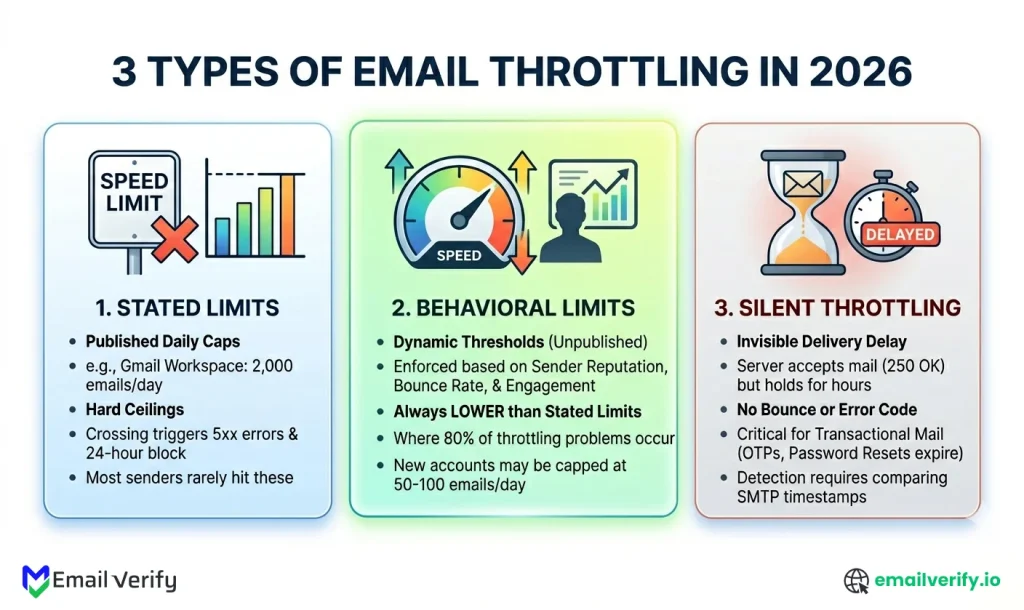
The following are 3 types of email throttling:
Layer 1: Stated Limits
These are the published daily caps: Gmail is free at 500/day, Workspace at 2,000/day, Microsoft 365 at 10,000 recipients/day, etc. These are real ceilings; if you cross them, you get hard 5xx errors and a 24-hour block.
But almost no sender hits them in practice. Most senders get throttled well below stated limits because of behavioral enforcement.
Layer 2: behavioral limits
This is where most throttling happens. Mailbox providers enforce behavioral limits below stated caps based on your sender reputation, volume consistency, bounce rate, complaint rate, and engagement velocity.
- A new Gmail Workspace account with no sending history gets throttled at 50–100 emails/day even though the stated cap is 2,000.
- A Microsoft 365 tenant with an elevated complaint rate gets throttled at 1,000–2,000 recipients/day even though the per-user cap is 10,000.
Behavioral limits are dynamic. They change based on your real-time signals. Send to a clean engaged list with behavioral limits expanded. Spike bounces, send to disengaged subscribers, or triggers complaints, and behavioral limits contract.
Gmail Workspace published cap: 2,000 emails/day per user. Real-world enforcement: brand-new Workspace accounts can be throttled to as few as 10–50 emails/day until they build sending history. One reported case from a Reddit thread: a user got blocked after sending 12 emails per day using Boomerang scheduled sends. The gap between stated cap and behavioral threshold is where most sub-quota blocks happen.
Sources: Prospeo Gmail Sending Limits research 2026; community-reported behavioral enforcement patterns; industry deliverability case studies.
Layer 3: silent throttling
The hardest to detect. Silent throttling happens when the receiving server accepts your mail (returning a 250 OK in the SMTP transaction) but then holds the message for hours before delivery. There’s no bounce, no error code, no notification.
Long after it was helpful to the recipient, the message finally arrives, typically 30 to 12 hours later.
Silent throttling matters most for transactional mail. A password reset that arrives 6 hours late is functionally useless. A flash sale email that arrives after the sale ends is worse than no email at all.
Don’t treat throttling as something only “big senders” have to worry about. Behavioral throttling hits new senders at very low volumes 100 messages a day from a fresh domain can trigger 4xx responses. The volume threshold for throttling depends on your reputation, not just the absolute number. If you’re seeing rate-limit responses in your bounce logs, the answer is never “send more to push through” the answer is to slow down and address what triggered it.
SMTP 4xx vs 5xx Errors: Which Codes Mean Throttling and Which Mean Blocking?
SMTP response codes follow a basic three-digit format: 2xx codes mean success, 4xx codes mean temporary failures (try again), and 5xx codes mean permanent failures (don’t try again until you fix the cause). For throttling specifically, 4xx codes especially 421 are the signal you’re being rate-limited. 5xx codes are escalations: blocks, blacklist listings, and hard rejections. The distinction is critical because the right response is opposite for each.
Reading bounce logs is a deliverability skill most marketers never learn. The codes look intimidating, but the logic is simple. Three-digit codes follow this structure:
- First digit is the class: 2 = success, 4 = temporary failure (transient), 5 = permanent failure.
- Second digit is the subject: 0 = unspecified, 1 = address, 2 = mailbox, 3 = mail system, 4 = network, 5 = mail delivery protocol, 7 = security/policy.
- Third digit is the detail: specific information within the subject category.
When you see 421 4.7.0 in a bounce log, the basic code (421) tells you it’s a temporary security/policy refusal; the enhanced code (4.7.0) confirms it’s a security/policy issue at the temporary level. The text after the code usually explains the specific cause.
The codes that actually matter for throttling
Here are the SMTP error codes you’ll encounter when throttled, organized by code class. Amber rows are 4xx (temporary, throttling); red rows are 5xx (permanent, blocked or quota-exceeded).
| Error code | Type | What it means and what to do |
|---|---|---|
| 421 4.7.0 | Temporary | Generic throttling. Retry with exponential backoff. Most common throttling response across all providers. |
| 421 4.7.1 | Temporary | Apple iCloud: “Messages deferred due to excessive volume.” Reduce volume to iCloud and retry. |
| 421 4.7.28 | Temporary | Gmail: “Unusual rate of unsolicited mail originating from your IP address.” Reduce volume aggressively. |
| 421 4.7.0 [TSS04] | Temporary | Yahoo: “Deferred due to unexpected volume or user complaints.” Reduce volume and check complaint rate. |
| 421 4.3.2 | Temporary | Connection limit hit. Too many concurrent SMTP connections to the receiver. Reduce connection concurrency. |
| 451 4.7.650 | Temporary | Microsoft 365: throttling for possible spam or compromised accounts. Continued abuse escalates to 5xx. |
| 450 4.7.0 | Temporary | Mailbox temporarily unavailable or recipient-side issue. Retry after a few hours. |
| 550 5.4.5 | Permanent | Gmail: “Daily quota exceeded.” You hit the daily cap. 24-hour block until the rolling window resets. |
| 550 5.7.232 | Permanent | Microsoft 365 trial tenant: TERRL exceeded (Tenant External Recipient Rate Limit). Hard block. |
| 550 5.7.233 | Permanent | Microsoft 365 non-trial tenant: TERRL exceeded. Hard block until 24-hour sliding window clears. |
| 550 5.7.606 | Permanent | Microsoft Outlook: blacklist or sender reputation block. Investigate reputation; pause sending. |
| 554 5.7.x | Permanent | Hard rejection by content filter or policy. Review content and reputation; do not retry without fixes. |
The single most important reading rule: 4xx is throttling, retry slower; 5xx is a block fix the cause first. Senders who treat 4xx and 5xx the same way (retrying both at the same volume) compound the problem in both directions. Reduce volume on 4xx; investigate and fix on 5xx.
Set up alerts on your sending platform for 4xx response rate spikes within rolling hour windows. A sudden increase in 421s within an hour is a stronger signal than the same count spread across a week. Track the ratio of 4xx to 5xx bounces if your 4xx rate is climbing while 5xx stays flat, you’re being throttled, not blocked. The early warning gives you 24–48 hours to react before throttling escalates to blocks.
What are Gmail and Google Workspace Email Sending Limits in 2026?
Gmail free accounts cap at 500 emails per day with up to 100 recipients per message. Google Workspace caps at 2,000 emails per day per user with up to 2,000 total recipients per message (max 500 external). SMTP submission via Gmail (port 465/587) is restricted to 100 messages per day. SMTP relay via Google Workspace can send up to 10,000 messages per day. All limits operate on a rolling 24-hour window, not a calendar reset, and behavioral throttling kicks in well below stated caps for new or low-reputation senders.
Gmail and Google Workspace have the most variation in published limits because Google offers multiple sending interfaces with different caps. Here’s the complete reference.
| Sending interface | Daily limit | Recipients per message | Notes |
|---|---|---|---|
| Gmail web interface (free) | 500/day | 100 | Rolling 24-hour window. Free Gmail accounts. |
| Gmail SMTP submission (free, port 465/587) | 100/day | Same per-message limits | Restricted SMTP cap for free accounts. |
| Google Workspace web interface | 2,000/day per user | 2,000 (max 500 external) | Standard Workspace cap. |
| Google Workspace SMTP submission | 2,000/day per user | Same per-message limits | Same as web interface. |
| Google Workspace SMTP relay | 10,000/day | Higher limits, configurable | Designed for transactional/marketing mail; admin must enable. |
| Brand-new Workspace accounts | 10–50/day initially | Same per-message limits | Behavioral throttling until reputation builds. |
1. How Gmail Counts Recipients
This is the gotcha that catches most senders. Every recipient address counts toward your daily limit. To, CC, and BCC fields all consume quota individually.
An email to 10 CC’d people uses 10 of your daily quota, not one. This matters for any kind of bulk send through standard Gmail/Workspace; if you’re BCCing a list of 1,000 recipients on a single message, those are 1,000 against your daily cap, not one.
Gmail also counts CC and BCC recipients toward the per-message recipient cap, not just To. Workspace’s 2,000 total recipients per message includes everyone in all three fields combined.
2. The Behavioral Throttling Reality
Stated caps are ceilings; behavioral enforcement is the floor. Real-world Workspace throttling for cold outbound and aggressive marketing typically kicks in at:
- Brand-new Workspace accounts with no sending history: 10–50 emails/day for the first 1–2 weeks.
- Newer accounts with some history but high bounce rate: 100–200 emails/day.
- Established accounts with poor reputation signals: 500–1,000 emails/day.
- Established accounts with good reputation: full 2,000/day stated cap.
Cold email specifically: industry deliverability consultants typically recommend 25–50 cold emails per day per inbox even at established accounts because cold outbound generates lower engagement velocity and higher complaint rates than opted-in marketing.
When sending through Gmail using SMTP submission (port 465 or 587 for outbound from your client to Google) on a free Gmail account, the daily cap drops to 100 emails per day not the 500 of the web interface. Google enforces this stricter cap for SMTP because it’s the channel commonly used by automated tools and outbound marketing. This catches senders who set up scripts or third-party tools through SMTP and assume the higher cap applies.
Sources: GrowthList Email Sending Limits 2026; Google Workspace SMTP documentation.
3. The 550 5.4.5 Daily Quota Exceeded error
The hard-cap response. When you cross Gmail’s daily limit, you get this:
550 5.4.5 Daily user sending quota exceeded.
Learn more at https://support.google.com/mail/answer/22839 – gsmtp
Once you hit this, sending from that account is blocked for ~24 hours until the rolling window clears enough headroom. There’s no way to lift it early. Plan ahead; once you hit the cap mid-campaign, you’re done sending until tomorrow.
What are Microsoft 365 and Outlook Sending Limits in 2026?
Microsoft 365 caps at 10,000 recipients per day per user, 30 messages per minute, with default 500 recipients per message (configurable 1–1,000). Per-user limits are identical across Exchange Online plans Business Basic to E5. The Tenant External Recipient Rate Limit (TERRL) caps tenant-wide external sending using a license-based formula; rollout extends to April 2026 for the largest tenants. Personal/family Outlook.com caps at 5,000 recipients/day; free Outlook.com is around 300/day with stricter ramp restrictions.
Microsoft’s sending limits are documented in Microsoft 365 caps, which makes them more concrete than Gmail’s but also more complex there are multiple layers of enforcement (per-user, per-tenant, per-message) that interact in non-obvious ways.
1. Per-user limits (Exchange Online / Microsoft 365)
| Limit type | Value | Notes |
|---|---|---|
| Recipient Rate Limit (RRL) per user | 10,000 recipients per 24 hours | Counts both internal and external recipients. |
| Message rate per user | 30 messages per minute | Hard ceiling; spikes above this throttle aggressively. |
| Recipients per message (default) | 500 | Customizable 1–1,000 by admin via Exchange admin center. |
| Recipients per message (max configurable) | 1,000 | Hard ceiling; cannot be raised above this. |
| SMTP AUTH connections per user | 3 concurrent | Limit on simultaneous outbound SMTP connections. |
| SMTP AUTH messages per minute | 30 | Same as overall message rate. |
| SMTP AUTH recipients per day | 10,000 | Same as RRL. |
These per-user limits are identical across all Exchange Online plans, from the lowest-cost Business Basic to the highest-tier E5. Paying more for a larger plan does not get you higher per-user sending caps. The plan affects mailbox storage, security features, and tenant-level allowances not per-user RRL.
2. The TERRL Layer (Tenant-Wide External Limit)
The Tenant External Recipient Rate Limit (TERRL) is Microsoft’s 2024–2026 enforcement of tenant-wide external sending caps. It’s separate from and additional to per-user RRL. The formula is license-based, with phased rollout extending into April 2026 for the largest tenants.
TERRL is a tenant-wide cap on external recipients per 24-hour window. The formula is license-based, with phased rollout extending into April 15, 2026 for tenants with more than 10,001 licenses. Government clouds run on a separate schedule: GCC enforcement began June 30, 2025; GCCH and DoD rolled out in second half of 2025. Once TERRL is exceeded, Exchange Online responds with hard 5xx blocks (550 5.7.232 for trial tenants; 550 5.7.233 for non-trial tenants). No soft throttle.
Sources: Microsoft Exchange Online service description; Prospeo Office 365 Sending Limits 2026 with TERRL rollout schedule.
The TERRL counts only external recipients internal mail (within accepted domains in your tenant) doesn’t consume the budget. But for organizations sending bulk newsletters, partner communications, or sales outreach, TERRL is now a hard ceiling on total tenant outbound external volume. Once exceeded, the response is hard 5xx blocks:
550 5.7.232 Your tenant has exceeded its daily limit for sending email to external recipients.
(Trial tenant)
550 5.7.233 Your message can’t be sent because your tenant has exceeded its daily limit for sending email to external recipients (tenant external recipient rate limit).
For more information see https://aka.ms/EXONdrs.
There’s no soft throttle for TERRL exhaustion it’s a hard block until the 24-hour sliding window clears headroom.
3. Outlook.Com Personal/Free Accounts
For consumer Outlook.com (the free webmail service):
| Account type | Daily recipients | Per-message |
|---|---|---|
| Microsoft 365 Personal/Family | 5,000/day | 100 |
| Free Outlook.com | ~300/day (community) | 100 |
| Brand-new free Outlook.com | ~10–100/day | 100 |
4. The 2025 Bulk-Sender Authentication Enforcement
Starting May 5, 2025, Microsoft began enforcing SPF, DKIM, and DMARC alignment for bulk senders delivering 5,000+ emails per day into consumer Outlook.com, Hotmail, and Live.com inboxes. Senders who don’t comply with the authentication requirements face stricter throttling and routing-to-junk regardless of other reputation signals.
Don’t assume Microsoft 365 corporate sends through your tenant are exempt from TERRL. Many admins configure third-party services that route mail back through Exchange Online for final delivery and Microsoft can double-count those external recipients against your TERRL budget. If you’re using any third-party routing, check whether you can add a mail flow rule using the References header to prevent double-counting. The issue is frequent cause of unexpected TERRL exhaustion.
Yahoo and Apple iCloud Sending Limits: What Should Senders Expect?
Yahoo and Apple iCloud do not publish formal daily sending caps the way Gmail and Microsoft do. Yahoo’s limits are functionally enforced through Cloudmark’s reputation-based filtering and bulk-sender requirements (5,000+/day to Yahoo addresses requires DKIM-aligned authentication since Feb 2024). Apple iCloud uses dynamic throttling without a published cap. Smaller and regional ISPs typically follow major-provider patterns plus Cloudmark gateway filtering.
Yahoo and Apple are less transparent than Gmail and Microsoft about specific limits. The practical limits are still real senders run into them but they’re enforced behaviorally rather than as published caps.
1. Yahoo Mail send limits
Yahoo doesn’t publish a formal daily-cap number for senders. Instead, Yahoo enforces limits through the following:
- Cloudmark’s fingerprint-based filtering and reputation tiers.
- Bulk-sender requirements for senders of 5,000+ messages per day to Yahoo send limits: DMARC-aligned authentication mandatory since February 2024.
- Sender Hub Insights metrics (launched October 2025) that track complaint rate from inbox-delivered mail.
- Connection limits and concurrent SMTP session caps (specific numbers undocumented but enforced).
Practically, new senders to Yahoo addresses get throttled in the 500–1,000/day range until they build a reputation.
The throttling response code from Yahoo is most commonly the following:
421 4.7.0 [TSS04] Messages from <ip> temporarily deferred due to unexpected volume or user complaints – 4.16.55.1; see https://postmaster.yahooinc.com/error-codes
The response includes a link to Yahoo’s postmaster error code documentation, which explains the specific throttling reason. Reduce volume to Yahoo immediately when you see [TSS04] responses; continued sending at the same rate amplifies the throttle and can escalate to 5xx blocks.
2. Apple iCloud send limits
Apple is the most opaque major provider. There’s no public postmaster dashboard, no documented daily cap, no Sender Hub equivalent. Apple’s filtering decisions are private:
- Apple uses dynamic throttling that’s heavily reputation-driven.
- New senders to iCloud addresses get throttled aggressively until reputation builds.
- Mail Privacy Protection (introduced 2021) inflates open rates by pre-fetching images, making engagement-based limits less reliable for iCloud.
The throttling response is a 421 4.7.1 with reasoning.
421 4.7.1 Messages to [email protected] deferred
due to excessive volume. Try again later
– https://support.apple.com/en-us/HT204137
Tactical implications: optimize for Gmail and Yahoo; iCloud generally follows.
3. Smaller and regional providers
Comcast, AT&T, EarthLink, Cox, Verizon, and most US regional ISPs use Cloudmark for primary spam filtering at the gateway. International providers (Yandex, Mail.ru, GMX, Web.de, and regional ISPs in Asia and Europe) vary widely, the universal foundations apply, but specific limits and behaviors differ.
How Can You Detect Email Throttling in Bounce Logs and Email Headers?
Detect throttling by monitoring three signals: (1) SMTP 4xx response rate in your bounce logs watch for sustained 421 responses or per-provider spikes; (2) the email Received: headers, which show which servers handled the message and at what timestamps gaps reveal silent throttling; (3) delivery timing analysis, comparing your SMTP transaction timestamp against actual inbox arrival timestamp. Throttling is detectable; most senders just don’t have monitoring set up to surface it.
Detection Method 1: Bounce Log 4xx Rate Monitoring
Every ESP and SMTP service produces a bounce log of failed delivery attempts. The actionable analysis:
- Track 4xx response rate hourly (not daily). Throttling shows up as spikes within hours, not steady-state.
- Track the ratio of 4xx to 5xx bounces. Throttling means rising 4xx with stable 5xx.
- Track 4xx response codes per receiving domain. Throttling at one provider (e.g., Gmail) but not others is a Gmail-specific reputation issue.
- Set up alerts for 4xx rate spikes within rolling 1-hour and 4-hour windows.
Detection Method 2: Reading Received: Headers
Email headers contain a chronological trail of every server that handled the message. The Received: headers (there are usually 3–6 of them) show the time and identity of each hop. Throttling shows up as gaps between hops.
To view headers in Gmail: open the message, click the three-dot menu, choose “Show original.” In Outlook: View > Message Source. The headers appear at the top each Received: line is one hop. Read them bottom-to-top (oldest to newest).
A normal sequence:
Received: from sender-mta.example.com
by recipient-mta.gmail.com
with SMTP id ABC123
for <[email protected]>;
Wed, 06 May 2026 10:00:01 +0000
Received: from recipient-mta.gmail.com
by recipient-storage.gmail.com
with internal-relay;
Wed, 06 May 2026 10:00:02 +0000
Notice the timestamps: 10:00:01 to 10:00:02 one second between hops. That’s normal.
A throttled sequence:
Received: from sender-mta.example.com
by recipient-mta.gmail.com
with SMTP id ABC123;
Wed, 06 May 2026 10:00:01 +0000
Received: from recipient-mta.gmail.com
by recipient-storage.gmail.com
with internal-relay;
Wed, 06 May 2026 14:23:47 +0000
Same message, but the storage hop happened 4 hours and 23 minutes after the receiver accepted it. That’s silent throttling; the receiver took the message and held it.
Detection Method 3: Delivery Timing Analysis
The most direct test for silent throttling. Compare your SMTP transaction timestamp (when your sending server handed off the message) against the actual inbox arrival timestamp at a test account you control.
A consistent gap of 10+ minutes across multiple messages to the same provider is a throttling signal.
Silent throttling is invisible in standard ESP delivery reports. The ESP marks the message as “delivered” when the SMTP transaction completes successfully the holding period that follows isn’t reflected anywhere in standard reporting. The gap between SMTP transaction success and actual inbox arrival is one of the most under-monitored signals in deliverability. Senders with transactional mail that’s arriving late should treat header timestamp analysis as a routine diagnostic.
Silent Email Throttling: Why are Emails Delayed Without Bounce Errors?
Silent throttling happens when the receiving server accepts your mail (returning a successful SMTP response) but holds it for hours before delivering it to the inbox. There’s no bounce, no error code, no notification. The message arrives 30 minutes to 12+ hours late. For transactional mail (password resets, OTPs, order confirmations) silent throttling makes the mail functionally useless even though it technically delivered. Detection requires header timestamp analysis.
Silent throttling deserves its own section because it’s the most under-discussed deliverability problem in 2026. Most senders run into it without realizing why their engagement is dropping.
Common causes of silent throttling:
- New or cold IPs that haven’t built reputation the receiver wants more time to evaluate.
- Volume spikes from previously stable senders the receiver throttles to evaluate whether the spike is legitimate.
- Borderline reputation signals not bad enough to reject, not good enough for instant inbox routing.
- Provider-side capacity issues the receiver is overloaded and queues lower-priority mail.
- Authentication issues that pass technically but fail alignment the receiver wants to evaluate before delivering.
Where silent throttling matters most
The damage scales with how time-sensitive the mail is:
| Mail type | Impact of 30–60 min delay | Impact of 4–12 hour delay |
|---|---|---|
| Password resets / OTP | Often unusable; user retries. | Completely unusable. |
| Order confirmations | Mild; user may worry briefly. | User contacts support. |
| Account verification emails | Risks signup abandonment. | Signup abandonment near-certain. |
| Marketing newsletter | Negligible. | Negligible. |
| Time-bound offer / flash sale | Reduced engagement window. | Offer often expired by arrival. |
| Webinar invitations | May miss event if invitation late. | Event already happened. |
For pure marketing newsletters, silent throttling rarely matters in absolute terms. For transactional and time-bound mail, it’s a critical problem that standard delivery monitoring will completely miss.
How to fix silent throttling: once detected, the fix is the same as for bounce-based throttling: reduce volume to the affected provider, confirm authentication is passing, run bulk verification, and rebuild reputation through clean sending.
What Is the Safest Email Ramp-Up Strategy for New Domains?
The ramp-up principle is the same at every provider: gradual volume increases, predictable cadence, sending only to highly engaged recipients during early stages. Specific schedule: 20–50 emails/day in week 1 from a new domain, increasing 25% per week if metrics stay clean. Plateau at any 4xx error rate increase. Never increase by more than 25% week-over-week. Most domain burns happen in week 2–3 when senders accelerate too aggressively after seeing clean week-1 metrics.
Ramp-up is the single most preventable cause of throttling. The math is simple, the discipline is what people fail at.
Standard new-domain ramp schedule:
| Week | Daily volume | Audience | Critical metric |
|---|---|---|---|
| Week 1 | 20–50 | Most-engaged recipients only. | Establish baseline; bounce rate must stay below 1%. |
| Week 2 | 50–150 | Top engagement decile. | Open and reply rates should feel real (not synthetic). |
| Week 3 | 150–400 | Top 25% of named target accounts (B2B) or active subscribers (B2C). | Reply rates indicate genuine engagement. |
| Week 4 | 400–1,000 | Half of normal audience. | 4xx error rate stays below 2%. |
| Week 5–6 | 1,000–2,500 | Full named-account list / scaled cadence. | Plateau here for a week before further ramp. |
| Week 7+ | Steady ramp. | Full audience. | Maintain consistency; avoid sudden spikes. |
Why 25% per week is the ceiling: mailbox providers calculate behavioral baselines on rolling weekly averages. Increasing volume by more than 25% week-over-week is the threshold above which the increase looks like a list acquisition or compromised account.
Don’t treat “audience size” and “daily send volume” as interchangeable when planning ramp. A 100,000-subscriber list doesn’t mean you should be sending 100,000 emails on day 30 of warm-up. Volume to highly engaged recipients matters more than volume across the full list. Trying to send to the full list immediately is the most common cause of post-ramp reputation problems.
How Do You Recover From Active Email Throttling?
If you’re actively throttled with a 4xx response rate above 5%, sustained for hours or days, follow this sequence:
Phase 1: Stop The Bleeding
- Pause campaigns to the affected provider for 24–48 hours.
- Audit your bounce logs. Identify the specific error codes producing the throttling.
- Run bulk verification on the recipient list for the affected provider.
- Verify authentication is passing. SPF, DKIM, and DMARC alignment all 100%.
- Check sender reputation in Postmaster Tools / SNDS / Sender Hub Insights. Confirm whether throttling is volume-driven or reputation-driven</li.
Phase 2: Gradual Resumption
-
- Resume sending to the affected provider at 25% of pre-throttle volume.
- Send only to the most engaged segment for the affected provider.
- Monitor 4xx error rate hourly. If it stays below 1%, ramp by 25% next week.
- Continue at reduced volume for 2–4 weeks even after throttling stops, to rebuild reputation.
Phase 3: Post-Recovery Hardening
- Build the monitoring rhythm: weekly Postmaster Tools review, hourly 4xx alerts.
- Implement preventive controls: real-time verification at signup, bulk verification on imported lists.
- Document the incident to prevent future occurrences.
ESP Throttling vs. Receiving Server Throttling: What’s the Difference?
Throttling happens in two directions: receiving-server throttling (the focus of this article) and sender-side throttling, either imposed by your ESP/SMTP provider or implemented proactively by you. Proactive self-throttling is one of the highest-leverage practices a sender can adopt: deliberately spreading volume across hours, capping send rate per provider, and pausing on rising 4xx rates. Done well, it prevents most receiving-server throttling before it starts.
1. Esp-Imposed Throttling
Your ESP or SMTP provider has its own rate limits. These limits exist to protect the ESP’s shared sending infrastructure from being abused by individual senders.
- Daily volume caps based on your plan tier.
- Per-second or per-minute send rate ceilings.
- Concurrent connection limits.
- Burst capacity (short bursts above sustained rate).
2. Proactive Self-Throttling
This is the practice that separates sustainable senders from reactive ones. Self-throttling means deliberately limiting your send rate to stay below where receiving-server throttling would kick in.
- Cap send rate per provider per hour. Spread across 4–6 hours.
- Pause on rising 4xx rates. If 421 responses spike, reduce rate.
- Implement exponential backoff for retry attempts after 4xx responses.
Proactive self-throttling—reducing your send rate before the receiving server makes you do it—keeps you in the throttling stage indefinitely without escalating. The cost is somewhat slower campaign throughput; the benefit is permanent reputation health.
What Common Mistakes Trigger Email Throttling Faster?
1. Treating 4xx and 5xx the same way
4xx is throttling retry slower. 5xx is a block fix the cause first. Senders who retry both at the same volume amplify problems in both directions. The simplest correction: any sustained 4xx response rate is a signal to reduce volume; any 5xx response is a signal to investigate the underlying cause before retrying.
2. Ignoring stated limits and trying to push through
Stated limits (Gmail 2,000/day, Microsoft 10,000/day) are real ceilings. Crossing them produces 5xx hard blocks that take 24 hours to clear. “Maybe I can sneak through” doesn’t work the rolling 24-hour window catches every recipient address. Plan campaigns within stated limits; for higher volumes, distribute across multiple sending accounts or use SMTP relay (Workspace) configurations designed for that volume.
3. Counting recipients incorrectly
Recipients in To, CC, and BCC all count. A single email to 1,000 BCC’d people uses 1,000 of your daily quota at every provider, not one. This catches senders who try to send mass announcements via BCC and discover they’ve hit their daily cap on a single send. Plan recipient counts per send carefully.
4. Assuming throttling is volume-only
Throttling triggers from many factors beyond raw volume: bounce rate, complaint rate, authentication failures, content red flags, sudden cadence changes. A sender at 1,000/day with 5% bounce rate gets throttled harder than a sender at 5,000/day with 0.1% bounce rate. Reduce bounces and complaints first; then volume becomes manageable.
5. Increasing volume after seeing clean week-1 metrics
Most domain burns happen in week 2–3 of a ramp. Week 1 metrics look clean because volume is low and audience is engaged. The temptation to accelerate is constant; resist it. Stick to 25% per week increases until you’ve plateaued at full volume for at least 1–2 weeks.
6. Sending without verification
Hard bounces from invalid addresses are one of the top throttling triggers, especially at low volume. A new Workspace account with a 15% bounce rate gets throttled aggressively even at 50/day. Verification before send is the single highest-leverage prevention against bounce-triggered throttling.
7. Not separating transactional from marketing
Mixing transactional and marketing mail through the same sending domain means marketing-side throttling affects transactional delivery. Use a dedicated subdomain (e.g., notify.yourcompany.com) for transactional emails, with its own reputation, IP, and authentication, email agencies managing multiple client domains should apply this rule per client to prevent cross-domain reputation bleed.
Marketing problems don’t bleed into transactional; transactional mail gets faster routing.
8. Reacting only when delivery rate drops
Standard delivery rate doesn’t reflect throttling throttled mail still counts as delivered if it eventually arrives. By the time the delivery rate visibly drops, throttling has been ongoing for days or weeks and you’ve missed the early-warning window. Monitor 4xx response rate hourly and per-provider; this surfaces throttling 24–48 hours before it shows in delivery rate aggregates.
How Verification Prevents Bounce-Triggered Throttling
Bounce rate is one of the top behavioral throttling triggers at every major mailbox provider. Hard bounces from invalid addresses signal poor list quality, which mailbox providers respond to by throttling aggressively. Verification at signup, on every imported list, and on a recurring schedule prevents bad addresses from ever entering the sending stream which prevents the bounce damage that triggers most throttling at low volume. Most senders see throttling drop dramatically within 1–2 weeks of implementing systematic verification.
Verification operates upstream of every throttling trigger this article has covered. The behavioral throttling layer (Section 3) is driven heavily by bounce rate, a 15% bounce rate triggers Gmail throttling at 50/day from a new domain even before you reach behavioral signals related to engagement or complaints.
The provider-specific limits (Sections 5–7) all enforce harder when the bounce rate is elevated. The 4xx response codes (Section 4) frequently cite bounce-driven reputation issues.
The following are the 3 verification layers that compound:
- Real-time verification at signup forms: Catches typos and junk before they enter your database via verification API.
- Bulk verification on imported lists: Run before any third-party list goes into active sending.
- Quarterly bulk re-verification: Catch data decay over 6–12 months.
If you’re running into throttling and haven’t verified your list recently, that’s the first place to look.
Run a sample of your active subscribers through EmailVerify.io bulk verification to see your current list quality, or wire the verification API into your signup forms to prevent the next round of throttling triggers.
Verification doesn’t replace good ramp discipline, but it removes the largest single trigger of low-volume throttling.
The economics of verification vs throttling: a typical bulk verification run on 100,000 addresses costs $50–$200 and takes a few hours. Recovery from throttling-triggered reputation collapse takes 4–12 weeks of disciplined ramp. Verification is the cheapest deliverability investment that exists.
Frequently Asked Questions
What Is An Email Send Rate Limit?
Email send rate limits are the maximum number of messages or recipients you can send within a specific timeframe daily, hourly, or per minute. Major providers publish stated limits: Gmail free 500/day, Workspace 2,000/day per user, Microsoft 365 10,000 recipients/day per user with 30 messages/min, and Outlook.com 5,000 recipients/day. Behavioral enforcement is typically lower than stated caps, especially for new senders or those with reputation issues.
What Is Smtp Throttling?
SMTP throttling is rate-limiting at the SMTP protocol level the receiving server delays or temporarily refuses your sending connection or message. Signaled by 4xx response codes in the SMTP transaction. Common triggers: too many concurrent connections, too many messages per minute, too many recipients per 24-hour window, or reputation-based behavioral limits. The fix is reducing send rate and implementing exponential backoff retry logic.
How Do I Ramp Up Email Sending Without Getting Throttled?
Start at 20–50 emails/day from a fresh domain in week 1, increase by 25% per week if metrics stay clean, plateau at any 4xx error rate increase. Send only to your most engaged recipients during early stages. Never increase by more than 25% week-over-week. The full ramp takes 6–8 weeks to reach normal volume; abbreviating it to 2–3 weeks reliably triggers throttling. Run verification on your audience list before starting the ramp bounce-driven throttling is the most common ramp failure.
What Does Gmail Throttling Look Like?
Gmail throttling typically appears as 421 4.7.0 SMTP responses in your bounce logs, often with text like “Unusual rate of unsolicited mail” or “Temporary System Problem.” More aggressive throttling shows up as 421 4.7.28. Hitting the daily quota produces a hard 550 5.4.5 “Daily user sending quota exceeded” 5xx error and a 24-hour block. Behavioral throttling at Gmail can kick in well below the 2,000/day Workspace cap brand-new accounts often see throttling at 10–50 messages/day until reputation builds.
What Is The Daily Email Send Limit At Gmail And Workspace?
Gmail free: 500 emails per day, 100 recipients per message. Google Workspace: 2,000 emails per day per user, up to 2,000 recipients per message (max 500 external). Gmail SMTP submission (free): 100/day. Google Workspace SMTP relay: 10,000/day. All operate on a rolling 24-hour window, not a calendar reset. Behavioral enforcement is typically below stated caps, especially for new accounts or those with elevated bounce rates.
What Is The Daily Email Send Limit At Microsoft 365?
Microsoft 365 / Exchange Online: 10,000 recipients per day per user, 30 messages per minute, 500 recipients per message default (configurable 1–1,000). Per-user limits are identical across all Exchange Online plans from Business Basic to E5. Plus the Tenant External Recipient Rate Limit (TERRL), a license-based formula that caps tenant-wide external sending. TERRL rollout extends to April 2026 for the largest tenants. Free Outlook.com: ~300/day. Microsoft 365 Personal/Family: 5,000 recipients/day.
What Is Terrl In Microsoft 365?
TERRL is Microsoft’s Tenant External Recipient Rate Limit a tenant-wide cap on external recipients per 24-hour window, separate from the per-user 10,000/day RRL. The cap is calculated by a license-based formula, with phased rollout extending to April 15, 2026 for tenants with more than 10,001 licenses. Counts only external recipients (mail to domains not configured as accepted domains in your tenant). Once exceeded, outbound external mail gets blocked with 550 5.7.232 (trial tenants) or 550 5.7.233 (non-trial tenants). Hard block until 24-hour sliding window clears.
How Do You Detect Email Throttling?
Three detection methods: (1) monitor SMTP 4xx response rate in your bounce logs hourly watch for sustained 421 responses or per-provider spikes; (2) read the Received: headers in actual messages gaps between hops reveal silent throttling; (3) compare SMTP transaction timestamps against actual inbox arrival timestamps at test accounts you control sustained 10+ minute gaps indicate silent throttling. Most ESPs surface bounce log data; header analysis and timing comparison require manual setup.
What Does Smtp Error 421 Mean?
421 is a temporary failure response the receiver is saying “not now, try again later.” Most commonly indicates rate limiting (you’re sending too fast), connection limits (too many concurrent SMTP connections), or transient server issues. The enhanced code that follows (4.7.0, 4.7.1, 4.7.28, etc.) gives more specific cause. The fix is reducing send rate and implementing exponential backoff. Continued retry at the same volume amplifies the throttle and can escalate to 5xx blocks.
What Does Smtp Error 550 Mean?
550 is a permanent rejection the receiver is saying “don’t try again until you fix the cause.” Common 550 variants: 5.4.5 (Gmail daily quota exceeded), 5.7.232/5.7.233 (Microsoft TERRL exceeded), 5.7.606 (Outlook blacklist or reputation), 5.1.1 (mailbox doesn’t exist). Unlike 4xx codes, 5xx requires fixing the underlying cause before retry retrying at the same volume just produces more 5xx responses and damages reputation further.
What’s The Difference Between Throttled And Deferred?
Throttled = your sending server stopped or slowed delivery before the attempt; deferred = the receiving server rejected the message after the connection (returning a 4xx response). Different points in the pipeline, different causes, different fixes. Throttled mail is in your sending queue; deferred mail is in your bounce log. Both signal a rate or reputation issue; both should result in slowing volume.
Why Are Your Emails Being Throttled At Low Volume?
Behavioral throttling at low volume is usually triggered by: (1) high bounce rate—invalid addresses producing hard bounces; (2) authentication failures—SPF, DKIM, or DMARC misconfigured; (3) new sending domain or account with no reputation history; (4) recent volume spike from previously low baseline; (5) high spam complaint rate even at low volume. Verification before send is the highest-leverage prevention; an authentication audit is the second.
How Long Does Throttling Last?
Depends on the cause. Volume-driven throttling typically clears within 24–72 hours of reducing send rate. Reputation-driven throttling takes 2–4 weeks of clean sending at reduced volume to clear. Authentication-driven throttling clears within hours of fixing the misconfiguration. Bounce-driven throttling clears within 1–2 weeks of reducing bounce rate through verification. Severe combined causes can take 8–12+ weeks to fully clear, similar to sender reputation recovery timelines.
Can You Get My Email Send Limits Increased?
Per-user RRL at Microsoft is a hard ceiling at 10,000/day not configurable. Per-message recipient limit is configurable from 1 to 1,000 by admins. TERRL is calculated by license formula; not directly negotiable. Gmail Workspace 2,000/day per user is fixed; SMTP relay can sustain 10,000/day with admin configuration. For higher volume, the answer is generally distributing across multiple accounts, using SMTP relay configurations, or moving to a dedicated bulk-mail platform like SendGrid, Mailgun, Postmark, or Amazon SES none of which use Gmail/Microsoft’s shared sending infrastructure.
How Does Email Warm-Up Prevent Throttling?
Warm-up is the gradual ramp from low volume to full volume that establishes sender reputation with mailbox providers. The principle: providers calculate behavioral baselines on rolling weekly averages; sudden volume spikes from previously low baselines look like compromised accounts or list acquisitions. Gradual ramps (max 25% week-over-week) signal organic growth, which providers reward by expanding behavioral limits. The full warm-up takes 6–8 weeks for new domains; abbreviated warm-ups reliably trigger throttling that takes much longer to recover from than the time saved on warm-up.
What’s Silent Email Throttling?
Silent throttling is when the receiving server accepts your mail (returning a successful 250 OK SMTP response) but then holds the message for hours before delivery. There’s no bounce, no error code, no notification. The message arrives 30 minutes to 12+ hours late long after it was useful for the recipient. Detection requires comparing SMTP transaction timestamps against actual inbox arrival timestamps. Matters most for transactional and time-bound mail; less for marketing newsletters.
Does Verification Prevent Email Throttling?
Verification prevents the bounce-driven throttling triggers invalid addresses producing hard bounces are one of the top behavioral throttling causes at every major mailbox provider. Real-time verification at signup, bulk verification on imported lists, and quarterly re-verification of active subscribers prevent bad addresses from entering the sending stream. Most senders see throttling drop within 1–2 weeks of implementing systematic verification. Verification doesn’t prevent volume-driven throttling (you still need ramp discipline) but it removes the most common low-volume throttling trigger.
Summary
Email throttling is easiest to fix when caught early. A rising 4xx error rate is often the first sign that mailbox providers are slowing your mail before spam-folder placement or blocks begin.
The safest long-term approach is simple: understand SMTP error codes, respect provider sending limits, and increase volume gradually instead of aggressively scaling too fast. Most throttling problems begin when senders ramp too quickly, send to unverified lists, or ignore early warning signs in bounce logs.
Verification also plays a major role by reducing the hard bounces that commonly trigger behavioral throttling at low volume.When these fundamentals stay under control, throttling becomes easier to avoid and much faster to recover from when it does happen.
Many of the same signals that lead to throttling also influence long-term inbox placement and domain trust, which is why understanding how to protect your sender reputation matters just as much as managing send volume itself.
When these fundamentals stay under control, throttling becomes easier to avoid and much faster to recover from when it does happen.
Prevent Bounce-Driven Email Throttling
Verifying your email list before sending helps reduce bounce rates, protect sender reputation, and keep campaigns moving without throttling issues.


