

Your emails are landing in spam. You’re looking for the cause, fast. You probably don’t want to read 3,000 words of “47 reasons emails go to spam” before getting to anything actionable. This guide is structured for that.
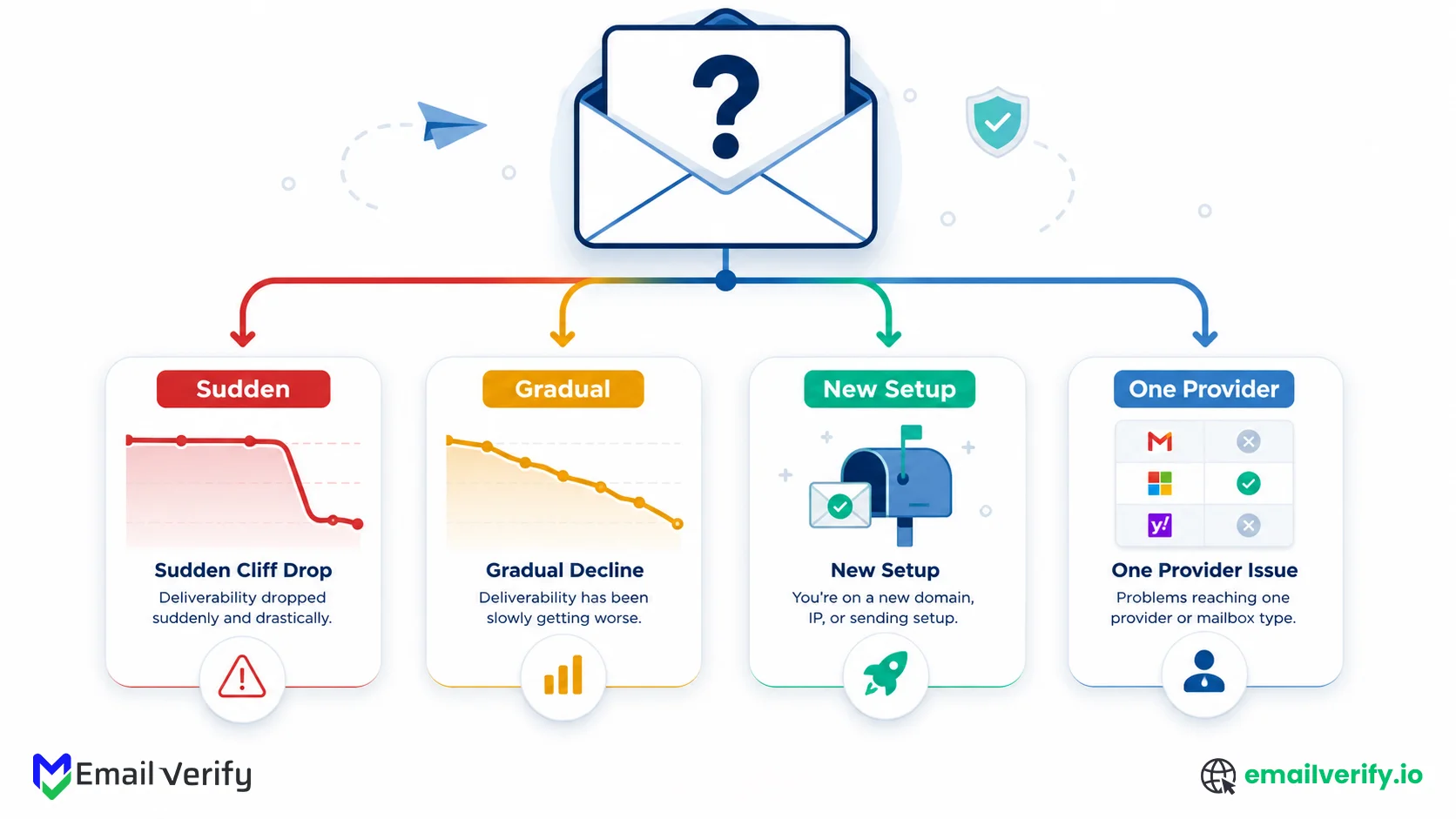
The diagnostic tree below routes you to the most likely cause based on a single question: when did it start?
A sudden cliff drop yesterday is rarely the same problem as a gradual decline over weeks. A brand-new sending setup that has never reached the inbox is a different problem from a domain that used to deliver fine and just stopped.
Most articles flatten all of these into one giant checklist; the result is that nobody fixes anything because they don’t know where to start.
Pick the branch that matches your situation. Each branch routes you to the most likely cause and the fix section that addresses it.
The whole tree is designed to take under 60 seconds to read. The fix sections take longer, but you only need to read the one your tree pointed you at.
Let’s diagnose.
Emails go to spam for one of seven reasons, in this order of frequency: (1) authentication failures SPF, DKIM, or DMARC misconfigured; (2) blacklist listings; (3) list quality problems invalid addresses, spam traps; (4) volume pattern problems sudden spikes or unwarmed domains; (5) low engagement recipients ignoring or deleting your mail; (6) content red flags spamYoursubject lines, image-heavy emails; (7) provider-specific filtering at Microsoft, Yahoo, or Gmail.
Which one is yours depends on the symptom. A sudden cliff drop is almost always #1 (authentication broke), #2 (blacklist hit), or #4 (volume spike). A gradual decline is almost always #3 (list quality drift) or #5 (engagement decay). A brand-new sending setup that has never reached the inbox is almost always #1 (authentication missing or broken) or #4 (unwarmed domain). Mail going to spam at one provider but not others is #7.
Use the diagnostic tree in the next section to narrow your symptom to the right cause and the right fix. The whole flow is designed to take under 60 seconds.
Spam rates vary dramatically by sending volume tier. Senders with monthly volumes of 1–10,000 emails experience an average spam rate of 21.64%; volumes of 50,001–200,000 emails average 29.31%. The two largest single causes of the spike are unwarmed domains (sudden volume growth that mimics spammer behavior) and unverified lists (where 20–30% of new lists contain honeypot traps).
Sources: DeBounce email spam statistics; Twilio guide to keeping email out of spam; ReachInbox 2026 deliverability research.
Table of Contents
How Does the Email Deliverability Diagnostic Tree Help Identify Spam Issues in 60 Seconds?
Pick the branch below that matches your situation. Each branch routes you to the most likely cause and the fix section. If multiple branches feel like they apply, start with the most recent symptom a sudden change usually masks the underlying gradual one until later.
Read each branch header. The first one that matches your situation is the one to follow. If you’re not sure, default to Branch A (sudden) for any change in the last week or Branch B (gradual) for problems that have been building over weeks.
Scenario: Last week (or this morning), your mail was reaching the inbox normally. Now it isn’t. The drop is sharp 30–80 percentage points in placement, sometimes overnight. Open rates collapsed. The change feels recent and abrupt.
Most likely causes (in order of probability):
- Authentication broke (SPF/DKIM/DMARC). Most common cause. A DNS change, an ESP migration, or a third-party tool added without proper authentication setup.
- Domain or IP got blacklisted. Spamhaus, Barracuda, or another major blacklist added you in the last 24–72 hours.
- Sudden volume spike. You sent 10x your normal volume in one day. Mailbox providers interpret spikes as compromised accounts or list acquisition events.
- Bulk-sender requirement enforcement caught up to you. Gmail tightened enforcement in November 2025; some senders only noticed weeks later.
→ Go to Section 7 (Authentication) first, then Section 8 (Blacklist) if authentication checks out.
Scenario: No single cliff. Over the past 4–8 weeks, your inbox placement has been gradually declining. Open rates dropped 5% one week, another 3% the next. Reply rates trending down. No obvious recent change in your setup.
Most likely causes (in order of probability):
- Engagement decay. Your audience is opening your mail less. Mailbox providers see the trend and lower the domain reputation accordingly.
- List quality drift. Subscribers acquired months or years ago are now hitting decay rates of 2.1% per month for B2B; old lists slowly poison reputation.
- Complaint rate is climbing. Recipients who lost interest are now hitting “report spam” instead of unsubscribing.
- Volume creep. You’ve been gradually sending more without proportional increase in engagement.
→ Go to Section 11 (Engagement Rebuild) and Section 9 (List Quality) together.
Scenario: You just set up a new sending domain, a new ESP, or a new sending mailbox in the last 1–4 weeks. Mail has been going to spam (or worse, not delivering at all) since day one. You’ve never had a working baseline.
Most likely causes (in order of probability):
- Authentication was never set up correctly. SPF, DKIM, and DMARC are missing or misconfigured from the start. By far the most common cause for new setups.
- Domain unwarmed. New domains face approximately a 30 percentage point inbox placement penalty in their first 30 days, even with perfect authentication.
- Account flagged from day one. Sent too much volume too fast on day one (“set up Monday, blast Tuesday” pattern). Looks like spammer behavior.
- Bulk-sender requirement non-compliance. Missing one-click unsubscribe header, missing DMARC, or other 2024–2026 enforcement triggers.
→ Go to Section 7 (Authentication) first, then Section 10 (Volume Pattern and Warm-up).
Scenario: Your Gmail open rates look fine. Your Outlook open rates have collapsed. Or the reverse Yahoo is fine, Gmail dying. The problem is concentrated at one mailbox provider while others stay healthy.
Most likely causes (in order of probability):
- Microsoft-specific reputation collapse. The 2025 Outlook/Office 365 inbox placement crash hit B2B harder than B2C. Office 365 inbox placement dropped 26.7 pp YoY.
- Provider-specific filtering. Microsoft’s Sweep or Focused Inbox routing low-engagement senders to Other. Yahoo’s tighter complaint thresholds.
- Authentication that passes at one provider but fails alignment at another. Common with DMARC misconfigurations.
- Volume threshold differences. Gmail tolerates higher volumes than Microsoft for the same reputation tier.
→ Go to Section 13 (Provider-Specific Tactics) for the affected provider.
Each branch points you to one or 2 fixed sections that follow. Read those first; come back to the others only if the first fix doesn’t resolve the issue. If you don’t see your symptom clearly in any branch, the FAQ at the end covers the variants that don’t fit a single category.
Branch A: It Worked Yesterday; Now Suddenly It Doesn’t.
If your email deliverability dropped suddenly, over hours or days, not weeks the cause is almost always one of three things: authentication just broke, your sending domain got blacklisted, or a sudden volume spike triggered filter action. All three are diagnosable in under an hour. Start with authentication (Section 7), then check blacklists (Section 8), then look at recent volume changes.
Sudden cliff drops have predictable causes because mailbox providers don’t change their behavior at random. Something specific changed on your side that the providers reacted to. The job is to find what changed.
1st diagnostic move: check what changed in the last 7 days
Before anything else, ask: What did you change on your sending infrastructure in the last week? The list of usual suspects:
- DNS records updated (often as part of an unrelated infrastructure change).
- ESP migration or new sending tool added (CRM transactional sender, marketing automation, support ticketing system).
- New IP added to your sending pool.
- DMARC policy progressed from p=none to p=quarantine or p=reject.
- Authentication record edited, even a single typo in SPF or DKIM can break alignment.
- Volume increased suddenly because of a new campaign, list import, or seasonal spike.
If anything from this list happened, that’s probably your cause. Roll back the change if you can, or audit the configuration if you can’t. Section 7 walks through the authentication audit step by step.
2nd Move: Check Blacklist Status
If nothing on your side has changed, check whether you got listed somewhere. Run your sending domain and IP through Spamhaus (check.spamhaus.org), MultiRBL (multirbl.valli.org), and MXToolbox’s blacklist check.
If you’re listed on a major blacklist, that’s your cause. Navigating the complexities of email blacklists requires identifying the specific trigger, such as a spam trap hit or high complaint rate, before submitting a formal delisting request.
3rd move: check Gmail Postmaster. Tools for compliance status
Gmail tightened enforcement of bulk-sender requirements in November 2025, shifting from educational warnings to outright rejection. If you’re sending 5,000+ messages per day to Gmail addresses and missing any of the requirements (DMARC, one-click unsubscribe, spam rate below 0.3%, etc.), Gmail may have started filtering you suddenly. Check the Compliance Status dashboard in Gmail Postmaster. Tools: anything marked “Needs work” is your likely cause.
Don’t assume the cause is content. Sudden cliff drops are almost never caused by content changes even bad content rarely causes overnight collapse on its own. Content issues compound gradually. If you’re looking at sudden filtering, check authentication, blacklist status, and volume first. Spend time on subject-line tuning only after you’ve ruled out the structural causes.
Branch B: Deliverability Has Been Slowly Getting Worse
Gradual deliverability decline over weeks is almost always caused by engagement decay, list quality drift, or a slowly climbing complaint rate. Mailbox providers track these signals continuously and adjust your reputation in proportion. The fix combines list cleaning (Section 9) with engagement rebuild (Section 11); both are slow but durable.
Gradual decline is the harder diagnostic case because there’s no single recent event to point to. The cause has been building. The good news is that the fix is also durable. Once you address it, the recovery is sustained, not a temporary patch.
Diagnose the gradual cause
Three signals separate the most likely causes:
| Symptom | Most likely cause | Where to look |
|---|---|---|
| Open rates are dropping over weeks. | Engagement decay or content/segment mismatch. | Section 11 (Engagement Rebuild). |
| Bounce rate is gradually climbing. | List quality drift addresses going stale. | Section 9 (List Quality and Verification). |
| Spam complaint rate is trending up. | Audience expectation mismatch; over-frequency. | Section 11 plus content audit in Section 12. |
| Postmaster reputation tier is dropping. | Composite of the above. | Sections 9, 11, and possibly 12 together. |
The compounding pattern
Gradual decline is rarely a single cause. The classic pattern:
- list quality slowly drifts (subscribers acquired 12 months ago disengage).
- bounce rate ticks up (some addresses are now invalid)
- open rate ticks down (less engaged audience)
- complaint rate ticks up (recipients who don’t remember signing up start clicking spam instead of unsubscribing)
- domain reputation tier drops one notch
- more mail filters to spam
- more recipients hit spam because they don’t see your mail in the inbox
- and the cycle speeds up.
Breaking the cycle requires hitting it in two places at once. Run bulk verification to remove the invalid addresses (Section 9). Suppress dormant subscribers (the ones driving the complaint rate up). Then rebuild engagement by sending only to your most active recent subscribers for 2–4 weeks (Section 11). Doing one without the other usually doesn’t work; list cleaning alone doesn’t rebuild engagement; engagement-only sends without cleaning still produce bounces.
Check your Postmaster Tools history. If you can see week-over-week reputation tier changes, the date the decline started often correlates with a specific event a list import, a frequency increase, a campaign that hit a different segment than usual. Even gradual declines usually have a triggering event, just one that’s less obvious than a sudden cliff.
Branch C: Brand New Setup, Mail Has Never Reached the Inbox
Brand-new sending setups going to spam from day one are almost always caused by authentication problems (SPF, DKIM, DMARC missing or misconfigured) or unwarmed domain reputation. Both are fixable, but they require sequence: fix authentication first (Section 7), then warm the domain (Section 10) before scaling volume.
If you’ve never had a working baseline, the new domain or ESP has been going to spam since day one. The cause is almost always structural. Two things to check, in order.
First: Is Authentication Actually Set Up?
This is the single most common cause of new setup failure. The setup steps for SPF, DKIM, and DMARC are straightforward but easy to get subtly wrong:
- SPF record missing or syntactically invalid.
- The DKIM key is published in DNS, but the ESP signs with a different selector.
- DMARC record present but failing alignment because the From: domain doesn’t match the SPF or DKIM domain.
- Authentication is set up for the root domain, but mail is is being sent from a subdomain.
Run your test message through MXToolbox’s email header analyzer or Mail-Tester. If any of SPF, DKIM, or DMARC are showing as failing, those are your cause. Section 7 walks through the diagnosis and fix.
Second: Is your domain warmed?
New domains face approximately a 30 percentage point inbox placement penalty in their first 30 days. Even with perfect authentication, sending high volume from a fresh domain looks like spammer behavior to mailbox providers. Spam filters specifically watch for the “set up Monday, blast Tuesday” pattern.
New sending domains should start with 20–50 emails per day to highly engaged recipients in week 1, increasing gradually over 4–8 weeks. Sending more than 100 emails per day from a fresh domain materially raises the risk of spam-folder placement. A domain that sends 80–100 emails a day consistently will outperform one that sends 500 one day and none the next.
Sources: ReachInbox 2026 deliverability research; MailReach Outlook deliverability guide; ListKit cold email guide.
If you set up the domain less than 4 weeks ago and have already pushed serious volume through it, your warm-up was probably too aggressive. Pull volume back to 20–50/day to your most engaged recipients, hold there for a week, then ramp by 25% per week. Section 10 covers warm-up in detail.
Branch D: Fine at One Provider, Going to Spam at Another
Provider-specific filtering means your reputation is bad at one provider but acceptable at others. The most common pattern in 2026: fine at Gmail, dying at Microsoft (Outlook, Office 365, Hotmail), because Microsoft’s 2025 inbox placement collapse hit harder than other providers. The fix depends on which provider is filtering you (Section 13).
If your mail is reaching the inbox at one provider but not others, the cause is concentrated at the affected provider, not a sender-side problem. This narrows the diagnosis significantly.
The most common provider-specific patterns
| Pattern | Most likely cause |
|---|---|
| Fine at Gmail, going to spam at Outlook/Office 365. | Microsoft’s 2025 reputation collapse. SCL/BCL filtering, Sweep/Focused Inbox routing low-engagement senders to Other. |
| Fine at Gmail, going to spam at Yahoo. | Yahoo’s tighter complaint thresholds (calculated from inbox-delivered mail since Oct 2025). |
| Going to spam at Gmail, fine elsewhere. | Gmail bulk-sender enforcement (DMARC required, one-click unsubscribe, spam rate below 0.3%). Stricter since Nov 2025. |
| Fine at Outlook, going to spam at Gmail. | Often a domain reputation issue Gmail weights heavily but Microsoft doesn’t. DMARC alignment failure is common here. |
| Going to Promotions in Gmail (not Spam). | Not technically a spam problem. Engagement signal issue Gmail is filtering for relevance, not safety. |
How To Confirm Which Provider Is The Problem?
Manual inbox checks at test accounts you control are the fastest way to confirm. Send a test campaign to a Gmail account, an Outlook.com account, a Yahoo account, and ideally a Google Workspace and Microsoft Office 365 corporate test account.
Your issue arises wherever the message ends up in spam (or Promotions for Gmail). You’re currently okay where it ends up in your inbox.
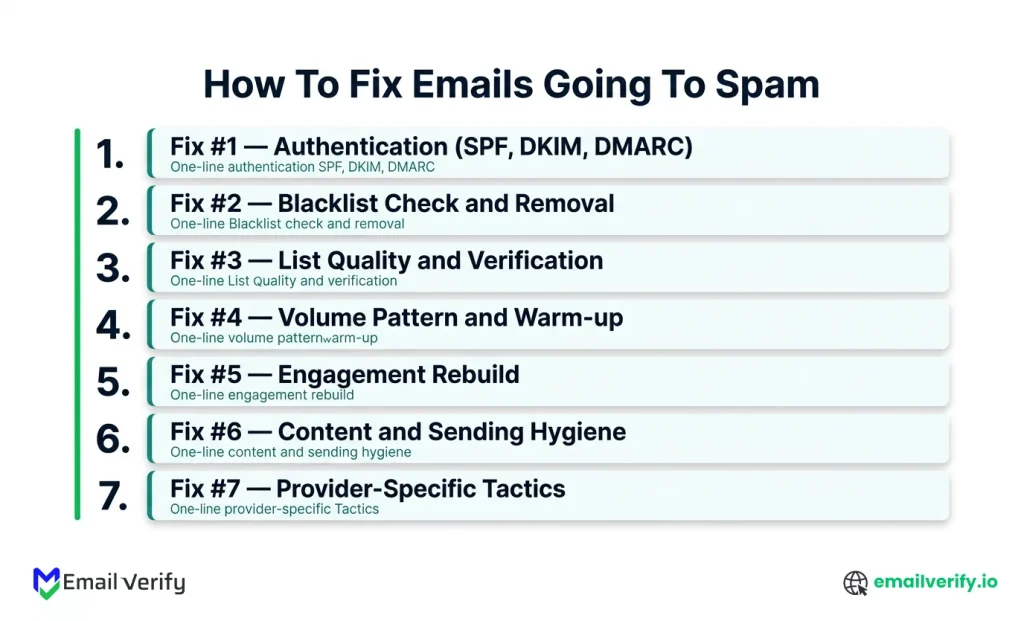
The provider-by-provider breakdown is genuinely useful even if you don’t think you have a provider-specific problem. Run a manual inbox check across providers at least once when troubleshooting. You may discover that what you thought was a general deliverability problem is actually concentrated at one provider, which changes both the diagnosis and the fix.
Fix #1: Authentication (SPF, DKIM, DMARC)
Authentication issues are the single most common cause of emails going to spam, especially for new setups and after sudden changes. Fix in this order: (1) verify SPF record exists and includes all sending sources, (2) verify DKIM is signing your mail with the correct selector, and (3) verify DMARC is configured with at least p=none a monitoring policy, with SPF or DKIM aligned to your From: domain. Use MXToolbox or Mail-Tester to confirm all three pass on a test message.
If your branch sent you here, this is likely the cause. The good news: authentication issues are fast to fix once identified, typically minutes to update DNS records, then up to 48 hours for DNS propagation. Most senders find one or two misconfigurations during this audit.
The 10-minute authentication audit
Send a test message to a Gmail account you own. Open it, click the three-dot menu, and select “Show original” to open the raw headers. In the headers section, look for SPF, DKIM, and DMARC results; each should say “PASS.” If any say “FAIL” or “NONE,” that is the root of your problem.
- Analyze the failure: Run the same test message through a DMARC checker or an email header analyzer to see exactly which authentication mechanism is failing and why.
- Fix SPF: If SPF is failing, verify that all sending sources, such as your ESP, CRM, or transactional services, are included in your SPF record.
- Fix DKIM: If DKIM is failing, ensure the DKIM selector in your DNS matches the selector your ESP uses to sign messages.
- Ensure Alignment: Because why DMARC failures happen often comes down to the From: If the domain is failing to match the signing domain, you must verify your technical configuration matches your sending identity.
Once all three pass, send another test campaign and confirm placement improves. For most authentication-caused spam issues, the change is visible within 24–48 hours of fixing the records.
Fix #2: Blacklist Check and Removal
If your sending domain or IP is on a major blacklist, mail will land in spam (or be rejected entirely) at most providers, regardless of authentication or content. Check Spamhaus, Barracuda, and MultiRBL first. If listed, identify the cause (usually a spam trap hit or sustained high complaint rate), fix the cause, and then submit a delisting request. Recovery time: 24–48 hours for automated delisting; 1–2 weeks for sender reputation to fully recover.
Blacklist listings are binary; you’re either on a list or you’re not. The diagnosis is fast. The remediation is also fast for most blacklists, but the underlying cause that triggered the listing usually requires a more substantive fix.
Where to check?
| Blacklist | What to check | URL |
|---|---|---|
| Spamhaus | Domain (DBL) and IP (SBL). | check.spamhaus.org |
| Barracuda Central | IP reputation list. | barracudacentral.org |
| MultiRBL | Aggregated check across ~100 lists. | multirbl.valli.org |
| MXToolbox | Aggregated check, paid alert. | mxtoolbox.com |
| SpamCop | IP-based reporting service. | spamcop.net |
Removal sequence
- Identify which blacklist you’re on (a single check or two usually catches it).
- Identify the cause that triggered the listing. Spam trap hit? Sustained high complaint rate? Bounce rate spike? List acquisition event? You need to know the cause before requesting delisting, both to fix it and to demonstrate corrective action in the request.
- Fix the cause. Run bulk verification to remove invalid addresses. Suppress dormant subscribers. Pause campaigns for the suspect list segment.
- Submit the delisting request through the blacklist’s removal procedure. Spamhaus and SpamCop offer automated delisting after 24–48 hours of no further violations; Barracuda and others may require manual review.
- Watch your sender reputation in Postmaster Tools and SNDS. Even after blacklist removal, the mailbox provider’s reputation usually takes 2–6 weeks to fully recover. Continue clean sending to engaged subscribers during this window.
Don’t request delisting without fixing the underlying cause first. If you delist and resume the same sending pattern that caused the listing, you’ll be re-listed within days often more permanently than the first time. Most blacklists track repeat offenders. Fix the cause, then request delisting, then ramp gradually.
Fix #3: List Quality and Verification
List quality problems: invalid addresses, spam traps, and role-based addresses you don’t need are one of the top causes of gradual deliverability decline. The fix is straightforward: run bulk verification to remove dead addresses, suppress dormant subscribers, and add real-time verification at signup forms to prevent the next round of bad data from entering. Most senders find 10–25% of their active list comes back as Risky or Undeliverable on first verification.
If your branch sent you here, list quality is a contributing or primary cause of your spam problem. Verification is the highest-leverage single action for fixing it.
The 3 layers of list verification?
- Real-time verification at signup forms. Catches typos, disposable addresses, and obvious junk before they enter your database.
- Bulk verification on imported lists. Run before any third-party list goes into your active sending stream. Typical result: 20–30% of any imported list comes back as bad data.
- Quarterly bulk re-verification of the active subscriber list. B2B addresses decay at roughly 2.1% per month; B2C is slower but still meaningful over 6–12 months.
Only 23.6% of B2B marketers verify email lists before campaigns, despite the practice having one of the highest documented impacts on deliverability. Regular list cleaning every 90 days reduces bounce rate by up to 37%. Lists with 20–30% honeypot trap density (typical for purchased or scraped lists) cause immediate blacklist risk and lasting reputation damage.
Sources: InsightMark Research / Validity B2B benchmarks: SQ sqmagazine 2025 B2B email marketing statistics; Twilio guide to keeping email out of spam.
How to run a verification fix?
- Export your active subscriber list from your CRM or ESP.
- Run it through bulk verification (EmailVerify.io supports CSV uploads up to 5,000 emails per batch).
- Suppress everything that comes back as Undeliverable. These are dead addresses; sending to them is what produces the hard bounces driving spam placement.
- Flag everything that comes back as Risky for further review. Catch-all domains often fall into this bucket; the right response is usually to send carefully but not suppress entirely.
- Re-import the cleaned list back into your CRM/ESP, with hard suppression on the Undeliverable addresses.
- Set up real-time verification at every signup form so you don’t have to repeat the cleanup.
Run a sample of your active list through EmailVerify.io bulk verification to see your current Layer 1 quality. The first verification on any list is usually the most revealing.
Fix #4: Volume Pattern and Warm-up
Volume pattern problems include sudden spikes (10x your normal volume in one day), unwarmed new domains (sending high volume from day one), and inconsistent cadence (50K one day, zero the next). Mailbox providers reward predictable patterns and penalize unpredictable ones. The fix is a gradual ramp: 20–50 emails/day in week 1 from a new domain, increasing 25% per week if metrics stay clean.
If your branch sent you here, your sending pattern looks suspicious to mailbox providers. The fix is patience; there’s no shortcut. The exact ramp depends on your situation.
Warm-up schedule for new sending domains
| Week | Daily volume | Audience | Notes |
|---|---|---|---|
| Week 1 | 20–50 | Most-engaged recipients only. | Establish baseline engagement signals. |
| Week 2 | 50–150 | Top engagement decile. | Watch open and reply rates closely. |
| Week 3 | 150–400 | Top 25% of named target accounts (B2B) or active subscribers (B2C). | Reply rates should still feel real. |
| Week 4 | 400–1,000 | Half of the normal audience. | Bounce rate should stay below 1%. |
| Week 5–6 | 1,000–2,500 | Full named-account list / scaled cadence. | Stay plateaued here for a week before further ramp. |
| Week 7+ | Steady ramp. | Full audience. | Maintain consistency; avoid sudden spikes. |
Recovering from a recent volume spike
If you sent way too much volume in a recent campaign and now your placement collapsed, the fix is a temporary volume reduction:
- Pause non-essential sending immediately.
- For the next 7–10 days, send only to your most engaged recent subscribers (last 30 days).
- Volume target: 25% of your pre-spike normal volume.
- Watch postmaster tools and ESP delivery logs daily.
- Once metrics stabilize for 5–7 consecutive days, ramp back up by 25% per week.
This is the same logic as new-domain warm-up applied to a damaged-existing-domain scenario. The principle is the same: predictable, gradual sends to engaged subscribers rebuild trust.
Fix #5: Engagement Rebuild
Low engagement signals recipients ignoring, deleting, or marking your mail as spam and are a leading cause of gradual deliverability decline. Microsoft particularly weighs deleted-without-opening rates heavily; Gmail weighs opens, replies, and recipients moving messages out of spam. Rebuild engagement by sending only to your most active recent subscribers (30-day window for B2C, 60-day window for B2B), reducing frequency, and matching content tightly to audience expectations.
If your branch sent you here, engagement signals are at the heart of your problem. Engagement rebuild is slower than authentication or list-quality fixes, but it’s also the most durable. Once engagement is healthy, the rest of deliverability tends to follow.
To maintain these gains long-term, follow our comprehensive framework to improve email sender reputation and deliverability across all your future campaigns.
The engagement-rebuild logic
Mailbox providers calculate reputation primarily from positive engagement signals (opens, clicks, replies, and recipients moving mail to the inbox) versus negative signals (complaints, deletes, and no engagement). To rebuild positive signals, you have to send them to people who will engage. Sending to less engaged segments dilutes the signal and slows recovery.
Step-by-step engagement rebuild
- Identify your most engaged segment. For B2C: subscribers who opened or clicked in the last 30 days. For B2B: last 60 days. This is your recovery audience.
- Suspend sending to everyone outside that segment for 2–4 weeks. The dormant subscribers are who are driving the negative signals; pausing, sent to them, stops the bleeding.
- Reduce frequency to your engaged segment. If you normally send 2x/week, reduce to 1x/week during recovery. Don’t add more cycles to compensate.
- Match content tightly to expectation. Use your most reliable templates. Avoid testing during recovery.
- Watch metrics weekly. Open rates should rise (you’re sending to highly engaged recipients only). Reply rates should rise. Complaint rate should drop.
- After 2–4 weeks of strong metrics, run a careful re-engagement campaign to win back lapsed subscribers. Anyone who doesn’t engage gets suppressed permanently.
Don’t resume sending to dormant subscribers as soon as engagement metrics start improving. The metric improvement is partly real and partly an artifact of sending only to highly engaged recipients. Resuming the broader audience too quickly and the engagement metrics drop again as the dormant subscribers don’t engage. Suppress them permanently or move them to a re-engagement track that runs only when fully recovered.
Fix #6: Content and Sending Hygiene
Content red flags rarely cause spam placement on their own but they make existing reputation problems worse. The real triggers in 2026: image-to-text ratio above 60%, all-caps subject lines, excessive urgency words, links to blacklisted URL shorteners, missing or hidden unsubscribe links, and HTML structure that mimics phishing patterns. Fix these as a baseline, but don’t expect content fixes alone to resolve a deliverability problem caused by reputation, list quality, or authentication.
Content matters less than most articles claim. Modern spam filters use machine learning models trained on hundreds of signals; a single subject line or word rarely tips the decision. But content errors still compound with other problems, and fixing them is fast and cheap.
Content checks worth doing
- Image-to-text ratio. Aim for at least 60% text and 40% or less images. All-image emails are filter-flagged.
- Subject line. Avoid all-caps, excessive punctuation, and classic spam-trigger words (FREE, URGENT, CLICK NOW). Modern filters mostly ignore individual words but flag patterns.
- Link patterns. Avoid bit.ly and other public URL shorteners that appear in spam frequently. Use a branded short domain or full URLs.
- Unsubscribe link. Visible, working, and honored within 48 hours. The 2024–2026 rules require one-click unsubscribe (RFC 8058) for bulk senders.
- HTML quality. Valid markup, no broken tags, consistent formatting.
- Sender consistency. Same From: address campaign over campaign. Frequent sender-name changes look suspicious.
- Plain-text version. Multipart MIME with both HTML and plain-text alternatives. Some filters reject HTML-only mail.
- Unsubscribe placement. Visible not buried in 6-point gray text at the bottom. Recipients who can’t find the unsubscribe link hit “report spam” instead, which is much worse for you than an unsubscribe.
Sending hygiene checks
- Don’t mix transactional and marketing mail from the same sending domain. Use a dedicated subdomain for transactional sends.
- Maintain consistent sending cadence. 80–100 emails/day consistently outperforms 500 one day and zero the next.
- Avoid sudden subject-line strategy changes. If your campaigns historically used short, concise subjects, suddenly switching to long, emoji-heavy subjects looks like compromised account behavior.
- Honor unsubscribes within 48 hours, required by Gmail/Yahoo/Microsoft bulk-sender rules since 2024–2025.
Content fixes are quick wins but rarely the root cause. If you’re troubleshooting a spam problem and content fixes don’t move the needle within 1–2 weeks, the cause is somewhere else. Don’t spend more than a day on content; the higher-leverage fixes are authentication, list quality, and engagement.
Fix #7: Provider-Specific Tactics
Each major mailbox provider has its own filtering quirks. Microsoft (Outlook, Office 365, Hotmail) is most sensitive to engagement signals and complaint rates, with Sweep and Focused Inbox routing low-engagement senders to secondary folders. Gmail prioritizes domain reputation, engagement, and bulk-sender compliance, with stricter enforcement since November 2025. Yahoo focuses heavily on complaint rate (calculated from inbox-delivered mail since October 2025) and DMARC alignment.
If Branch D pointed you here, your problem is concentrated at one provider. The right fix depends on which one. Each major provider operates a different filtering philosophy, and what works at one doesn’t always work at another.
Going to spam at Microsoft (Outlook, Office 365, Hotmail)
Microsoft’s 2025 inbox placement collapse hit B2B harder than B2C. The likely causes:
- Register your sending IPs with Microsoft SNDS (Smart Network Data Services). It’s free, surface-filtering signals you can’t see anywhere else.
- Verify DMARC alignment is passing for messages routed to Microsoft domains. Required since May 2025 for bulk senders.
- Watch the Sweep and Focused Inbox effects. Mail landing in “Other” rather than the Focusedinbox is effectively a soft-spam placement.
- Reduce volume to Microsoft specifically while you rebuild. Microsoft is more sensitive to volume changes than Gmail.
- If your audience is Office 365 (corporate), SNDS doesn’t cover it you’ll need to rely on bounce data and engagement signals from your ESP.
Going to spam at Gmail
Gmail tightened bulk-sender enforcement in November 2025, shifting from warnings to outright rejection. The fix sequence:
- Set up Gmail Postmaster Tools and check the Compliance Status dashboard. Anything marked “Needs work” is what to fix.
- Verify SPF, DKIM, and DMARC are all passing on a test message. Gmail particularly weighs DMARC alignment.
- Confirm that one-click unsubscribe (RFC 8058) is implemented in your bulk marketing mail.
- Check spam complaint rate, must be below 0.3% (best practice: below 0.1%).
- If the domain reputation in Postmaster Tools is at Low or Bad, follow the engagement rebuild in Section 11.
Going to spam at Yahoo
Yahoo’s methodology shift in October 2025 changed how complaint rate is calculated:
- Sign up for Yahoo Sender Hub Insights to see how Yahoo specifically views your sending.
- Check spam complaint rate; Yahoo calculates it from inbox-delivered mail only, so the number will be higher than your ESP reports.
- Verify DKIM-signed mail aligns with your From: domain. Yahoo weighs DMARC alignment heavily.
- Sign up for Yahoo’s Complaint Feedback Loop (CFL) program to receive complaint reports directly. Free; requires DKIM verification.
For all three providers, the underlying logic is the same: reputation, engagement, authentication, and list quality, but the relative weighting differs. A fix that works at Gmail may not move the needle at Microsoft, and vice versa.
What Is the 30-Minute Email Deliverability Recovery Plan to Fix Spam Issues Fast?
If you have 30 minutes and need to make immediate progress, here’s the order. This is the recovery sequence we recommend for any sender whose mail is going to spam, regardless of which branch the diagnostic tree pointed to.
| Time | Action | Why |
|---|---|---|
| 0–5 min | Send a test message to a Gmail account, check the headers for SPF/DKIM/DMARC pass. | Confirms or rules out authentication as the cause. |
| 5–10 min | Run your sending domain and IP through check.spamhaus.org and multirbl.valli.org. | Confirms or rules out blacklist listing. |
| 10–15 min | Open Gmail Postmaster Tools and check the Compliance Status dashboard. | Confirms or rules out bulk-sender requirement gaps. |
| 15–20 min | Open Microsoft SNDS and check Filter Result for your sending IPs. | Confirms or rules out Microsoft-specific filtering. |
| 20–25 min | Run a sample of your active subscriber list through bulk verification. | Identifies list quality issues fast. |
| 25–30 min | Document what you found, decide which fix section to follow first. | Stops random fixing and starts methodical recovery. |
After 30 minutes, you’ll know which fix section above applies. Most senders find the cause in 1–2 of these checks. The rest of recovery time depends on which cause you found authentication fixes resolve in hours, blacklist removals in days, list quality fixes in a single bulk verification, engagement rebuilds in 2–4 weeks.
30-minute recovery plan checklist:
- Send test message, check authentication headers.
- Run blacklist checks at Spamhaus and MultiRBL.
- Check Gmail Postmaster Tools Compliance Status.
- Check Microsoft SNDS Filter Result.
- Run bulk verification on a sample list.
- Document findings, choose fix section to start with.
What Common Email Deliverability Mistakes Make Spam Problems Worse?
Most spam delivery problems don’t come from a single technical fault. They usually get worse because of how teams respond to the issue in the first place. Instead of stabilizing sending behavior and diagnosing the root cause, corrective actions often amplify the same signals mailbox providers are already flagging. That turns a recoverable issue into a longer reputation recovery cycle.
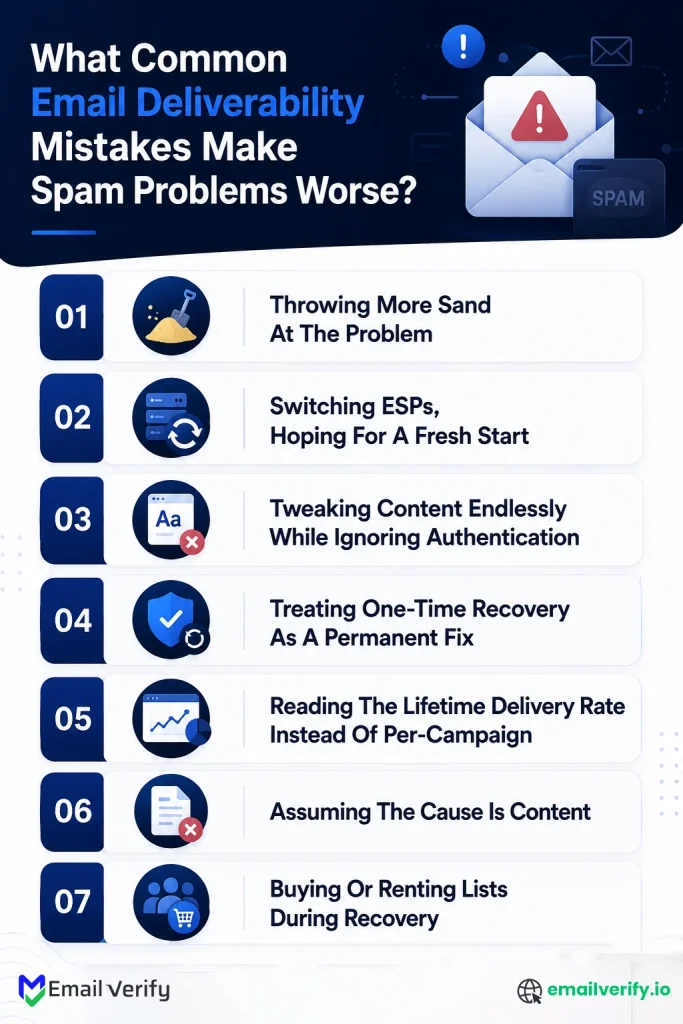
The mistakes below are common patterns that repeatedly delay inbox recovery and deepen sender reputation damage.
1. Throwing More Sand At The Problem
The most common mistake. Mail goes to spam; the marketer sends more campaigns, hoping volume will overcome the filter. Mailbox providers interpret continued sending despite negative signals as confirmation that you’re a problem sender. Pause first, diagnose, then resume gradually. Sending more during a deliverability crisis always extends the recovery.
2. Switching Esps, Hoping For A Fresh Start
ESP migration changes your sending IP, not your sending domain. Your domain reputation, which Gmail, Microsoft, and Yahoo now weigh most heavily,follows you to the new ESP intact. The same problems will reappear within 1–2 weeks. Fix the underlying reputation issue first; ESP migration is sometimes useful afterward, but never as a substitute for the actual repair.
3. Tweaking Content Endlessly While Ignoring Authentication
Subject-line A/B testing while SPF is failing is rearranging deck chairs. Modern spam filters care 10x more about authentication and reputation than they do about content. Get authentication right first. Spend time on content polish only after you’ve confirmed the structural foundations are working.
4. Treating One-Time Recovery As A Permanent Fix
Reputation damage usually has systemic causes, list acquisition practices, engagement-based suppression that’s too lenient, and unwarmed sending domains used by sales teams. Recovery without addressing the systemic cause produces another reputation incident within 3–6 months. Build the preventive controls during recovery, not after.
5. Reading The Lifetime Delivery Rate Instead Of Per-Campaign
A 95% lifetime delivery rate hides the campaign that ran last week at 80%. Mailbox providers react to the spike, not the lifetime average. During a spam-folder crisis, look at per-campaign metrics, especially per-provider. Aggregates smooth over the spikes that actually drive filtering decisions.
6. Assuming The Cause Is Content
Content rarely causes spam placement on its own. It usually compounds with other problems, reputation, list quality, and authentication. If you’re looking at a sudden cliff drop, content is rarely the cause. Save content fixes for later in the recovery sequence.
7. Buying Or Renting Lists During Recovery
Adding new subscribers during recovery is exactly the wrong move you’re trying to rebuild engagement signals, and new subscribers haven’t engaged with you yet. Worse, purchased or rented lists are how most senders end up here in the first place. Suspend list growth until recovery is complete; then resume only with clean opt-in or carefully verified inbound subscribers.
Frequently Asked Questions
Why Are Your Emails Going To Spam In Gmail Specifically?
Gmail-specific spam placement usually means one of the following: missing or failing DMARC alignment, missing one-click unsubscribe header (required for bulk senders since February 2024), spam complaint rate above 0.3%, or domain reputation at Low or Bad in Gmail Postmaster Tools. Gmail tightened bulk-sender enforcement in November 2025, shifting from warnings to outright rejection. So issues that were previously ignored may now cause filtering. Check the Compliance Status dashboard in Gmail Postmaster Tools to see exactly what Gmail flags.
Why Are Your Emails Going To Spam In Outlook?
Outlook spam placement (including Hotmail, Live, and Office 365 corporate) usually traces to Microsoft’s 2025 reputation collapse, which dropped Office 365 inbox placement 26.7 percentage points year over year. Common causes: low engagement (Microsoft heavily weighs deleted-without-opening rates), missing DMARC alignment (required since May 2025), high complaint rate (above 0.3%), and IP-level reputation issues visible in Microsoft SNDS. Check the SNDS Filter Result for your sending IPs as the first diagnostic step.
Why Are Your Emails Going To Spam In Yahoo?
Yahoo spam placement is typically driven by spam complaint rate (calculated from inbox-delivered mail only since October 2025, which produces higher numbers than ESPs report), missing or misaligned DMARC, or high bounce rate. Sign up for Yahoo Sender Hub Insights to see Yahoo’s view of your sending; sign up for Yahoo’s Complaint Feedback Loop to receive complaint reports directly. Yahoo enforces the same bulk-sender requirements that Gmail introduced in 2024.
Why Are Your Legitimate Emails Going To Spam?
“Legitimate” mail still goes to spam for the same reasons unwanted mail does: authentication failures, sender reputation problems, list quality issues, or low engagement. Spam filters don’t evaluate intent or content quality; they evaluate signals. Legitimate senders with broken SPF still go to spam. Legitimate senders sending to recipients who don’t engage still go to spam. Working through the diagnostic tree above identifies the actual cause regardless of how legitimate your business is.
Why Do Your Emails Go To Spam Even With Spf And Dkim?
SPF and DKIM are necessary but not sufficient. Common reasons your authenticated mail still goes to spam: DMARC isn’t configured, DMARC is configured but failing alignment, sender reputation is damaged from previous campaigns, complaint rate is above the 0.1–0.3% threshold, list quality is poor (high bounces or trap hits), engagement is low, or you’re hitting provider-specific filters at Microsoft or Yahoo. Authentication is the floor, not the ceiling it gets you past the gate, but reputation determines where the message lands inside.
How Do You Stop Your Emails From Going To Spam?
Work through the diagnostic tree in Section 2, identify your specific cause, and apply the corresponding fix section. The most common fixes in order: (1) configure SPF, DKIM, and DMARC correctly with DMARC at p=quarantine or above 100%; p=reject, (2) verify your list to remove invalid addresses and spam traps; (3) maintain consistent sending volume and warm new domains gradually; (4) suppress dormant subscribers and rebuild engagement; (5) keep spam complaint rate below 0.1%; (6) check provider-specific signals via Postmaster Tools, SNDS, and Sender Hub Insights; (7) address content issues only after the structural ones are fixed.
Why Are Your Cold Emails Going To Spam?
Cold email goes to spam at higher rates than opted-in marketing because cold recipients haven’t expressed interest the engagement signals are inherently weaker. Common causes: unverified lists with high bounce rates (purchased or scraped lists are typically 15–30% bad), unwarmed sending domains being used aggressively from day one, missing authentication, identical templates blasted to many recipients, and missing one-click unsubscribe. Cold email deliverability requires verified lists, warmed domains, full authentication, varied content, and below-0.1% complaint rate every single time.
Why Do Your Emails Go To Promotions Instead Of Inbox In Gmail?
Promotions placement is not technically spam your mail was delivered, just to a secondary tab. Gmail routes commercial mail to Promotions based on engagement patterns and content signals: bulk-style HTML, transactional patterns, sales-style copy, lower per-recipient engagement. To move from Promotions to Primary, ask recipients to drag your mail to Primary (or set up a filter), keep messaging more conversational and less promotional, and segment more tightly so each send goes to truly relevant recipients. Promotions placement is a less severe problem than spam placement but it’s still invisible enough to harm engagement metrics.
Why Are Your Emails Going To Spam After I Switched To A New Domain?
New sending domains face approximately a 30 percentage point inbox placement penalty in their first 30 days, even with perfect authentication. The fix is gradual warm-up: 20–50 emails/day in week 1 to your most engaged recipients, increasing 25% per week if metrics stay clean. Also verify that all three authentication mechanisms (SPF, DKIM, DMARC) are correctly configured for the new domain and pass on a test message. Most new-domain spam problems combine unwarmed reputation with at least one authentication misconfiguration.
How Do I Check If Youremails Are Going To Spam?
Three quick ways: (1) send a test campaign to test accounts you control at Gmail, Outlook, and Yahoo, then check where each landed, (2) run a content spam test through Mail-Tester to see authentication and content flags, (3) run a seed-list test through GlockApps or MailReach for inbox placement breakdown across multiple providers. For ongoing monitoring, set up Gmail Postmaster Tools, Microsoft SNDS, and Yahoo Sender Hub Insights all free.
Will Youremails Go To Spam If I Send Too Many At Once?
Yes. Sudden volume spikes are one of the top filter triggers, even from senders with previously good reputations. Mailbox providers interpret a 10x volume spike as either a compromised account or a list acquisition event. The fix is gradual ramping: increase volume by no more than 25% per week, or stay at a consistent baseline volume to maintain trust. “How many emails can I send?" depends on your domain reputation; healthy mature domains can sustain 5,000–50,000+ daily; new domains should start at 20–50 daily.
Why Do Your Emails Go To Spam From A Fresh Business Email Account?
Fresh accounts (Google Workspace or Office 365) need warm-up just like new domains. Sending high volume from a fresh mailbox is a top spam filter trigger because it mimics compromised-account behavior. Start with 10–20 emails per day for the first week, gradually increasing. Make sure SPF, DKIM, and DMARC are configured for the domain. If you’re sending cold outbound from a fresh mailbox, also expect lower deliverability for the first 4–6 weeks regardless of warm-up; cold from new mailboxes is the hardest combination.
Can Sending Too Few Emails Cause Spam Placement?
Indirectly, yes. Mailbox providers prefer predictable cadences. A domain that sends 100 emails one week, then nothing for two weeks, then 5,000 emails in a single day looks suspicious even though the average volume is low. Consistency matters more than volume per se. If you can’t maintain regular cadence, send fewer emails per send but more frequently rather than larger batches at irregular intervals.
Why Does Gmail Send Your Emails To Spam But Other Providers Don’t?
Gmail-only filtering usually indicates (1) a Gmail-specific authentication issue (DMARC alignment failing for Gmail, particularly), (2) Gmail bulk-sender requirement non-compliance enforced harder since November 2025, (3) low engagement among Gmail recipients specifically, or (4) a complaint rate spike from Gmail users. Check the Gmail Postmaster Tools Compliance Status dashboard first; it tells you in plain language what Gmail flags.
How Long Does It Take To Fix Emails Going To Spam?
Depends on the cause. Authentication misconfigurations resolve in hours (DNS update + propagation). Blacklist removals take 24–48 hours for automated delisting plus 1–2 weeks for sender reputation to recover. List quality fixes take a single bulk verification. Volume pattern fixes take 4–6 weeks of disciplined ramp. Engagement rebuilds take 2–4 weeks of clean sends to engaged subscribers. Severe reputation damage takes 8–12+ weeks. Most spam problems combine multiple causes; recovery time scales accordingly.
Are Spam-Trigger Words Still A Problem In 2026?
Less than they used to be, more than zero. Modern spam filters use machine learning models that look at patterns rather than individual words; a single “free” in your subject line won’t flip the filter on its own. But a high concentration of trigger words, combined with other spam-like patterns (all-caps, multiple exclamation points, urgency language), still raises filter scores. The honest take: trigger words are about 10% of the modern filtering picture; reputation, engagement, and authentication are the other 90%. Don’t obsess over trigger words; do follow basic content hygiene.
Why Are Your Emails Going To Spam For Random Recipients But Not Others?
Mailbox providers filter at the recipient level using both global signals (your domain reputation) and per-recipient signals (this individual recipient’s engagement history with your domain). Two recipients at the same provider can see different placements based on their personal engagement patterns. If your reputation is borderline, providers route mail to recipients who engage and filter mail to recipients who don’t. The fix is the same improve overall reputation but the symptom (random recipients see your mail in spam) is normal during recovery.
Final Thoughts
If your mail is going to spam right now, you don’t need another listicle of 47 possible causes. You need to know which one is yours and what to do about it. The diagnostic tree at the top of this guide does that work: it picks your branch, points you at the most likely cause, and hands you the fix section.
3 things worth carrying away from this guide:
- The symptom tells you the cause. Sudden cliff drops are almost always authentication, blacklists, or volume spikes. Gradual decline is almost always engagement decay or list quality drift. A new setup never reaching the inbox is almost always missing authentication or an unwarmed domain.
- Content matters less than people think. Modern filters care about authentication, reputation, and engagement, with content carrying minimal signal weight. If you’re spending hours on subject-line tuning, you’re likely solving the wrong layer. Fix authentication, list quality, and engagement first.
- Prevention is cheaper than recovery. Most teams that struggle with spam-folder problems are reactive; the teams that stay in the inbox are proactive about the foundation. Implementing email verification 101 at the point of capture and during list maintenance prevents the reputation damage that leads to delivery failure.
Verification is the foundation, and it begins the moment you start building your audience. Whether you are scaling an existing list or following a startup email database guide to launch your first outreach, maintaining high data standards is non-negotiable.
Reputation is what emerges when authentication, list hygiene, and engagement work together. Get the foundation right, and the surface tends to take care of itself.
If your mail is going to spam right now, the diagnostic tree will route you to the broken layer; the fix sections will tell you how to repair it. Build the preventive controls now so you don’t end up here again.
Fix Spam Issues with EmailVerify
Clean your list to remove invalid emails and protect your sender reputation.


