

Sending an email to the wrong person or noticing a mistake right after hitting “send” can be stressful.
Luckily, both Gmail and Outlook allow you to unsend an email, giving you a chance to fix mistakes quickly. These options depend on timing and specific conditions, so knowing how they work makes a real difference.
This blog explains how unsending emails works in Gmail and Outlook, where these features fall short, and what habits can reduce mistakes before sending. With the correct settings and a few simple checks, email errors become much easier to manage.
You’ll also learn:
- How to unsend emails in Gmail and Outlook
- The limits of email recall features
- Practical ways to avoid sending mistakes
- How these tools can save time and reduce stress
Let’s go step by step so you can take control of your sent emails.
Table of Contents
How Can You Unsend an Email in Gmail?
Gmail is a widely used email platform for personal and professional communication, offering features that help users manage their email more effectively.
One of these features is Undo Send, which provides a short window to stop an email after it has been sent. This option does not remove an email from the recipient’s inbox. Instead, it delays delivery for a few seconds, giving you time to cancel the action if a mistake is noticed.
The undo time depends on the duration set in Gmail settings. Once this time expires, the email is delivered normally and cannot be stopped.
This feature works the same way on both desktop and mobile, making it helpful for quick corrections across devices. While Undo Send helps catch last-second mistakes, it cannot prevent emails from being sent to incorrect or invalid addresses. Verifying contacts before sending complements this feature by reducing bounce risk and supporting better email deliverability.
How Can You Unsend an Email in Gmail on Desktop?
After sending an email, Gmail lets you undo it for a few seconds if you spot a mistake. Here’s how to set it up and use it:
-
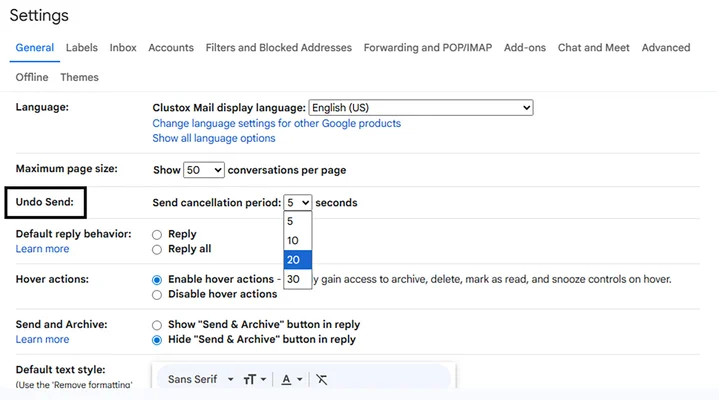
- Click the gear icon in the top-right corner and select See all settings to access the full settings menu.

-
- Scroll down to the General tab, find the Undo Send option, and choose your preferred cancellation period: 5, 10, 20, or 30 seconds. A longer period gives you more time to catch mistakes.
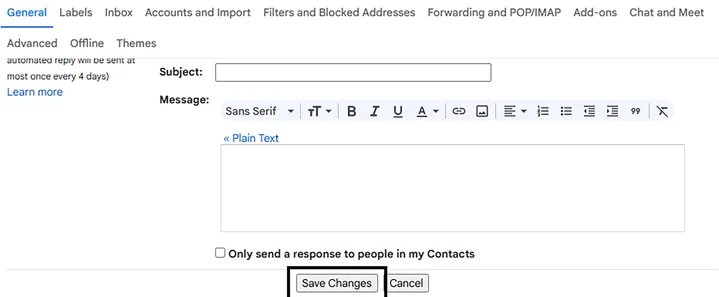
- Scroll to the bottom of the page and click Save Changes to apply your settings.
Once your settings are saved, send an email as usual. A small Undo notification will appear at the bottom-left of your screen. Tap Undo within the time you set to stop the email from being sent.
Tip: Before clicking Send, verify recipient email addresses to avoid sending messages to invalid or mistyped contacts. Using tools like EmailVerify helps reduce bounce risk that Gmail’s Undo Send feature cannot reverse.
How Can You Unsend an Email in Gmail on Mobile (iOS and Android)?
Same as if you want to undo sending mail from your Gmail app, just increase the time limit in the settings.
Use the steps below to take control right after sending:
- Tap the menu icon, go to Settings, and select your account.
- Scroll down to find the “Undo Send” option.
- Choose 5, 10, 20, or 30 seconds for the undo period.
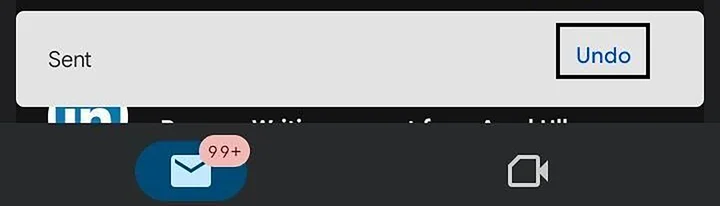
After sending an email, a pop-up will appear at the bottom of the screen. Tap Undo within the selected time to stop the email from being sent.
Avoid the 15% of emails that bounce every month. Verify your contacts and prevent costly mistakes before you hit send.
Gmail gives you only a short window to undo sent emails. Outlook works differently when it comes to recalling messages, as you’ll see in the next section.
How to Unsend an Email in Outlook?
Outlook is a widely used email platform in professional and business settings. If you notice a mistake right after sending an email, Outlook offers a way to take action, but it works differently from Gmail.
Instead of a simple “Undo Send” button, Outlook uses the Recall This Message feature. This feature comes with specific conditions and limitations, so it doesn’t work in every situation. Because Outlook recall depends on specific technical requirements, it can be risky for agencies and enterprise teams that communicate frequently with external clients.
Verifying email addresses before sending helps reduce the need for recalls by preventing messages from being sent to incorrect or invalid recipients in the first place.
Additionally, whether the recall option is available depends on the Outlook version. Older versions may not support the Recall This Message feature, whereas newer versions, especially those on Microsoft 365 or Exchange-enabled accounts, provide this option.
Let’s see how you can try to unsend an email in Outlook, depending on the device you’re using.
How to Unsend an Email from Outlook Desktop (Windows & Mac)?
On the Outlook desktop app, you can use the Recall This Message feature to try to unsend an email. Here’s how:
- Open Outlook and go to Sent Items.
- Open the email you want to recall (double-click it).
- Click File in the top-left menu, then select Info.
- Click Recall This Message.
- Choose one of these options:
- Delete unread copies of this message: removes the email from recipients who haven’t opened it yet.
- Delete unread copies and replace them with a new message—this lets you edit and resend the email.
- Click OK.
You’ll receive a notification showing whether the recall worked for each recipient.
Keep in mind that this feature works only for users within the same organization on a Microsoft Exchange or Microsoft 365 account. For enterprise teams emailing external clients, recall attempts often fail, making email verification a safer preventive approach.
How to Unsend an Email from Outlook Web?
Outlook Web does not support email recall. Once an email is sent, it reaches the recipient immediately. You can delete it from your Sent Items, but this does not remove it from the recipient’s inbox.
If you notice a mistake, the best approach is to send a quick follow-up or correction email. On Outlook Web, you can’t recall emails, so always double-check your message before sending.
How to Unsend an Email from Outlook Mobile (iOS & Android)?
The Outlook mobile app does not support recalling or unsending emails. Once you tap Send, the message is delivered immediately.
Like Outlook Web, you can delete it from your own Sent Items, but it won’t remove it from the recipient’s inbox. If a mistake occurs, sending a correction or follow-up email is the safest solution.
Tip: Take an extra moment to review emails carefully on mobile before sending to avoid mistakes.
Even with tools like Gmail and Outlook to undo emails, small mistakes can still happen. Here’s how you can avoid them altogether!
How Can You Avoid Common Email Sending Mistakes?
Even with Gmail’s Undo Send and Outlook’s recall features, mistakes can still happen. These simple habits help you stay careful, professional, and error-free:
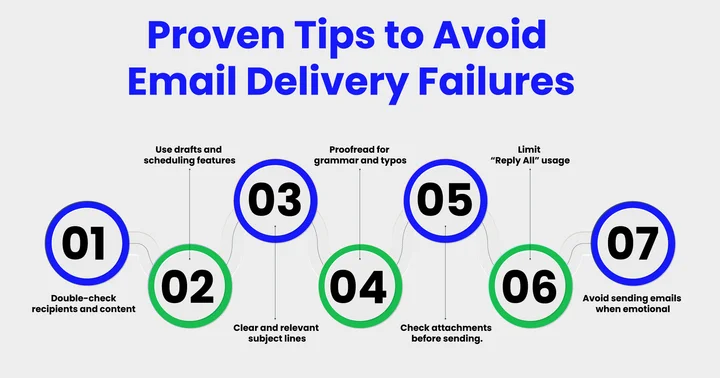
1. Double-Check Recipients Before Sending
Always verify who will receive your email. Using email verification services helps confirm email addresses before you hit send, reducing bounce rates and preventing
miscommunication. Be cautious with ‘Reply All’ and watch for hidden or BCC recipients to avoid sharing information with unintended people.
2. Write Clear And Descriptive Subject Lines
Your subject should summarize the email’s purpose. A precise subject helps recipients quickly understand the content and reduces the risk of miscommunication, which is especially important for email marketing solution campaigns to reach the right audience effectively.
3. Add Attachments Before Drafting Your Message
Attach all necessary files first. This prevents forgetting important documents and ensures nothing is left out accidentally.
4. Review And Structure Your Content For Readability
Use short paragraphs, bullet points, and clear language. Reading aloud or using tools for phrasing can help your email flow smoothly and stay engaging, while also helping prevent issues with spam traps and risky email addresses that could affect deliverability.
5. Add Recipient Addresses Last
To avoid accidentally sending incomplete messages, enter email addresses only after proofreading and finalizing your content.
6. Enable Spelling And Grammar Checks
Turn on built-in spell check and grammar tools. This ensures professionalism, avoids errors, and makes your message clear to all recipients.
Taking these precautions, along with verifying email addresses with EmailVerify, allows you to send emails with confidence, reduces errors, and maintains a professional image.
Frequently Asked Questions
2. Does Outlook Recall Work on All Recipients’ Emails?
No, Outlook’s recall feature only works if:
- The recipient is using Outlook in the same organization (Exchange server)
- The email has not been read yet
- Both sender and recipient have compatible email settings
If these conditions are not met, the recall will fail, and sending a correction email is the best solution.
3. Can You Unsend Emails on Outlook Mobile or Web?
No, the Outlook mobile app and web versions do not support email recall. Once sent, emails reach the recipient immediately. Always double-check content before sending on these platforms.
4. How Can You Reduce Mistakes When Sending Emails?
To avoid errors in email communication, consider these habits:
- Verify recipients before sending
- Write clear and concise subject lines
- Add attachments before drafting your message
- Proofread and structure your email for readability
- Enter the recipient's addresses last
By following these steps, you minimize mistakes even if your email platform doesn’t offer an undo feature.
5. Is It Possible to Unsend an Email After It Has Been Opened?
No, once the recipient opens the email, Gmail and Outlook cannot retract it. The only option is to send a clarification or apology email if necessary. Acting quickly can reduce potential confusion or miscommunication.
6. What are the Best Practices to Use Gmail’s Undo Send Feature Effectively?
Yes, you can maximize Gmail’s Undo Send by:
- Setting the undo period to 30 seconds
- Reviewing the email carefully before sending
- Keeping your message concise and structured
- Using the feature immediately after hitting “Send.”
These practices give you a better chance of catching mistakes and maintaining professional communication.
7. How Does Verifying Email Lists Prevent Spam Traps?
Using EmailVerify ensures that your email lists contain valid, active addresses, which reduces the chance of hitting spam traps and protects your sender reputation.
8. Can EmailVerify Reduce Campaign Costs by Lowering Bounces?
Yes, by verifying email addresses before sending, EmailVerify reduces bounce rates, which in turn lowers wasted email delivery costs and improves overall campaign ROI.
The Bottom Line
Emails are an essential part of professional communication, and even small mistakes can create unnecessary confusion. While Gmail’s Undo Send and Outlook’s Recall features can help being careful and attentive when composing messages.
For example, simple habits like proofreading for grammar, adding recipient addresses last, and pausing before sending emotional emails can make a big difference. These practices save time, reduce stress, and improve overall email effectiveness.
Additionally, taking a few extra moments to review your emails can prevent costly or embarrassing mistakes.
Paying attention to how your emails are structured and delivered also helps reduce bounce rates, minimize spam complaints, and improve deliverability across Gmail, Outlook, and other platforms. Using tools like EmailVerify to confirm recipient addresses further supports these outcomes, ensuring your messages reach the right inbox every time.
Ultimately, the next time you hit send, ask yourself, “Are you confident your email not only says precisely what you want it to but also reaches the right recipients safely and professionally?”
A single wrong click can hurt your email reputation. Reduce risk and ensure delivery with EmailVerify.


