

Sending an email is simple, but what happens when the recipient’s inbox is full?
If you receive a notification that the mailbox quota is exceeded, the “inbox full” error is considered a temporary delivery failure (SMTP 452/4.2.2) or a soft bounce.
This failure is visible to the sender and can affect campaign timing, retry queues, and overall deliverability.
For marketers and operations teams, this is more than a minor inconvenience. Emails sent to full inboxes can delay campaigns, trigger ESP retries over a 24 to 72-hour email retry period, and negatively affect sender reputation.
Industry benchmarks show that soft bounces, including temporary delivery failures like full inboxes, make up a significant portion of bounce events.
For example, average soft bounce rates are around 0.7 percent across industries (Mailerio). Furthermore, ESPs automatically retry SMTP 4xx temporary delivery failures during the defined email retry period.
In this blog, we will explore what happens when inboxes fill up, how ESPs handle repeated soft bounces, and actionable sender-focused strategies to reduce retry delays and protect deliverability and sender reputation.
Table of Contents
What Happens If You Send an Email to a Full Inbox?
When you send an email to a full inbox, it typically triggers a bounce-back notification because the recipient’s mailbox can’t accept new messages.
Most commonly, this results in a soft bounce, a temporary delivery failure. Knowing the nuances of understanding soft bounce impacts allows senders to manage retries effectively and avoid unnecessary delays.
Here’s a more detailed, sender-focused look at what happens:
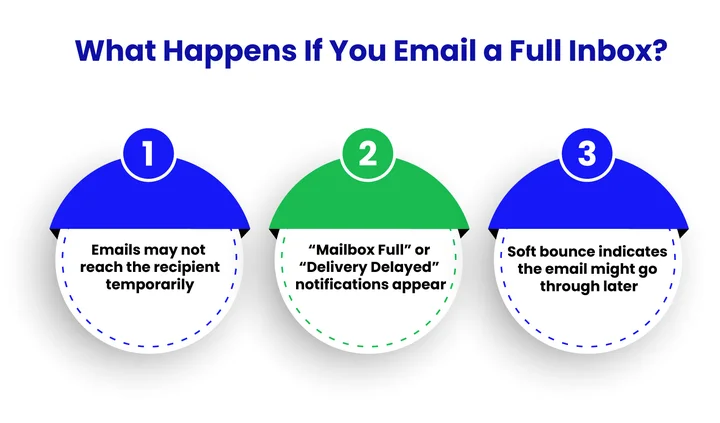
Soft Bounce (Temporary Failure):
- Occurs when the recipient’s mailbox is full or temporarily unavailable.
- Triggered by SMTP 4xx codes, such as 452 / 4.2.2 “Mailbox full.”
- ESPs automatically retry delivery for 24–72 hours, depending on their policies.
From the sender’s perspective, these soft bounces appear in ESP dashboards, may delay campaign timing, and repeated occurrences can impact sender reputation. Monitoring and adjusting sending patterns helps prevent retry congestion and maintain high deliverability.
Hard Bounce (Permanent Failure):
- Happens when an email address is invalid, doesn’t exist, or is permanently blocked.
- Triggered by SMTP 5xx codes.
- Hard bounces are not retried and can impact your sender reputation if repeated across your campaigns.
Senders should promptly remove hard-bounced addresses from lists to protect deliverability and reduce campaign risk.
Repeated Inbox-Full Events and Common Server Messages
If the recipient’s mailbox remains full over multiple sends, ESPs may queue emails, throttle delivery, or flag repeated soft bounces. Persistent soft bounces can affect your sender reputation, making future emails more likely to be flagged as spam, delayed, or even blocked.
Common Server Messages You Might See:
- “Mailbox quota exceeded.”
- “Delivery delayed”
- “Recipient temporarily unavailable.”
Next Steps for Senders:
- Wait and resend once the recipient has cleared space.
- Use alternate channels for urgent communications.
- Review sending patterns to avoid repeated delivery failures and manage queue buildup.
- Monitor soft-bounce trends to manage sender reputation and campaign performance proactively.
Understanding the difference between soft and hard bounces, SMTP codes, and retry behavior helps senders minimize delays, protect their reputations, and ensure essential messages reach recipients.
Ensure your emails reach the inbox the first time. Use real-time verification to prevent soft bounces, reduce retry delays, and protect your sender reputation.
Next, it helps to see the main reasons why inboxes reach their limits.
What Causes an Email Inbox to Get Full?
When an inbox reaches its storage limit, emails cannot be delivered, resulting in delivery failures and bounce-back notifications. Knowing the reasons behind a full inbox helps both senders and recipients avoid email deliverability issues and maintain smooth communication.
Here are the most common causes:
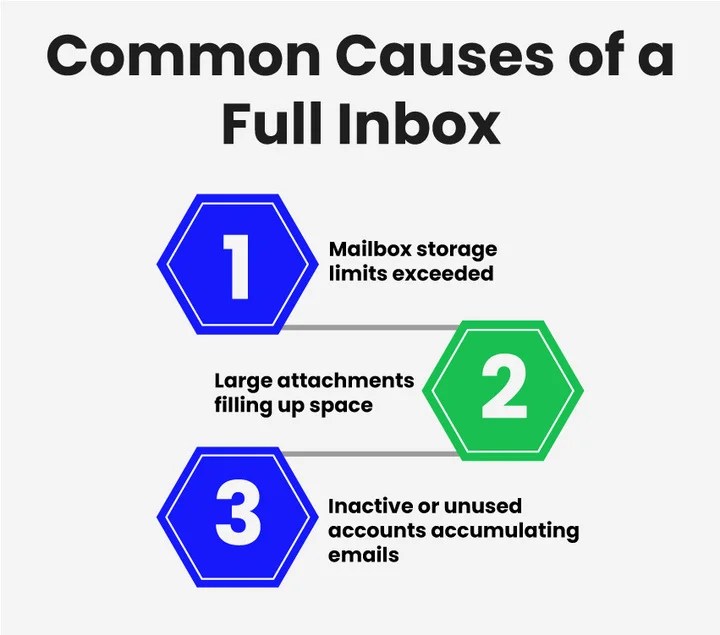
- Mailbox Quota Exceeded: Every email account has a storage limit. Once the quota is complete, new emails trigger an “inbox full” error and cannot be delivered until space is cleared.
- Large Attachments: Emails with large attachments can quickly consume mailbox space, resulting in a soft bounce, a full mailbox, or a full recipient inbox bounce.
- Inactive or Unused Accounts: Accounts that are not regularly monitored accumulate messages over time, eventually exceeding their mailbox quota, which can lead to bounce-back full-inbox notifications.
Awareness of these causes helps users take practical steps, such as managing mailbox storage and monitoring attachments, to prevent future email delivery failures.
Different email services offer different storage, so here’s a quick overview of the most popular providers.
What are the Storage Limits of Popular Email Providers?
Every email service has its own storage limits, and knowing these can help you prevent email inbox full errors and avoid email deliverability issues. Different providers offer varying amounts of free space and attachment limits.
Here’s a quick look at the most commonly used email providers:
| Email Provider | Free Storage Limit | Attachment Limit | Notes / Source |
|---|---|---|---|
| Gmail | 15 GB (shared with Google Drive & Photos) | 25 MB per email | Limit applies per account, not per folder (Google Workspace Help) |
| Outlook/Hotmail | 15 GB | 50 MB per email | Account-level quota (Microsoft Support) |
| Yahoo Mail | 1 TB | 25 MB per email | Account-level quota (Yahoo Help) |
| iCloud Mail | 5 GB (shared with iCloud) | 20 MB per email | Account-level quota (Apple Support) |
| Zoho Mail | 5 GB per user | 25 MB per email | Account-level quota (Zoho Docs) |
Keep in mind that storage limits apply at the account level, not per folder. Consequently, sending large attachments to nearly complete accounts can cause soft bounces, delivery delays, and a buildup of retry queue entries.
Therefore, understanding these limits helps senders plan campaigns efficiently and protect their sender reputation.
We’ve all been there!
How Can Senders Handle Full Inboxes?
Full inboxes can disrupt campaigns, delay time-sensitive emails, and impact sender reputation. For senders, the essential thing is to proactively manage delivery risks.
Monitor Soft Bounces
When an email triggers a soft bounce due to a full inbox (SMTP 452 / 4.2.2), it’s temporarily undeliverable. Track these bounces closely to identify recurring issues, prioritize follow-ups, and manage ESP retry queues efficiently.
Use Alternative Communication Channels for Urgent Messages
If a critical email cannot be delivered, consider phone calls, chat tools, or SMS to avoid campaign delays. This ensures essential communications reach recipients on time without waiting for mailbox space.
Optimize Attachments and Message Size
Large attachments can fill recipient inboxes faster and trigger soft bounces. Use cloud storage links or compress files to reduce delivery failures and minimize ESP queue congestion.
Verify Recipient Addresses
Use professional email verification tools to ensure your messages are sent to valid, active addresses. This reduces soft bounces from inactive or complete accounts and protects your sender reputation.
Review Sending Patterns
Avoid repeatedly sending emails to addresses with persistent full inboxes. Adjust campaign scheduling or segment lists to minimize retry delays and queue buildup.
Senders can maintain smooth email operations, protect deliverability, and reduce campaign risks by following these steps, even when recipients’ inboxes are full.
Taking action now can help avoid inbox problems in the future.
How Can You Prevent Future Email Failures?
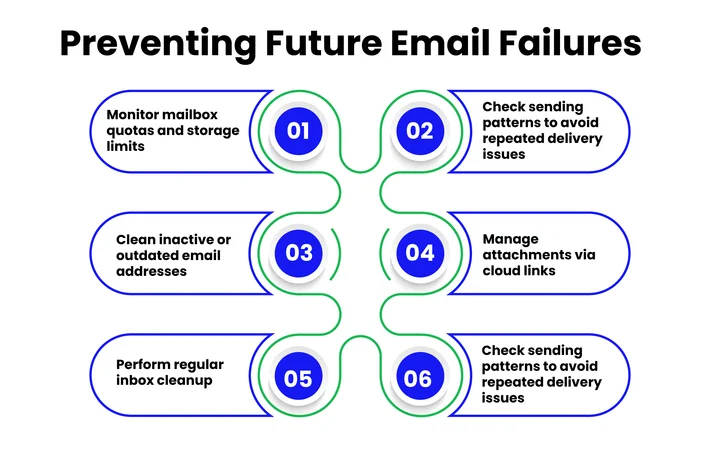
Preventing email delivery failures is all about proactive risk management. By focusing on sender-side controls, marketers and operations teams can reduce bounce rates, avoid retry delays, and protect sender reputation.
Use Real-Time Email Verification
Regularly verify your email list using real-time checks and API integration. This ensures messages are sent to valid, active addresses, reduces soft bounces from full or inactive inboxes, and helps you monitor bounce trends to identify problematic addresses.
Monitor Recipient Mailbox Quotas
Be aware of storage limits at your recipients’ email providers. Targeting accounts that are near capacity can cause soft bounces and retry congestion, delaying campaign performance. Monitoring trends allows senders to adjust scheduling and prioritization.
Protect Against Spam Traps and Inactive Addresses
Regularly clean your list to remove inactive users, invalid addresses, and known spam traps. This reduces unnecessary bounce-backs, prevents throttling by ESPs, and maintains a healthy sender reputation.
Optimize Attachments and Email Size
Large attachments increase the risk of soft bounces and queue delays. Use cloud storage links or compress files to minimize delivery issues and prevent overloading recipient inboxes.
Track Sending Patterns
Avoid repeatedly emailing recipients with persistent full inboxes or inactive accounts. Monitoring sending behavior and adjusting campaign segments reduces retry failures and prevents ESP throttling.
Following these best practices ensures smoother email delivery, fewer bounce-backs, and a more reliable communication experience.
Conclusion
Managing full inboxes doesn’t have to derail your email campaigns if you take proactive, sender-focused actions. You can minimize retry delays, avoid delivery failures, and maintain high deliverability by monitoring soft bounces, optimizing sending patterns, and using real-time email verification.
Focusing on attachment size, targeting active recipients, and tracking sending behavior ensures your messages reach inboxes on time while safeguarding your sender reputation.
However, tools like EmailVerify.io make it easier to verify lists in real time, control bounce thresholds, and prevent repeated inbox-full failures from impacting campaign performance.
Adopting these practices helps email marketers, agencies, and ops teams maintain reliable communication, protect sender credibility, and keep campaigns running efficiently, even when recipients’ inboxes are full.
Frequently Asked Questions (FAQs)
2. How Long Will An Email Retry Before Failing?
The retry period depends on the recipient’s email server and the ESP’s policies. When a full inbox triggers a soft bounce (SMTP 4xx temporary delivery failure), servers will attempt to resend your email for a defined email retry period, usually 24 to 72 hours.
3. Do Large Attachments Cause Full Inbox Errors?
Yes, large attachments are a common reason mailboxes fill up quickly. Consider these tips:
- Compress files before sending.
- Use cloud storage links like Google Drive or Dropbox.
- Keep individual attachments below your email provider's maximum attachment size limit to prevent delivery failures.
4. Will Deleting Old Emails Improve Deliverability?
Absolutely! Clearing out old emails helps free up storage and prevents future email inbox full errors. Additionally:
- Organizing and archiving emails ensures essential messages are easier to find.
- Regular cleanup can also improve overall email performance and reduce bounce-backs.
5. Can You Still Send Important Emails When Someone’s Inbox Is Full?
No, if the recipient’s mailbox is full, your email will not be delivered until there’s space. However, you can:
- Try contacting the recipient through alternative channels, such as phone or messaging apps.
- Wait and resend the email later once the inbox has space.
6. How Can You Prevent Your Emails From Being Blocked Due to Full Inboxes?
Proactive steps can significantly reduce delivery issues:
- Regularly verify email addresses before sending.
- Keep attachments and email sizes manageable.
- Use email list hygiene tools to remove inactive or outdated addresses.
- Monitor your own sending patterns and avoid repeatedly sending to full or inactive mailboxes.
7. How Do ESPs Handle Repeated Inbox-Full Bounces Over Time?
When a recipient’s inbox remains full across multiple sends, ESPs track these repeated soft bounces and may take action to protect deliverability:
- Emails may be queued or throttled to delay delivery and prevent server overload.
- Persistent soft bounces can affect your sender reputation, increasing the likelihood that future messages will be marked as spam or blocked.
- Many ESPs will eventually suppress addresses with repeated inbox-full failures to reduce retry attempts and protect campaign performance.
Monitoring these trends and adjusting sending patterns helps senders manage bounce thresholds and maintain high deliverability rates.
Stop Delays, Cut Bounces, Protect Your Reputation
Verify emails, optimize attachments, and monitor bounce trends; ensure every message lands, every time.


